
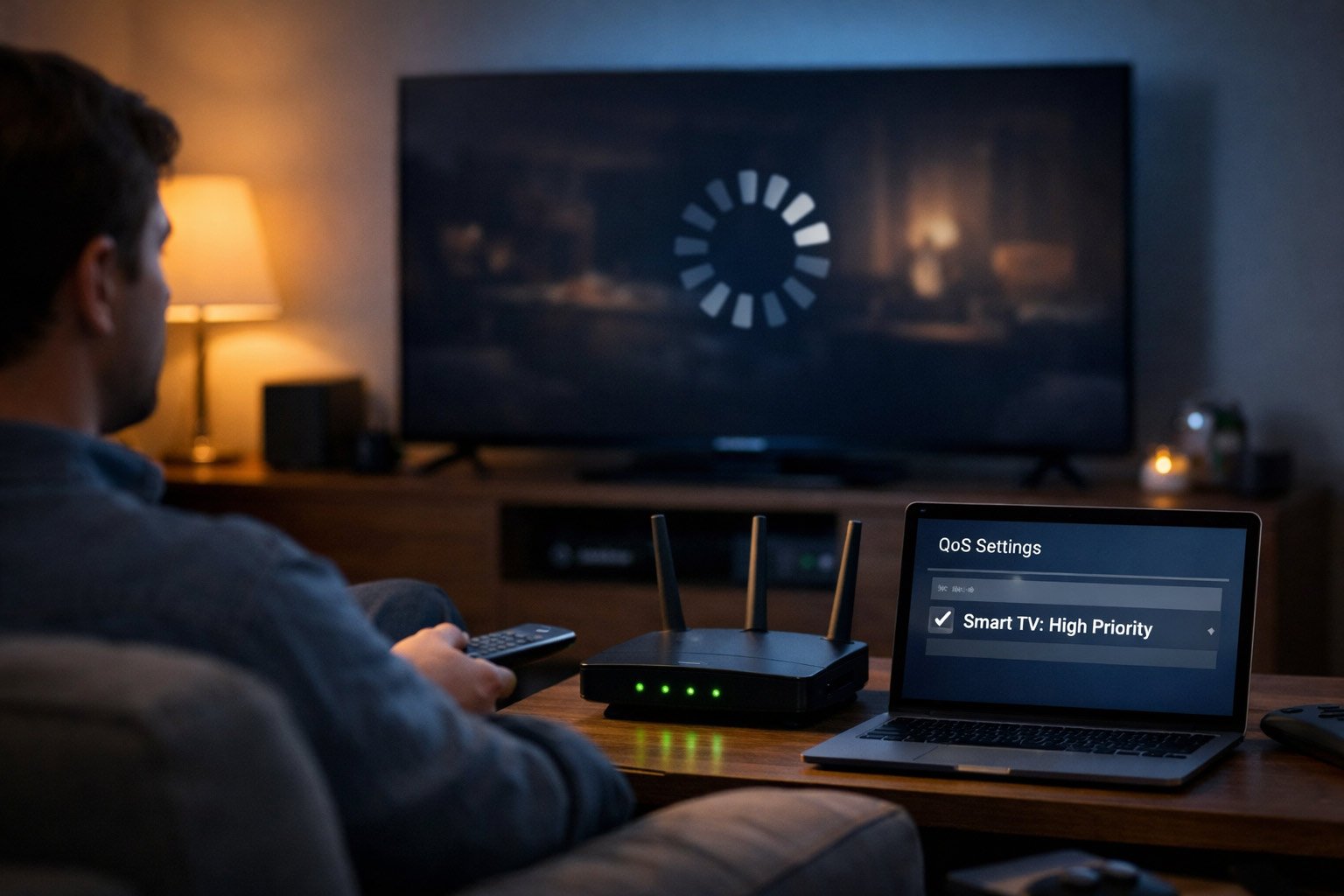
Tired of the endless loading wheel? Here is how to stop smart TV buffering once and for all without buying new hardware.
You pay for fast fiber or cable internet. A speed test says you get plenty of speed.
But then trouble hits.
You stream a 4K movie, join a Zoom call, or start an online game. Suddenly, you see the spinning wheel. Or your game starts to lag. Your first thought may be to blame your internet company. You might think your smart TV is too old. You may even start shopping for a new router.
Hold your horses.
Before you replace good gear, check one router setting: Quality of Service, or QoS. QoS helps your router decide what matters most. It can give your TV, video calls, or games first dibs on your connection.
But don’t flip switches yet.
First, you need to know what’s really going on. Speed is only part of the story. Your router also has to manage that speed when your home network gets busy. That’s what decides if your stream runs smooth or starts to stutter.
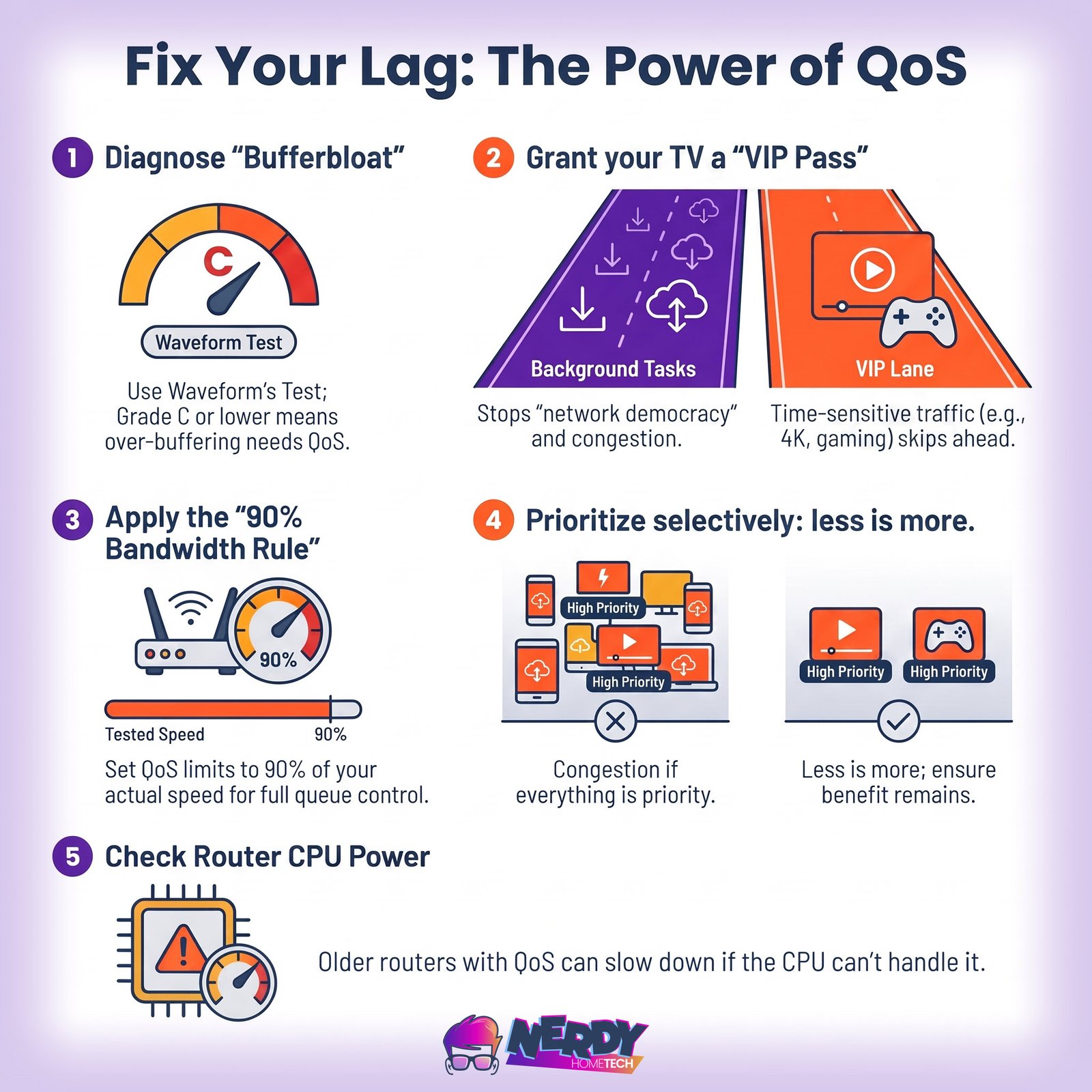
Step One: Diagnose, Don’t Guess
Prescribing a technical solution without diagnosing the symptom is a recipe for wasted time. If you want to know how to stop smart TV buffering, you must realize that if your buffering is caused by physical Wi-Fi signal blockage or a slow Domain Name System (DNS) server, changing your router’s traffic settings will do absolutely nothing except limit your overall bandwidth.
To prove that local network congestion is your actual bottleneck, you need to run a quick, free diagnostic.
Head over to Waveform’s Bufferbloat Test on a browser connected to your home network.
The tool will measure your baseline network latency (unloaded ping).
It will then saturate your download and upload streams, measuring how much your latency spikes while your connection is working at its limit.
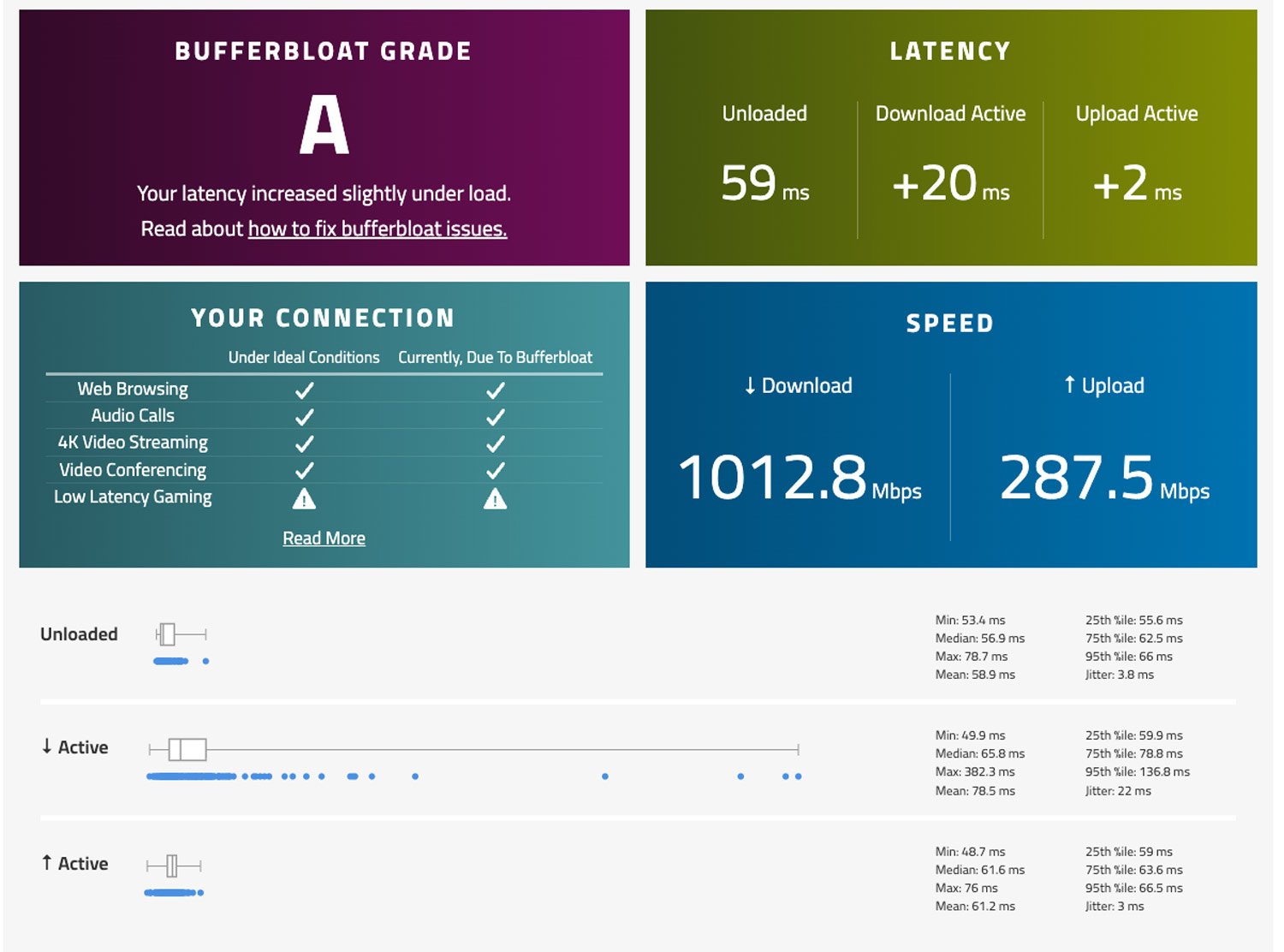
The test grades your network on an A to F scale. If you score an A or A+—as I did in my own diagnostic test shown in the Waveform Bufferbloat Test results—your router’s default queue management is already working beautifully under pressure, and your buffering is likely caused by a weak Wi-Fi signal, a bad streaming app cache, or an ISP routing issue.
If you score a C, D, or F, your network suffers from bufferbloat—meaning your router is over-buffering data packets, causing real-time traffic to grind to a halt. If that is your grade, QoS is your cure.


Last updated on 2026-08-21
Why Speed Tests Lie to You
Here is the technical reality: raw internet speed and network responsiveness are not the same thing.
Think of your bandwidth as a physical highway. A standard speed test tells you how wide the highway is—how many cars can drive side-by-side at once. But it does not tell you what happens when there is an accident or when construction blocks the exits.
To prove how deceptive raw numbers can be, let me share a real-world discrepancy from my own home network. I ran a standard synthetic speed test, which you can see in the Ookla Speed Test Results. The results were spectacular: an eye-watering download speed of 1,921.88 Mbps and an upload speed of 297.91 Mbps. On paper, this connection is flawless.
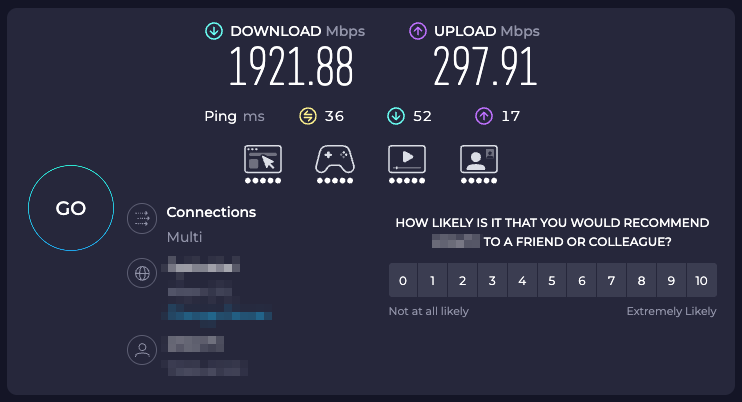
However, when I immediately ran Waveform’s sustained, real-world bufferbloat diagnostic—captured in the Waveform Bufferbloat Test results—my measured download speed dropped nearly in half to 1,012.8 Mbps (with upload at 287.5 Mbps).
Why the massive gap? Standard speed tests are designed to paint a best-case, hyper-optimized picture. They open highly optimized, multi-threaded connections to local servers, bypassing the normal scheduling delays your home router deals with under sustained load.
They measure the size of your pipe, not how your network handles stress. It is living proof that raw megabits on an empty, synthetic test are a poor metric for measuring actual real-world performance under pressure.
When you do not have QoS enabled, your router acts like a completely democratic, unmanaged intersection. It treats a time-sensitive, live 4K stream and a passive background cloud backup as identical packets of data. If your laptop starts uploading a large photo library, it floods the router’s queue.
Real-time data packets from your smart TV get stuck behind these massive data uploads, creating a massive queue backlog. This backlog introduces latency, and that latency is what manifests as a loading wheel on your TV. Understanding this traffic dynamic is the core secret of how to stop smart TV buffering.
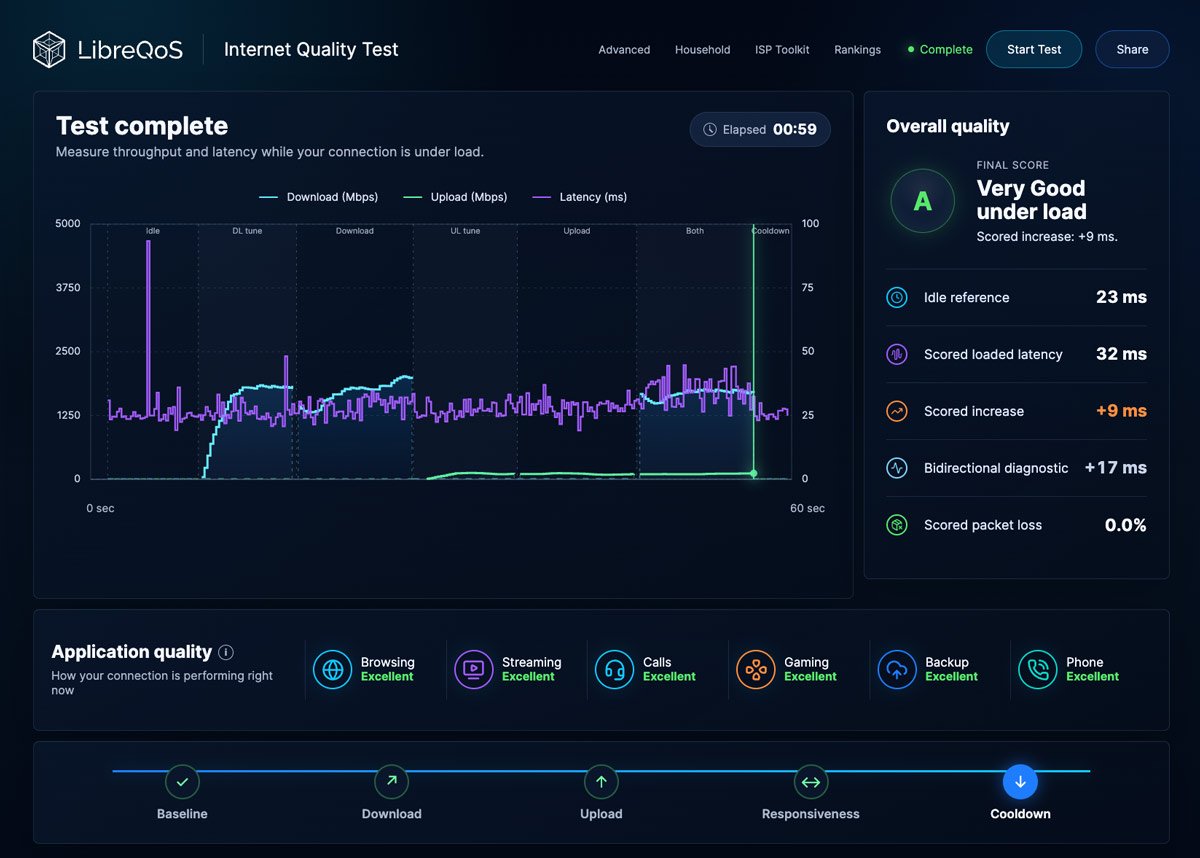
While the Waveform test is a highly popular diagnostic tool, alternative platforms like the LibreQoS Internet Quality Test offer an excellent, highly detailed way to measure how your home network behaves under heavy stress. As shown in these results, this network achieved an outstanding “A” grade with a loaded latency increase of only 9 ms, proving that its queue management is performing beautifully under load. A stellar scorecard like this indicates a highly responsive connection that is fully optimized to prevent the packet congestion that causes smart TVs to buffer.
Wi-Fi Has a Built-In Airtime Struggle
If your smart TV or streaming box relies on a wireless connection instead of a physical Ethernet cable, it faces an even tougher battle. Wi-Fi is a “half-duplex” medium. This means only one wireless device on a given channel can talk to the router at any single microsecond. It functions like a group of people using a single walkie-talkie channel—only one person can hold down the talk button at a time.
When your TV is trying to download a 4K video stream while your smartphone is pulling a social media feed and your smart home thermostat is checking in, they are all fighting for airtime. This competition leads to “airtime starvation” and dropped packets. In real-time applications, dropped packets require retransmission, which instantly stalls your stream.
QoS: Giving Your Smart TV a VIP Pass
Quality of Service (QoS) solves this by replacing absolute network democracy with strict priority routing. Instead of letting every device fight for resources, you tell your router which specific devices or types of traffic are allowed to cut the line. This configuration is by far the most effective way how to stop smart TV buffering on a crowded household network.
By assigning your smart TV to a “High Priority” tier, you are telling the router: if the TV needs bandwidth to keep a stream alive, give it first priority. Your other background tasks do not suffer in a noticeable way. If your laptop’s cloud backup takes an extra ten minutes because the router put your evening movie first, you will never notice the difference. But you will notice the buffering stops.
A recent academic study on Quality of Service in integrated home networks highlighted exactly how powerful this prioritization is. In controlled test environments simulating heavy network congestion, implementing QoS mechanisms—like Strict Priority Queueing (SPQ) on wired links and Wi-Fi Multimedia (WMM) on wireless links—dropped packet transit delays down to an incredibly low 0.2 ms. Without these rules, delays spiked into hundreds of milliseconds, triggering immediate playback errors on media players.

Smart Home Troubleshooting: Fix Network Issues, Battery Drain, and Automation Bugs
Two Ways Routers Hand Out Priority
Depending on your router’s firmware, you will typically run into one of two prioritization styles:
Device-Based Priority: You assign a specific hardware profile (using its MAC address) a status tier, such as Highest, High, Normal, or Low.
Application-Based Priority: You prioritize categories of traffic router-wide, such as “Streaming” or “Gaming,” regardless of which device is making the request.
On advanced routers, you may also see an option for Smart Queue Management (SQM) using algorithms like fq_codel (Fair Queueing Controlled Delay) or cake (Common Applications Kept Enhanced). Rather than relying on you to manually assign priority to individual devices, SQM uses automated, mathematical scheduling to ensure no single data stream can hog the entire connection, keeping bufferbloat consistently low across the entire network.
The Variable-Rate WAN Warning
If your home internet relies on a variable-rate connection—such as Starlink satellite internet, 5G home wireless, or a heavily congested cable node—static QoS rules can break down. Static QoS and SQM require you to input a fixed download and upload limit.
If your Starlink connection drops from 150 Mbps to 40 Mbps during heavy rain, a static limit set at 120 Mbps will fail to engage, letting bufferbloat flood your network anyway. If your WAN speeds fluctuate wildly throughout the day, manual QoS settings may require regular adjustment, or you may need to set your bandwidth ceilings much lower than your peak speeds.
How to Configure QoS (The Brand-by-Brand Breakdown)
Because every manufacturer designs its own admin panel, QoS settings can live in unexpected places. Some brands keep it under basic network settings, while others nest it inside security suites or smart app controls.
SEE OUR WIFI 7 TOP PICKS BELOW
Here is a quick map of where to look:
Brand | Where to Find It | Feature Name |
|---|---|---|
Advanced > HomeShield (or Tether App) | QoS (Scene List / Client List) | |
Nighthawk App or routerlogin.net | QoS Setup / Upstream QoS | |
Adaptive QoS / Traditional QoS | ||
Google Home App | Prioritize Device (Temp/Single Device) | |
Eero Labs | Optimize for Conferencing & Gaming | |
UniFi Controller Network Settings | Smart Queues |
To see how this works in a real-world scenario, we tested the configuration process using a TP-Link Archer BE9700, a highly capable, mid-range Wi-Fi 7 router powered by a quad-core processor. Here is exactly how to set it up:
Log into your router’s admin page: Connect to your network, open a web browser, and navigate to
tplinkwifi.net(or enter your router’s local IP gateway address, typically printed on the physical sticker under the unit).Locate the QoS Settings: On the Archer BE9700, QoS is not a standalone tab. It is nested inside the HomeShield suite on the left sidebar panel. Click on Advanced, select HomeShield, and then click on QoS.
Turn on the QoS toggle switch.
Set your Download and Upload Bandwidth limits: Do not enter your ISP’s theoretical plan speeds here. Take your actual results from your Waveform Bufferbloat Test and calculate 80% to 90% of those values. Input those lower numbers. This artificial ceiling leaves a 10% to 20% safety buffer, ensuring that your router—not your ISP’s neighborhood network hub—retains full control over the queue.
Prioritize by Activity (Scene List): If you want broad protection, use the Scene List to elevate the “Streaming & Media” category.
Prioritize by Device (Client List): For targeted defense against buffering, add your smart TV directly to the Client List. On our BE9700 setup, we located our Sony TV, set its priority to “Accelerating,” and set the duration to “Always” so the rule runs twenty-four hours a day.
Save your changes.

Last updated on 2026-08-21
The Older Router Warning: The CPU Bottleneck
Before you turn on QoS, know the trade-off.
Many older or cheap routers use Hardware NAT Offloading. Think of it as the express lane at an airport. It lets data skip the router’s main chip and move fast. QoS works differently. It checks and sorts each bit of traffic. That takes real work from the router’s main chip.
On old routers, turning on QoS can turn off Hardware NAT Offloading. Then the weak chip must handle everything by itself. That’s where things can go sideways.
If you have fast internet, the router may hit its limit. Your speed can drop far below what you pay for.
Newer routers with strong chips handle QoS much better. Some can sort traffic without slowing the whole network. If your speed falls off a cliff after you turn on QoS, your router can’t keep up. Its chip is doing more than it can handle.
Critical Rules: Don’t Over-Prioritize
QoS is a zero-sum game. It only works because it is highly selective. If you set your smart TV, your gaming console, your work laptop, and three family smartphones all to “High Priority,” you have defeated the entire purpose of the queue. If every packet is designated as VIP, your router is forced to treat them all equally again, bringing you right back to square one.
Limit your high-priority list to 1 to 3 devices that genuinely rely on uninterrupted, real-time data streams. Everything else should remain at normal priority.
What to Try If QoS Doesn’t Solve the Buffering
If your Waveform test showed an A grade, or if you configured QoS and still see loading wheels, the issue is not local queue congestion. Work through this systematic checklist next to rule out other culprits:
1. The Wi-Fi Band Battle (2.4 GHz vs. 5 GHz)
Your smart TV might be connected to the wrong frequency “lane.”
The 2.4 GHz band is like a crowded local street. It has great physical range and passes through walls easily, but it is heavily congested by microwaves, Bluetooth devices, and your neighbors’ networks.
The 5 GHz (and newer 6 GHz) band is a wide, high-speed highway. It has less range but offers vastly superior speeds and has almost zero interference.
The Rule of Thumb: If your router is in the hallway and your TV is in the living room with a clear line of sight (or just one thin wall between them), force your TV onto the 5 GHz band. Only leave your TV on the 2.4 GHz band if the router is on a completely different floor of the house where physical distance makes the 5 GHz signal drop out.
2. Bypass Wi-Fi Entirely (The Power of a Wire)
Wireless signals are prone to dropped packets due to interference. To test this, run a temporary, physical Ethernet cable from your router straight to your TV. If the buffering stops, your issue is wireless signal blockages or packet loss.
The MoCA Workaround:
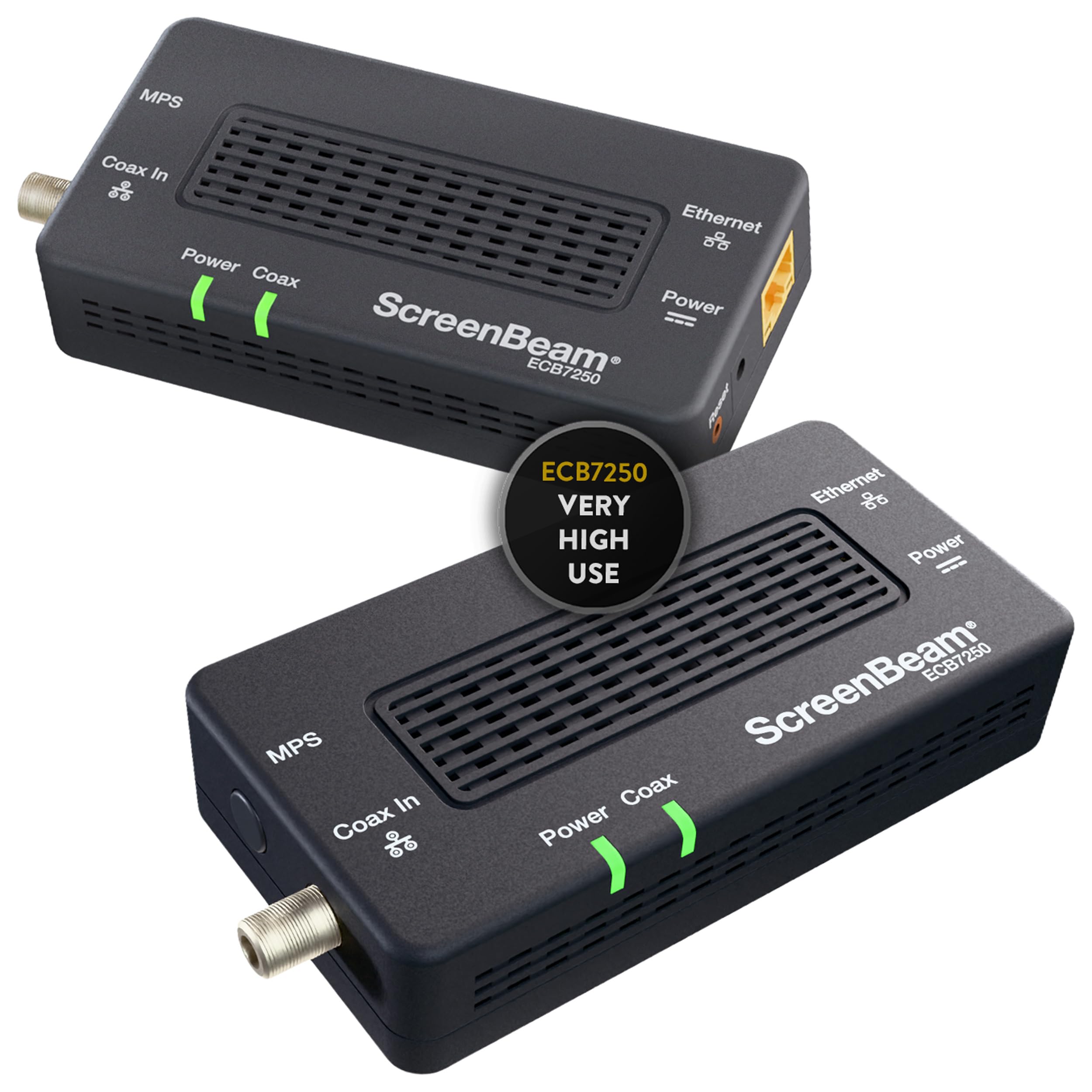
If running an ugly, long Ethernet cable across your living room floor is out of the question, look into a MoCA (Multimedia over Coax) adapter. These simple boxes plug into the existing coaxial cable TV wall outlets in your home, converting your copper TV lines into a high-speed, rock-solid wired network connection.
Last updated on 2026-08-21
The Powerline Alternative:
If you do not have coaxial ports, a Powerline adapter kit can send network data directly through your home’s existing electrical outlets. While not as fast as MoCA, it is incredibly convenient and far more stable than poor Wi-Fi.

Last updated on 2026-08-21
3. Clear Your TV’s Dusty Memory Cache
Sometimes the issue is not your network at all—it is the cheap, underpowered computer processor inside your smart TV. Cheap smart TVs often feature low-end integrated chips with very little memory. Over months of use, video apps like YouTube, Netflix, or Disney+ build up massive caches of temporary files.
How to Clear It: Go into your smart TV’s settings menu, navigate to Apps or Applications, select your problematic streaming apps, and click Clear Cache.
Do a Hard System Restart: Do not just turn the TV off with the remote (which usually just puts it into standby mode). Unplug your smart TV’s physical power cord from the wall outlet, wait sixty seconds to let the internal capacitors drain completely, and plug it back in. This forces a clean operating system reboot, freeing up critical memory.
4. The Weird IPv6 App Stall
Many smart TV streaming apps struggle with how certain ISPs route IPv6 traffic, leading to mysterious app freezes or infinite buffering loops. Try disabling IPv6 in your smart TV’s network settings, or disable it router-wide in your admin panel to see if performance stabilizes.
5. Upgrade Your DNS Provider
By default, your router uses your ISP’s default DNS servers, which are notoriously slow to resolve addresses. Change your DNS settings in your router’s WAN configuration to Cloudflare (1.1.1.1 and 1.0.0.1) or Google (8.8.8.8 and 8.8.4.4) for faster, more reliable app connections.
6. Calculate Your Real Household Demand
A continuous 4K HDR stream requires roughly 25 Mbps of sustained bandwidth. If your internet plan is 50 Mbps and you have two TVs streaming 4K while someone else runs a video call, you are simply hitting the physical limits of your subscription. QoS can prioritize which device gets the bandwidth, but it cannot create bandwidth that is not there.
The Future of Home Networking: Exploring Wifi 7 Mesh Networks
You are at a turning point in home networking where Wi‑Fi 7 and mesh systems change what reliable home internet looks like. Understanding these platforms helps you decide between a compact router for a 500 sq. ft. apartment, a cost-effective 3-pack for whole-house coverage, or a premium system that supports multi‑gig plans. This guide shows how choosing the right Wi‑Fi 7 mesh will give you lower latency, more concurrent device support, and a network that lasts several upgrade cycles.
Top Picks
| Product Name | Unique Highlights | |
|---|---|---|
| Amazon eero Max 7 Mesh Wi-Fi System | 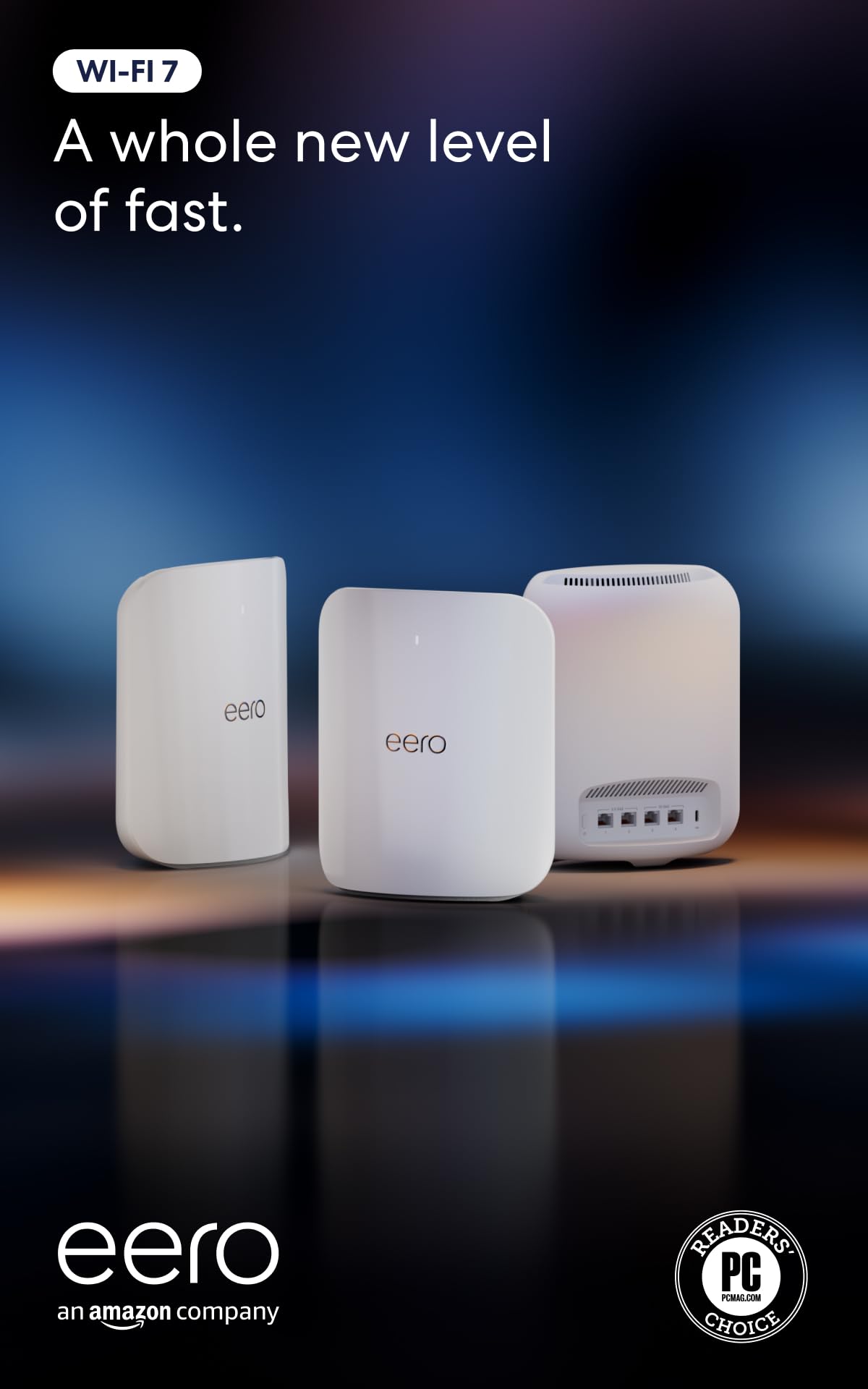 |
|
| NETGEAR Orbi 970 Series Quad-Band WiFi 7 Mesh Network System |  |
|
| TP-Link Deco 7 Pro BE63 Tri-Band WiFi 7 | 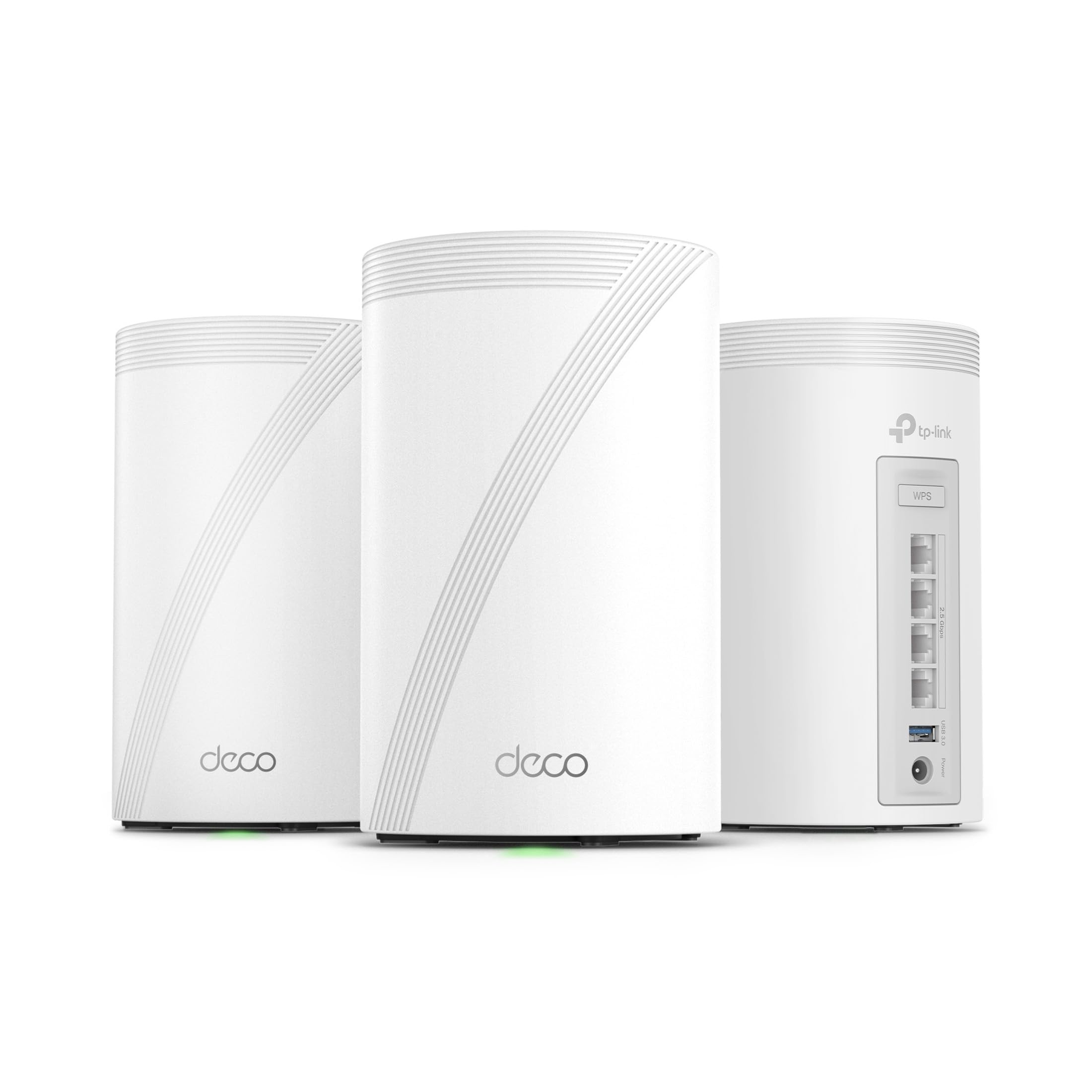 |
|
| TP-Link BE6500 Dual-Band WiFi 7 Router |  |
|
| TP-Link Dual-Band BE3600 Wi-Fi 7 Router |  |
|
| ASUS RT-BE58U WiFi 7 Router |  |