Your TV Isn’t Bad—Its Settings Are
Your new TV may look great in a store but wrong at home. A few free changes can fix the worst settings and bring out the picture you paid for.
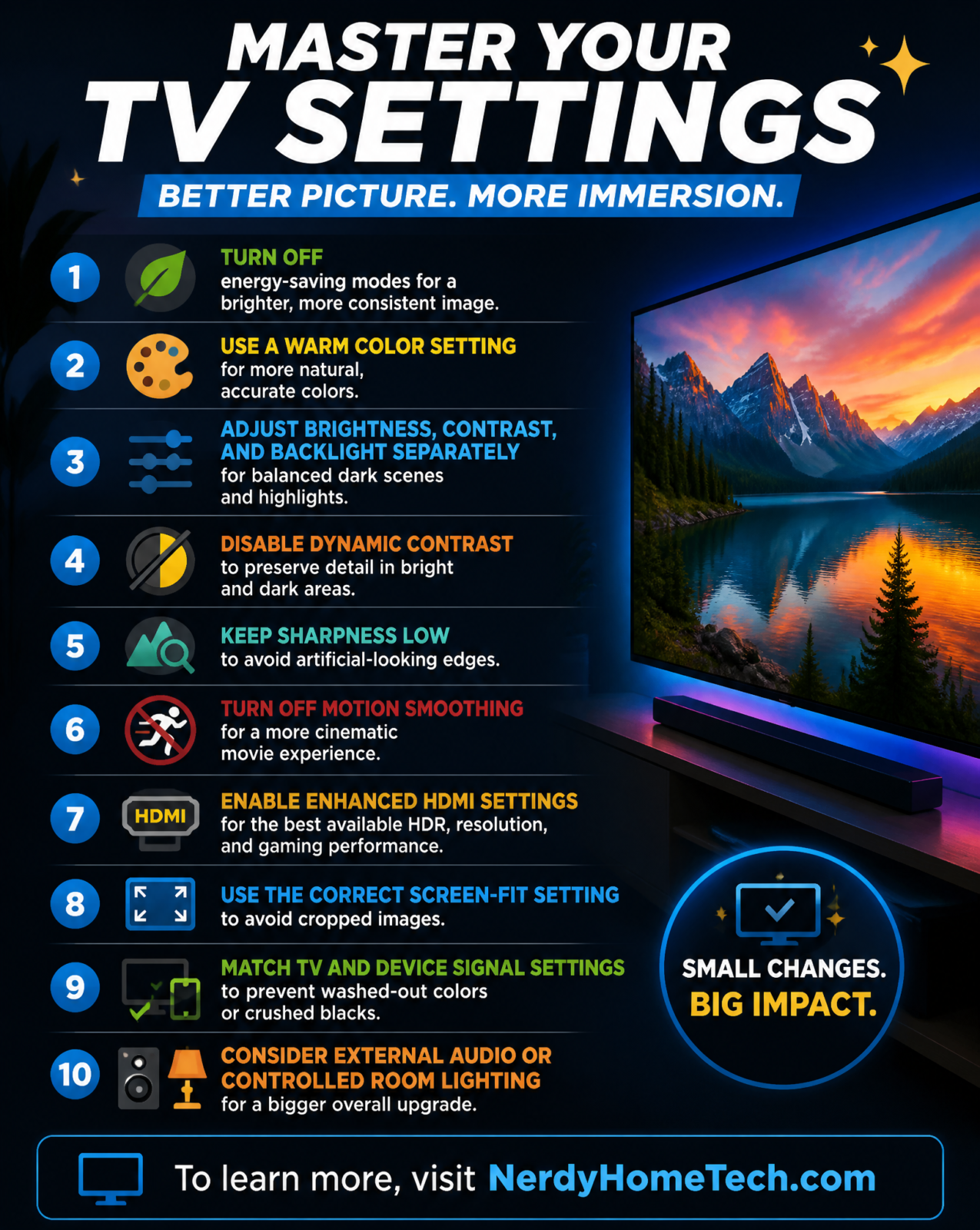
Your TV looks worse than it should. That’s not an insult — it’s a marketing decision. Manufacturers calibrate TVs to win side-by-side comparisons under blazing fluorescent showroom lights, which means the picture you’re getting at home is tuned for a room that isn’t yours.
The good news: most of what’s wrong is fixable in the settings menu, for free, in about twenty minutes. The less good news: no amount of menu-diving will turn a budget edge-lit LED into a flagship OLED. This is about getting the picture you actually paid for, not a miracle.
Here’s what to change, why it matters, and where you’ll bump into real hardware ceilings along the way.
|
Change this |
You get |
Watch out for |
|
Eco Mode → off |
Full brightness |
Slightly higher power bill |
|
Dynamic Contrast → off |
Consistent, accurate lighting |
Exposes weak black levels on budget panels |
|
Sharpness → near-neutral |
No more halos around faces |
Old 480p content can look soft |
|
Motion Smoothing → off |
Real 24fps movie motion |
OLEDs may show panning stutter |
|
HDMI port → “Enhanced” |
4K/120Hz for consoles |
Most TVs only have 2 full-bandwidth ports |
|
Color Temp → “Warm” |
Accurate, D65-matched color |
Looks yellow for a few days while you adjust |
Turn off Eco Mode first — it’s the biggest culprit
If your new TV looks dim and lifeless, this is almost always why. To meet energy-efficiency regulations, manufacturers ship TVs with “Eco Mode” or “Ambient Light Detection” switched on by default. It caps your backlight’s actual power output and dims the screen further as your room gets darker — right when you want it doing the opposite.
Turn it off. Yes, your power draw ticks up slightly. That’s a fair trade for not watching your $1,200 TV through a dishtowel.
Dynamic Contrast is a different, sneakier problem
Don’t lump this in with Eco Mode — it’s a separate setting doing separate damage. Where Eco Mode throttles brightness, Dynamic Contrast reshapes the gamma curve scene by scene, punching up bright scenes and crushing dark ones to fake more “pop.”
Turn it off too, but brace yourself if you own a budget edge-lit LED: this setting was hiding just how gray your black levels really are. Without it, you’ll see the truth — some grayish, elevated blacks instead of the fake-deep ones you were used to. That’s not a bug you introduced; it’s a limitation the TV was covering up.
Brightness and Contrast don’t mean what you think
Most people reach for “Brightness” when a picture looks washed out. Wrong move. In TV calibration, Brightness controls your black levels — your shadow detail. Contrast controls your white levels — your peak highlights. They’re not synonyms for “lighter” and “darker” overall.
So if your dark scenes look like flat gray mush, turn Brightness down, not up. If you want the whole screen putting out more light, that’s a job for Backlight (or OLED Pixel Brightness) — a totally separate dial from either of these.
Bump up your color depth, if your panel supports it
Got a 10-bit or 12-bit panel? Leaving color depth on its 8-bit default is leaving detail on the table. Bumping it to the max smooths out gradients and kills the blocky “banding” you sometimes see in a sunset sky or a dark hallway scene.
One catch: this only works with source material that has the color data to begin with. A compressed YouTube video or standard cable broadcast doesn’t suddenly gain detail it never had — you can’t sharpen your way into information that isn’t there.
Sharpness: lower than you think, but not zero
Sharpness sliders are a holdover from CRT-era TVs. Modern 4K content is already sharp, so leaving this setting cranked up just adds fake edge outlines and gives faces an unnatural, waxy look.
Here’s the part people get wrong: dragging the slider all the way to zero isn’t automatically “correct.” On a lot of panels, true zero triggers a blur or anti-aliasing filter instead of a neutral image. The reliable way to find your TV’s actual neutral point is to switch to “Filmmaker Mode” and see where the sharpness slider lands there — then use that as your baseline and nudge from it, rather than trusting a specific number you saw online.
Kill the soap opera effect (carefully)
Motion smoothing inserts AI-generated frames between the real ones. It’s genuinely useful for live sports, but it wrecks the 24fps cinematic feel of movies and TV shows, giving everything that overly-smooth “soap opera” look. Every brand hides it under a different name: TruMotion on LG, Auto Motion Plus (or Picture Clarity) on Samsung, Motionflow on Sony.
Turn it off — but go in expecting a tradeoff if you own an OLED. These panels change pixel color almost instantly, without the natural motion blur older LCDs had, so some people notice visible stutter during slow camera pans once smoothing is fully off. If that bothers you, don’t go nuclear — try nudging the “Judder Reduction” slider to just a 1 or 2 instead of all the way off.
Black Frame Insertion: incredible for gaming, brutal on brightness
“LED Clear Motion” or similar names refer to Black Frame Insertion (BFI) — it strobes the backlight between frames to trick your eyes into perceiving smoother motion without the AI-frame soap opera effect.
It’s genuinely great for fast gaming. But it has a real cost: BFI roughly halves your screen’s perceived brightness and can cause flicker-related eye strain for some viewers. Save it for a pitch-black room where you’re not relying on peak brightness anyway.
Switch your HDMI port to “Enhanced” — then hit the port-count wall
By default, TVs set HDMI ports to “Standard” so old DVD players still handshake properly. That default is choking any modern console or GPU you plug in. Flip the port to “Enhanced” to open up full-bandwidth 4K HDR and 120Hz — and grab a certified Ultra High Speed HDMI 2.1 cable, or you’ll get random black screens.
Here’s where software stops helping you: most TVs, even good ones, only ship with two full-bandwidth HDMI 2.1 ports. One of those is almost certainly claimed by your soundbar’s eARC connection. Own two current-gen consoles and a soundbar? You physically cannot run all three at full bandwidth without an HDMI 2.1 switch. That’s a shopping problem, not a settings problem.
Turn off Overscan to get your whole picture back
To hide static and garbage data at the edges of old broadcast signals, TVs traditionally zoom in 2–5% by default — cropping the edges of everything you watch, including modern games and movies that don’t need it. Look for “Just Scan,” “Screen Fit,” or “Normal” instead of “16:9” or “Zoom.”
If you still watch a lot of standard-definition cable, be ready to see some visual static creep back in at the extreme edges of the frame. That’s the tradeoff you’re making — full picture versus a clean border on old content.

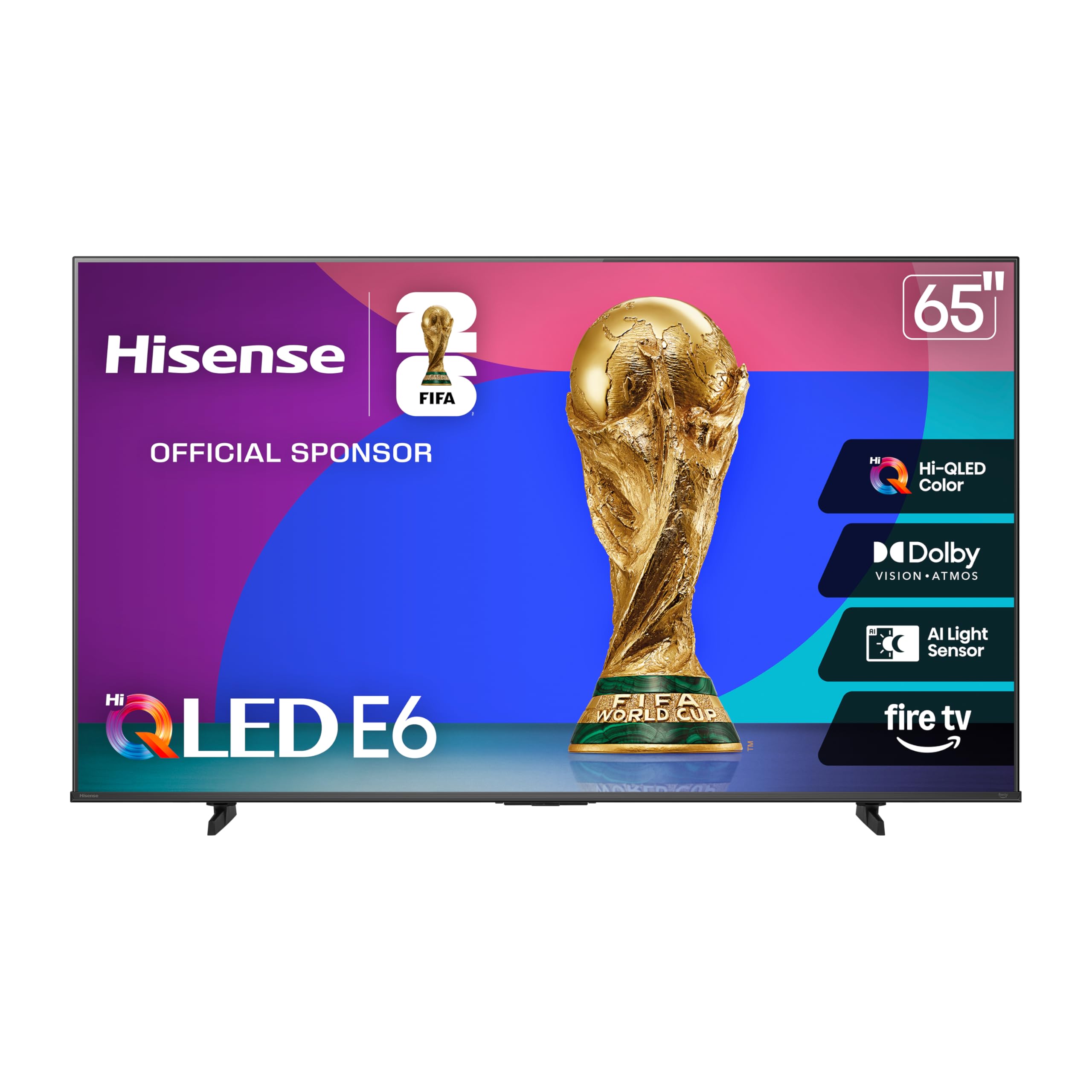
Hisense 65E6QF Review: The Brutally Honest Truth About a $378 65″ TV
Match your RGB Range to avoid crushed shadows
Think of RGB range as the “language” your source and your TV need to speak to each other. Game consoles typically send “Full” range (0–255). Streaming boxes and Blu-ray players usually send “Limited” (16–235). If those don’t match, your picture suffers.
In most cases, leaving both your TV and your source device on “Auto” handles this correctly on its own. If you go in and set it manually, make sure both ends actually match — a mismatch here doesn’t just look a little off, it can crush your contrast into an unwatchable gray mess.
“Warm” color temp is correct — even though it looks wrong at first
Straight out of the box, most TVs push a “Cool” or “Standard” color temperature loaded with blue tint, because blue light reads as brighter to your eye and looks better in a showroom. Filmmakers, though, master everything against a strict D65 (6500K) white point. To see content the way it was actually meant to look, switch Color Temperature to “Warm 1” or “Warm 2.”
Fair warning: your eyes are so used to the blue-heavy default that a correctly calibrated screen will look yellow and dingy for the first couple of days. Stick with it. Give your eyes 48 hours before you decide whether to change it back.
Fix muddy dialogue with the audio EQ
TVs are too thin for real speakers, full stop. If dialogue keeps disappearing under music and effects, open the TV’s audio EQ settings (usually under Sound, sometimes labeled “Equalizer” or “Sound Mode”) and boost the 1kHz–3kHz range — that’s the frequency band where human speech sits.
One thing to check first: if your audio runs through a cable box or streaming device that also has its own EQ, don’t boost the same range on both ends. Stacking two EQ boosts on top of each other doesn’t double the clarity — it just distorts the dialogue.
Realistically, though, the EQ menu is a band-aid. A basic soundbar fixes this problem completely, and a pair of 2-channel powered bookshelf speakers will outperform your TV’s built-in audio by a wide margin. Just know that chasing a full 5.1 Dolby Atmos setup means real money and real cable management — plan for that before you commit to it.
Get around your TV’s Ethernet bottleneck for local streaming
If you’re pulling 4K HDR off a local Plex or Jellyfin server over Wi-Fi, buffering is often a wireless interference problem — wiring in with Ethernet usually fixes it outright.
Here’s the catch: a lot of TVs, including some surprisingly expensive ones, still ship with Ethernet ports capped around 100Mbps — plenty for most streaming, but a bottleneck for high-bitrate local 4K files. A gigabit USB-to-Ethernet adapter can sometimes get you around that cap, but only if your TV’s USB port is USB 3.0. Plug a gigabit adapter into an older USB 2.0 port and you’re still stuck at USB 2.0 speeds in practice, so check your TV’s USB spec before you buy one.
Bonus: add real 6500K bias lighting
A bias light is just an LED strip mounted behind your TV. It sounds cosmetic, but there’s a real reason for it: your pupils dilate and contract every time the screen jumps from a black scene to a bright highlight, and doing that constantly in a dark room is what causes HDR eye fatigue. A neutral light source behind the screen gives your eyes a steady reference point, which cuts strain and makes on-screen blacks look deeper than they actually are.
It won’t fix a mediocre panel — that’s not what it’s for. And skip the cheap RGB LED strips from Amazon; if the light isn’t calibrated to a true 6500K (D65-matched) white point, it’ll skew your color perception instead of helping it. Look specifically for a bias light marketed as 6500K or D65-certified, not just “white.”
What’s your setup? Did the HDMI 2.1 port count catch you off guard, or did turning off motion smoothing leave you fighting OLED judder instead? Tell us what hardware you’re running and how you’ve got it tuned.
Nerdy’s Top Picks
Want a 65-inch TV with sharp detail and lasting value? The best 4K models can be hard to compare.
Panel type, HDR, refresh rate, and smart features all affect your viewing experience. This guide helps you find the right TV for movies, games, and everyday streaming.
Best Budget
Insignia F50 Series LED 4K UHD Smart Fire TV
A straightforward 65-inch 4K display with the Fire TV experience built directly in for familiar streaming and voice control. It stands as a practical choice for everyday viewing where usability and value are the primary priorities.
View Specs & Features
Key Benefits
- Built-in Fire TV platform with Alexa Voice Remote lets you find shows and control smart devices hands-free.
- Apple AirPlay and Wi-Fi support make wireless screen sharing and casting simple.
- Multiple physical input ports accommodate game consoles, soundbars, and legacy media players.
Special Highlights
- Dependable 4K upscaling engine clarifies legacy high-definition content.
- Modest power footprint typical of an energy-conscious 60W operation with auto backlight settings.
- Direct backlighting provides consistent overall panel illumination for well-lit environments.
| Display Technology | LED |
| Native Refresh Rate | 60 Hz |
| HDR Formats Supported | HDR10 |
| Smart TV Operating System | Fire TV |
Best Value QLED
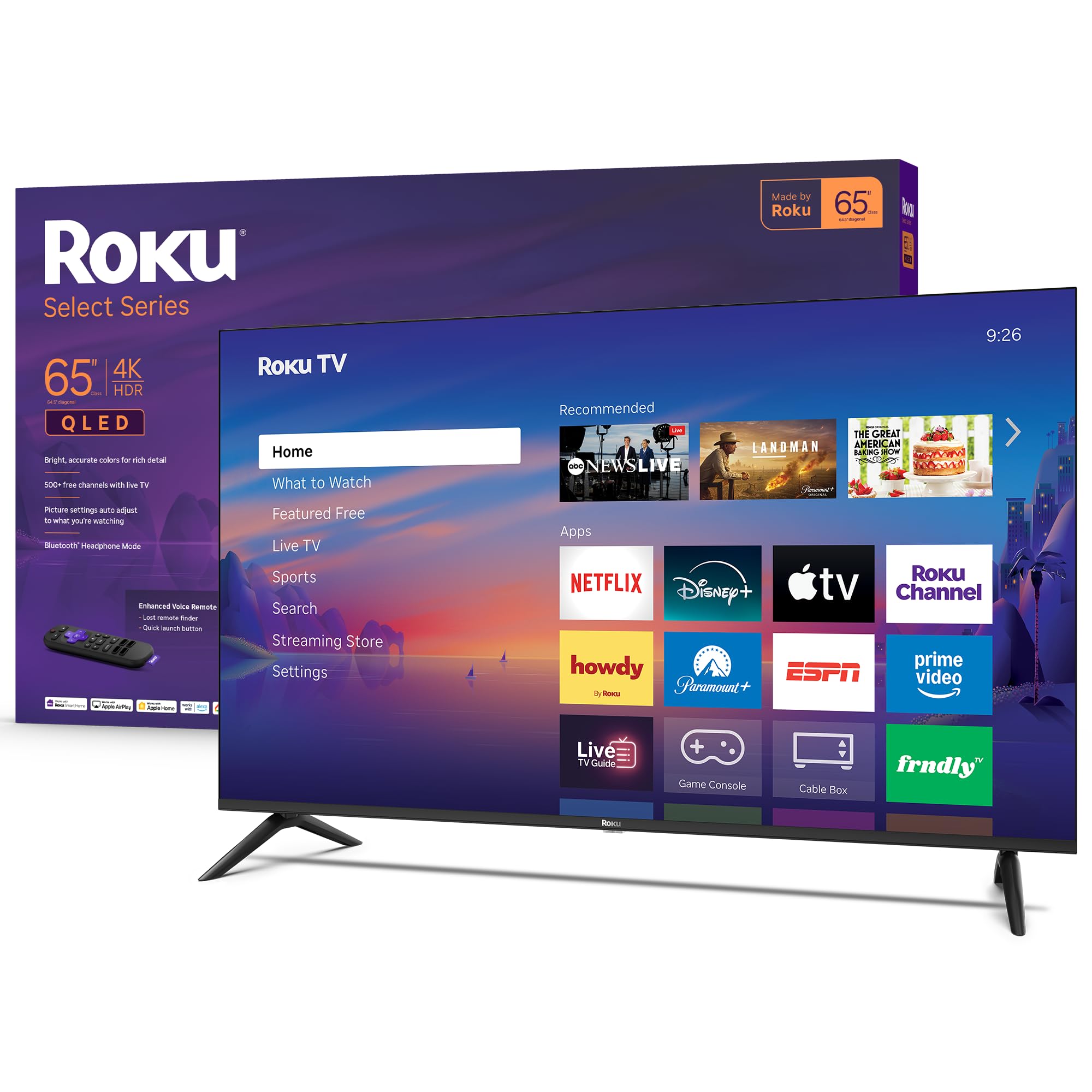
Roku Select Series 65" 4K QLED TV
An engaging 65-inch QLED display that combines wide-color quantum dot technology with Roku's famously simple smart operating system. It represents an excellent everyday media hub featuring convenient private listening via Bluetooth headphone support.
View Specs & Features
Key Benefits
- Straightforward Roku OS interface makes finding shows and streaming apps incredibly fast and familiar.
- Quantum Dot panel delivers significantly wider color volume and saturation for punchier movies and sports.
- Private Bluetooth headphone mode lets you stream late-night audio directly without secondary hardware.
| Display Technology | QLED |
| Native Refresh Rate | 60 Hz |
| HDR Formats Supported | HDR10, HDR10+, HLG |
| Smart TV Operating System | Roku OS |
Best Value LED
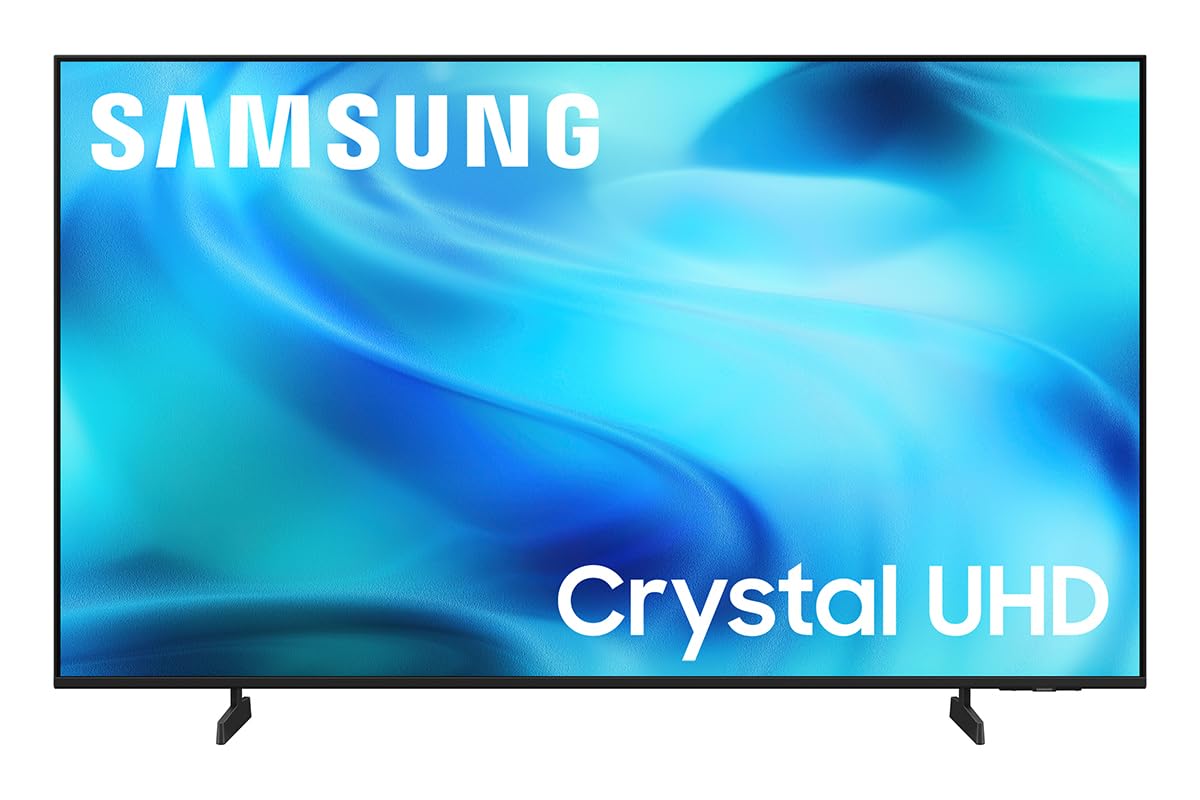
Samsung Class Crystal UHD U8000H Series Smart TV
A bright and thin everyday display powered by Samsung's reliable Tizen smart ecosystem. It features advanced picture processing that optimizes motion clarity, making it a great pick for watching live sports and casual gaming.
View Specs & Features
Key Benefits
- Crystal Processor 4K and Color Booster engine clean up standard broadcasts for optimized clarity.
- Built-in Alexa integration provides direct, voice-activated smart home commands.
- Samsung Tizen Smart Hub brings streaming, live channels, and game services into a cohesive menu.
Special Highlights
| Display Technology | LED (Crystal UHD) |
| Native Refresh Rate | 60 Hz |
| HDR Formats Supported | HDR10+ |
| Smart TV Operating System | Tizen |
Best Premium
LG OLED evo C5 Series AI 4K Smart TV
The gold standard in image quality, utilizing self-lit OLED pixels for infinite contrast, perfect black levels, and class-leading shadow detail. Driven by the high-tier a9 processor, it delivers an uncompromising premium home theater and gaming experience.
View Specs & Features
Key Benefits
- Self-emissive pixels turn completely off to achieve true black levels and absolute contrast ratios.
- Ultimate connectivity suite with four full-bandwidth HDMI 2.1 inputs for dual-console households.
- Dolby Vision IQ and Dolby Atmos match premium spatial audio to real-time room lighting.
Special Highlights
- a9 AI Processor Gen8 utilizes deep learning to upscale low-resolution video inputs smoothly.
- Pro gaming performance with a native 120Hz refresh rate and near-instantaneous 0.1ms response times.
- Filmmaker Mode disables post-processing algorithms to display movies as the director intended.
| Display Technology | OLED (OLED evo) |
| Native Refresh Rate | 120 Hz |
| HDR Formats Supported | Dolby Vision, HDR10, HLG |
| Smart TV Operating System | webOS |
Best Bedroom Gaming
Samsung 55-Inch QLED Q7F Series Smart TV
A highly responsive display featuring Quantum HDR color accuracy and an all-in-one console-free gaming hub. Critical Note: Unlike other entries in this roundup, this specific model is a 55-inch set, making it highly ideal for smaller spaces or bedrooms.
View Specs & Features
Key Benefits
- Integrated Samsung Gaming Hub supports direct, console-free Xbox cloud streaming services.
- Quantum HDR and color-mapping software deliver dynamic, deeply saturated gaming environments.
- Auto Low Latency Mode (ALLM) automatically boots game parameters for decreased controller lag.
Special Highlights
- Object Tracking Sound Lite aligns virtual physical audio sources directly with actions on screen.
- Q4 AI processor intelligently enhances sub-4K gaming and streaming signals on the fly.
- Excellent glare reduction and brightness preservation in naturally lit bedroom setups.
| Display Technology | QLED |
| Native Refresh Rate | 60 Hz |
| HDR Formats Supported | Quantum HDR (HDR10, HDR10+, HLG) |
| Smart TV Operating System | Tizen |
Best Budget Gaming
View Specs & Features
Key Benefits
- Hi-QLED technology supplies a wide color palette that makes movies and games stand out.
- Game Mode Plus with Variable Refresh Rate (VRR) limits tearing and frame lag on console inputs.
- Alexa Voice Remote and Fire TV provide clean navigation and direct smart household device commands.
Special Highlights
- Integrated AI light sensors alter brightness metrics automatically as room illumination shifts.
- Supports Dolby Vision and HDR10+ Adaptive simultaneously for optimal performance across platforms.
- Dolby Atmos audio software expands the output of standard speakers for spatial realism.
| Display Technology | QLED (Hi-QLED) |
| Native Refresh Rate | 60 Hz (VRR supported) |
| HDR Formats Supported | Dolby Vision, HDR10+ Adaptive, HDR10, HLG |
| Smart TV Operating System | Fire TV |
Best High-Performance Gaming
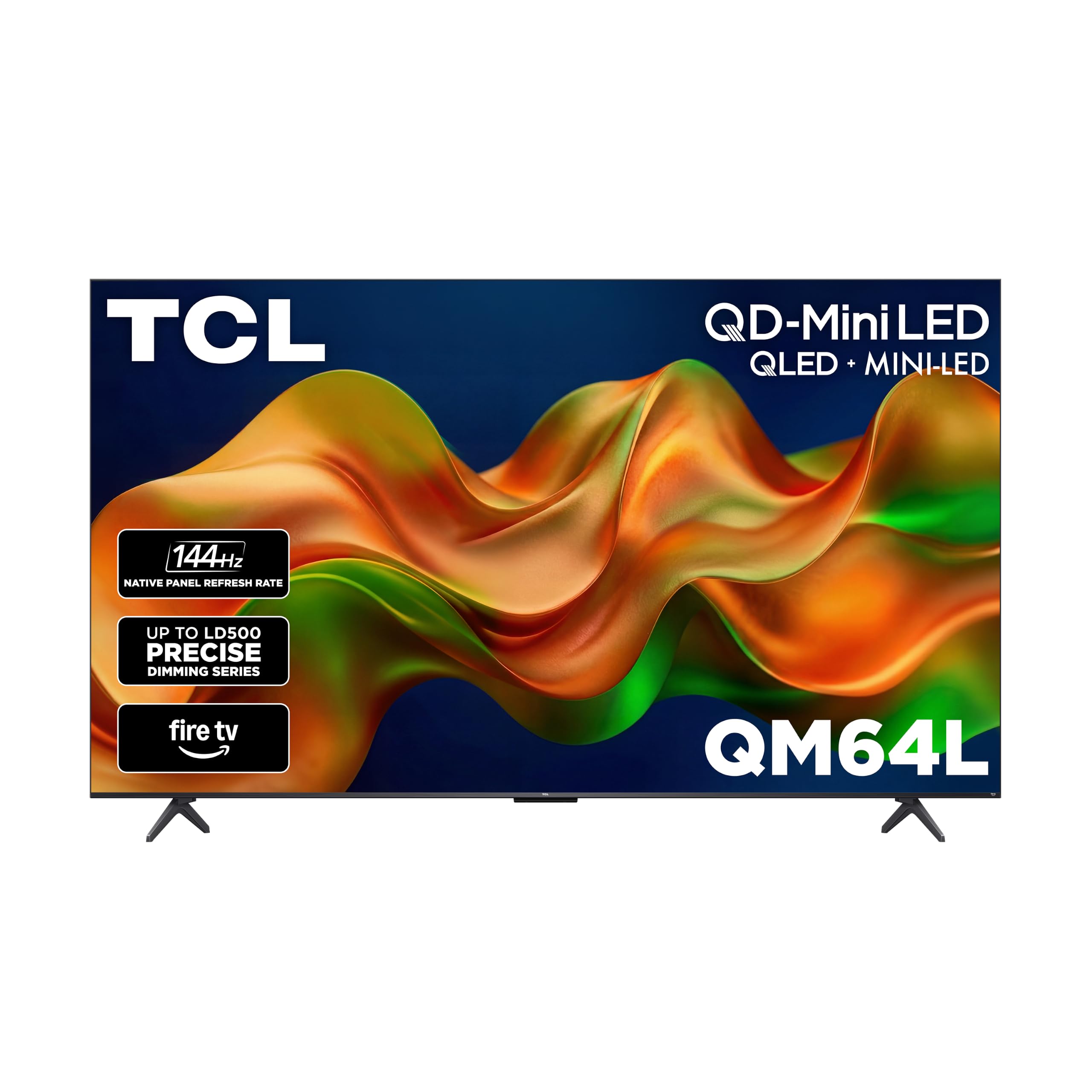
TCL QM64L Series 65" Mini-LED QLED Smart TV
An incredibly bright, high-refresh-rate gaming model engineered with physical Mini-LED dimming zones. Ideal for well-lit spaces, it delivers stellar motion rendering and premium ONKYO hardware sound.
View Specs & Features
Key Benefits
- True physical Mini-LED backlight array offers localized contrast control with minimized blooming.
- Native 144Hz panel refresh rate with Game Accelerator allows incredibly smooth visual tracking.
- Integrated ONKYO spatial audio system outputs full, room-filling sound without secondary equipment.
Special Highlights
- AIPQ PRO processor utilizes frame-by-frame scene assessment to balance dynamic ranges.
- TCL Halo Control System limits light-spill halos during dark room cinema viewing.
- Built-in Fire TV operating system brings rapid streaming app navigation under one roof.
| Display Technology | Mini-LED QLED |
| Native Refresh Rate | 144 Hz |
| HDR Formats Supported | Dolby Vision, HDR10+, HDR10, HLG |
| Smart TV Operating System | Fire TV |
Frequently Asked Questions
Will changing TV picture settings void my warranty?
No. Adjusting menu settings does not affect your warranty and can be reset to factory defaults at any time.
Do I need a professional calibration after changing these settings?
Not usually. Basic adjustments improve most TVs, while professional calibration is best for enthusiasts seeking maximum accuracy.
Can streaming apps deliver the same quality as a 4K Blu-ray disc?
Usually not. Discs typically use higher bitrates, which preserve more fine detail and reduce compression artifacts.
Do premium HDMI cables improve picture quality?
Not by themselves. A certified cable either reliably supports the required signal or it does not; higher prices do not improve an already stable image.
Does a soundbar improve dialogue more than TV settings can?
Often, yes. A good soundbar or external speakers generally provide clearer dialogue and fuller sound than built-in TV speakers.
Should I use a streaming device instead of my TV’s built-in apps?
It can help. Dedicated streaming devices may offer faster menus, longer software support, and broader app compatibility.
Can room lighting affect how good my TV picture looks?
Yes. Reflections and bright ambient light can reduce perceived contrast, while controlled lighting improves viewing comfort and image depth.