
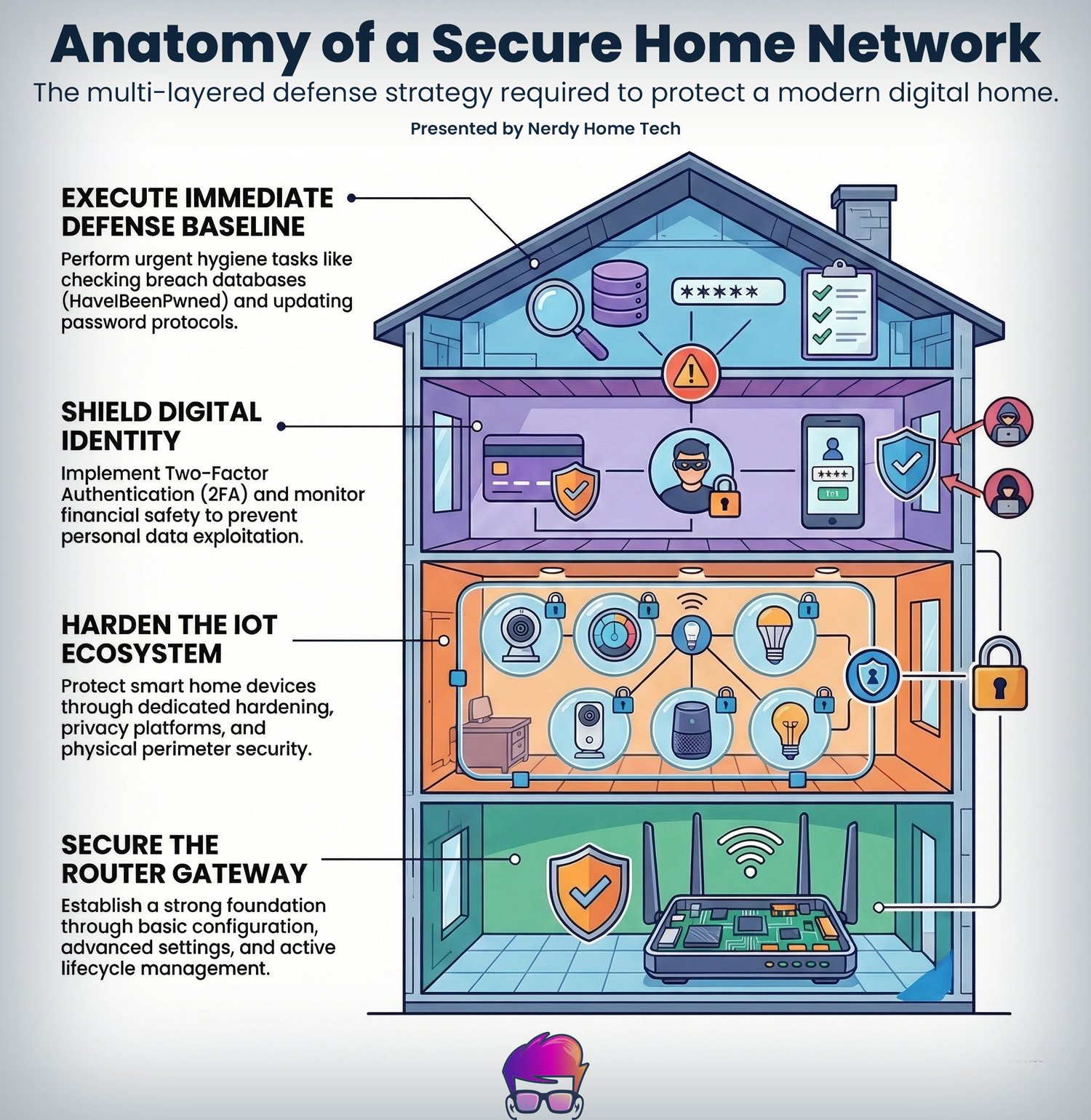
Start here, before you change a single setting: go to haveibeenpwned.com, type in your primary email address, and hit enter. If the results come back red, your credentials from sites like LinkedIn, Adobe, or Dropbox are already circulating on hacker forums. That’s not a hypothetical — it’s a fact you should know before doing anything else.
If you got a hit, write down which breach it came from. Change that password everywhere you’ve reused it. That’s step one, and it costs nothing.
Now let’s fix the rest.
Data Leaks vs. Data Breaches — They’re Not the Same Thing
People use these terms interchangeably, but the difference matters. A data leak is an unforced error — a developer left a database on an unsecured server with no password, and now it’s publicly accessible. A data breach is a targeted attack — someone actively exploited a software flaw to force their way in.
Either way, your email and password end up for sale. What changes is who you blame. What doesn’t change is what you need to do about it.
Your Router Is Probably Wide Open
That box your internet provider installed is running old firmware on factory settings. If you haven’t touched it since setup, there’s a decent chance the admin password is still printed on a sticker on the bottom of the device.
Log into your router’s settings page. On most home networks, type 192.168.1.1 into your browser. If that doesn’t load, try 192.168.0.1 or 10.0.0.1 — it varies by ISP and brand. Some ISPs have an app that handles this. Once you’re in, do these four things right now:
- Change the admin password. Not the Wi-Fi password — the password to the router’s settings panel itself. These are two separate things. Pick something long and unique that you store in a password manager.
- Disable WPS. Wi-Fi Protected Setup was designed to make connecting devices easier. It also has a well-documented vulnerability where attackers can brute-force their way onto your network through the PIN-based authentication system. There’s no good reason to leave it on.
- Disable UPnP. Universal Plug and Play is enabled by default on most consumer routers so gaming consoles can open ports automatically. The problem: any software running inside your network can also use UPnP to punch holes in your firewall without asking you. That includes malware. Turn it off.
- Update the firmware. Router manufacturers push patches for known exploits regularly. Look for a “Firmware Update” or “Software Update” section in your router settings. If there’s an auto-update toggle, enable it.
Check Your Encryption Protocol Too
While you’re in the router settings, check which Wi-Fi security protocol you’re broadcasting. WPA2 is the current standard for most home networks, but if your router supports WPA3, switch to it.
WPA3 makes it significantly harder for someone to crack your Wi-Fi password offline, and it improves protection even when someone uses a weak password. Look for the security mode dropdown in your wireless settings.
The ISP Backdoor Problem
Even after all of that, your ISP still has access to your router through a remote management protocol called TR-069. It lets them push firmware updates, change settings, and view diagnostic data without you initiating anything. This isn’t a conspiracy — it’s standard practice for managing their equipment.
If that bothers you, the real fix is to return the leased equipment and buy your own router. You’ll pay $150–$300 upfront but often save on monthly rental fees over time. Asus, Netgear Orbi, and Eero have solid support track records, though you should verify any specific model’s support lifecycle before buying.
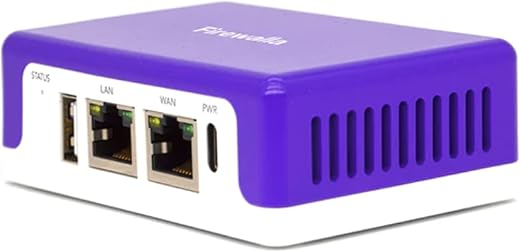
Firewalla: Cyber Security Firewall for Home & Business

The End-of-Life Trap: That “Deal” Router Might Be a Liability
Clearance shelves and third-party marketplaces are stocked with brand-name networking gear at steep discounts. Sometimes the reason is simple: the manufacturer has classified the product as End of Life (EOL), meaning it will never receive another security patch. You could unbox a brand-new router, still in shrink wrap, and it’s already permanently vulnerable.
To verify a router’s support status before buying, go to the manufacturer’s support page and search the model number. Look for a listed “End of Support” or “Last Software Update” date. If the most recent firmware update was more than two years ago, walk away. The site routersecurity.org also maintains lists of known vulnerable models and is worth bookmarking.
As a general rule: a router’s active support lifecycle should be at least three years from the date you buy it. Some options like GL.iNet or Firewalla offer longer windows and more transparency about update schedules.
The Guest Network Trick (And Why Most People Skip It)
Most modern routers let you create a secondary Wi-Fi network — a guest network — running parallel to your main one. Put your smart fridge, cheap light strips, doorbell camera, and any other budget IoT gear on it. Keep your laptop, phone, and anything you use for banking on the main network.
The logic is simple: if someone exploits a vulnerability in your smart thermostat, they end up trapped on the guest network, completely isolated from your main devices. IoT gear has a notoriously poor security track record, and this is the simplest way to limit the blast radius.
The real catch is something called client isolation. Most guest networks block devices from talking to each other — which is the whole point, security-wise. But if your smart TV or Sonos speakers are on the guest network, your phone on the main network won’t be able to cast to them or control volume. The practical answer for most people: put the cheap camera and the random smart plug on the guest network, keep the speakers on the main one.
Smart Home Devices: What’s Actually Leaking Data
If you bought a $20 no-name camera from a random online marketplace, there’s a fair chance it’s tunneling video back to servers in countries with no meaningful data protection laws. These budget cameras typically use P2P (peer-to-peer) protocols that punch holes through your router’s firewall to make remote viewing work. When the camera manufacturer’s servers get compromised — and several already have — your feed goes with it.
Local-First Platforms
Apple HomeKit requires devices to meet Apple’s certification standards and strongly prefers on-device processing. Home Assistant and Hubitat are open-source hubs that keep data on your local network by default. The caveat: Home Assistant especially has a real learning curve. You’ll need a dedicated device to run it — a Raspberry Pi or a repurposed mini PC — and several hours of configuration. It’s worth it if you’re willing to put in the time, but it is not plug-and-play.
“Local” Doesn’t Mean “Silent”
Local processing means the device doesn’t need the cloud to operate. But local-first doesn’t automatically mean it never phones home. Many devices, including some HomeKit-certified ones, still send telemetry, crash reports, or update checks to manufacturer servers. That’s generally lower risk than streaming live video offshore, but it’s not zero. If you want to verify what a device is actually sending out, a Pi-hole DNS sinkhole or a network monitor like Firewalla will show you outbound connections in plain language.
Voice Assistants and the Cloud Bridge Problem
If you connect a local-only device to a third-party cloud service just to use a specific voice command, you’ve built a data pipeline that bypasses all your local security work. Alexa and Google Home can work with local smart home setups, but traffic still passes through Amazon’s or Google’s servers. Apple HomeKit with a HomePod or Apple TV as a hub is the closest thing to a truly local voice-controlled setup, but it’s still not completely cloud-free.
What Happens When the Company Shuts Down
If a smart home brand folds or gets acquired, cloud-dependent devices often stop working entirely. Before buying, ask: can this device operate without an internet connection at all? If the answer is no, you’re renting functionality, not owning it.
Dispose of Old IoT Devices Properly
Before throwing out a smart camera or plug, perform a full factory reset through the manufacturer’s app. This clears stored Wi-Fi credentials and removes your account association. If you can’t reset it, don’t donate it — physically destroy the storage chip.
The Physical Perimeter Nobody Talks About
There’s a blind spot in most home network security advice: the hardware bolted to your exterior walls.
A smart doorbell or outdoor camera is a small computer mounted somewhere a stranger can reach. If someone physically removes it, they can extract the MicroSD card inside — and if that card isn’t encrypted, the footage is readable by anyone. Check whether your camera supports storage encryption before you buy. Not all of them do.
The harder problem is hardwired PoE (Power over Ethernet) cameras. These run a data cable from the camera back into your home network. If someone unplugs the camera and connects a laptop to that exposed cable, they bypass your router’s firewall and land directly on your local network.
The fix requires a bit of extra networking: use a managed network switch to assign those exterior camera ports to a separate VLAN (Virtual Local Area Network). Think of a VLAN as a walled-off section of your network — devices on it can see each other but can’t reach anything else.
An attacker who plugs into that cable ends up in a dead-end with no access to your main devices. If a managed switch feels like too much, the simpler alternative is to disable unused ethernet ports through your router or switch settings, and make sure your PoE switch requires a password to access its admin panel.
Router Done. Now Secure Your Actual Devices
The router is the gatekeeper, but your individual smart devices are their own problem.
Most budget IoT devices don’t auto-update. Every couple of months, open the manufacturer’s app for each device and check for firmware updates. It’s tedious, but unpatched devices are how automated scripts get footholds on home networks.
Change the default credentials on every device. That $25 camera ships with a factory login like admin/admin or admin/1234. These defaults are publicly documented, and scripts scan for them constantly. A firmware update does nothing if you’re still using the factory password.
Download an app like Fing (free, iOS and Android) and run a network scan. It’ll show every device connected to your Wi-Fi — including ones you forgot about. Set up alerts for new device connections so you know immediately if something unfamiliar joins.
Passwords: Stop Reusing Them
If you use the same password on more than one site, a breach on any one of them exposes all of them. That’s exactly how the majority of account takeovers actually happen.
Use a password manager. Bitwarden is a great baseline because it is free, open-source, and has a strong security track record. It stores your encrypted vault on their servers but offers a self-hosting option if you want absolute control over your data.
If you prefer a more feature-rich, commercially polished option, look at NordPass. It runs a few dollars a month, but it justifies the cost with continuous security updates and built-in extras—like an active data breach scanner—that similarly priced competitors often lack.
Secure Your Digital World
It also integrates smoothly if you are already using their partner app, NordVPN. The inherent tradeoff is architectural. NordPass is a proprietary, closed-source system, which bothers some open-source security purists, and adopting it ties you more heavily into the broader Nord ecosystem.
Whichever route you take, both tools generate 20-character random passwords for every site. Just remember the fundamental risk of these managers: if your master password is lost and you fail to save your recovery codes, you are locked out permanently. Write that master phrase down and secure it somewhere physical.

Passkeys Are Replacing Passwords
Increasingly, sites like Google, Apple, Amazon, and GitHub let you log in with a passkey — a cryptographic key stored on your device instead of a password stored on a server. You authenticate with Face ID, fingerprint, or PIN. Passkeys can’t be phished because there’s no password to steal. If a site offers passkey enrollment, it’s worth setting up.
Two-Factor Authentication — and Why SMS Codes Are the Weak Link
Two-factor authentication (2FA) adds a second step after your password. Even if someone steals your password, they still need the second factor to get in. That’s a real security improvement — but not all 2FA methods are equal.
SMS-based codes are the weakest form. Attackers use a technique called SIM swapping — they call your mobile carrier, impersonate you, and convince the rep to transfer your phone number to a device they control. Once they have your number, they receive your text-message login codes. It’s happened to people with six-figure crypto wallets and executives at major companies.
Switch to an authenticator app. Good options right now: Ente Auth, 2FAS, and Aegis (Android only). Avoid apps that have recently changed ownership or gone closed-source — the 2FA space has seen some sketchy acquisitions in recent years.
Audit your 2FA setup by going through your important accounts — email, bank, password manager, cloud storage — and checking which ones still use SMS. Migrate them to an authenticator app. Your email account is the most critical: if an attacker gets into your email, they can reset passwords on everything else.
When you set up 2FA on any account, most services offer one-time backup codes. Save them. Store them in your password manager or print them and keep them physically. If you lose your authenticator app, these are often your only recovery option.
Hardware Keys: The Strongest 2FA You Can Buy
If you want to go a step further, a YubiKey is a physical USB/NFC device that acts as your second factor. To log in, you tap the key against your phone or plug it into your laptop.
Even if a hacker has your correct username and password, they can’t get in without that physical key in hand. It doesn’t stop every attack — session hijacking, where a hacker steals an active login cookie from your browser, is a separate issue — but it eliminates the vast majority of remote phishing attempts.
YubiKeys run $25–$55 depending on the model. The 5 NFC version covers USB-A and NFC, which handles most phones and laptops. The 5C NFC adds USB-C. YubiKey compatibility varies by site — major platforms like Google, Microsoft, GitHub, Dropbox, and most password managers support it fully, but some smaller services don’t.
Buy two: a primary and a backup. Register both to your critical accounts at setup. Keep the backup somewhere secure and separate from your primary device. If you lose your primary key, the backup gets you back in without a lockout crisis.

If Your SSN Was Exposed — The Credit Freeze
Changing your password after a breach that included your Social Security Number, date of birth, or home address doesn’t actually protect you. That information can be used to open fraudulent credit accounts, file fake tax returns, or impersonate you in ways a password change can’t reverse. The only meaningful defense is a credit freeze.
What a Credit Freeze Actually Involves
It’s free. All three major bureaus are legally required to freeze and unfreeze your credit at no charge. You must do it at each one separately: Equifax at equifax.com, Experian at experian.com/freeze, and TransUnion at transunion.com/credit-freeze. Each takes about 10 minutes. You’ll create an account, verify your identity, and receive a PIN or online access to manage the freeze later.
For banking specifically, also consider freezing your file with ChexSystems (chexsystems.com) and Early Warning Services (earlywarning.com). These are the databases banks use when you open a checking or savings account — separate from credit bureaus.
A freeze doesn’t affect your existing accounts. Your current cards, loans, and bank accounts keep working normally. It only blocks new credit applications. When you need to apply for a loan or a new card, you temporarily lift the freeze at the specific bureau the lender will use, then refreeze afterward. Most unfreezes take effect within an hour online.
Fraud Alert vs. Credit Lock vs. Credit Freeze
These are different things. A fraud alert asks lenders to take extra verification steps — it’s weaker than a freeze. A credit lock is a paid product some bureaus sell as a convenience feature, but it’s contractual, not the same legal protection as a freeze. The free freeze is the better option.
If your SSN has already been used fraudulently, file a report at identitytheft.gov (run by the FTC) and get an IRS Identity Protection PIN at irs.gov. The PIN prevents someone from filing a tax return using your SSN.
VPNs: What They Do and What They Don’t
A VPN (Virtual Private Network) encrypts your internet traffic and routes it through a server in a location of your choosing. On public Wi‑Fi — at a coffee shop, hotel, or airport — it prevents the network operator from seeing what you’re doing. That’s a real, practical benefit.
On your home network, the case for a VPN is weaker. Your ISP can still see your traffic regardless, and if your router and devices are properly secured, most of the local threats a VPN addresses don’t apply. A VPN is a useful tool in specific situations, not a blanket solution.
That said, I still run one most of the time — personally I’ve used NordVPN for years — largely because it’s reliable, fast, and easy to leave running in the background without breaking everyday services.
The Trust Trade‑Off
A VPN doesn’t make you anonymous. The VPN provider sees all the traffic your ISP used to see. You’re shifting trust, not eliminating it. That’s why provider selection matters. Providers like Mullvad require no account at signup (you pay with a number), have an independently audited no‑log policy, and are based in Sweden. ProtonVPN is Swiss‑based, publishes open‑source apps, and has audited infrastructure with a free tier available.
NordVPN takes a slightly different approach but still focuses heavily on privacy and infrastructure transparency. They operate out of Panama, outside many of the more aggressive data‑sharing jurisdictions, and maintain a strict no‑logs policy that has also been independently audited.
One feature I personally use is their Dedicated IP service. Instead of sharing an IP address with thousands of other VPN users, you get a static one assigned only to you. That reduces the common “VPN friction” problems — CAPTCHAs, blocked logins, or services flagging your connection — while still keeping your traffic encrypted through the VPN tunnel.
“No‑log” means the provider doesn’t retain records of which websites you visited or when. Reputable providers publish third‑party audits confirming this. Avoid VPNs that are free without explanation or headquartered in countries with aggressive data‑sharing laws.
What VPNs Don’t Fix
A DNS leak can occur when your device sends DNS queries outside the VPN tunnel even while connected. Test at dnsleaktest.com while your VPN is active — a good VPN client will have a setting to prevent this. NordVPN, for example, includes built‑in DNS leak protection and a kill switch that blocks traffic if the VPN connection drops.
And if you click a malicious link and type your password into a fake site, a VPN won’t do a thing to help. Security is overwhelmingly about habits, not tools.
Split Tunneling
Most good VPN apps let you route only specific apps or traffic through the VPN while the rest goes through your normal connection. This is useful if you want VPN protection for browsing but don’t want it slowing down your streaming or gaming. NordVPN includes this feature as well, which makes it easy to keep your browser protected while letting bandwidth‑heavy apps use your regular connection.
Encrypted DNS: A Five-Minute Privacy Upgrade
Every time you visit a website, your device sends a DNS query — essentially asking “what’s the IP address of netflix.com?” By default, those queries go to your ISP’s servers unencrypted, which means your ISP can see every domain you visit even if the site itself uses HTTPS.
Switching to encrypted DNS closes that gap. Cloudflare (1.1.1.1) is fast, free, and privacy-focused — they publish quarterly transparency reports and commit to not selling your data. NextDNS lets you create a custom filtering profile, block ads and trackers at the DNS level across your whole network, and see query logs. It’s free for up to 300,000 queries per month, then $2/month.
You can change DNS on your router, which covers all devices on your network, or set it per device in your Wi-Fi or network settings. On most iPhones it’s under Settings → Wi-Fi → your network → Configure DNS. On most Android devices it’s under Settings → Network → Private DNS.
For a step beyond that, Pi-hole is a free, open-source DNS sinkhole you run on a Raspberry Pi or similar small device. It blocks ads and trackers across your entire network and gives you full visibility into what every device is trying to contact. The initial setup takes a few hours and it requires occasional maintenance, but it’s the most transparent tool on this list.
Keeping Your Network Healthy Over Time
Security isn’t a one-time setup. Here’s a realistic maintenance rhythm that doesn’t require a lot of time.
Monthly Open each device’s manufacturer app and check for firmware updates. Run a Fing scan to see if any unfamiliar devices have joined your network.
Every Three Months Log into your router admin panel and check for firmware updates. Review which accounts still use SMS-based 2FA and migrate any remaining ones to an authenticator app.
Annually Re-run Have I Been Pwned on all your email addresses. Review your router’s connected device list and remove anything you no longer use. Check the EOL status of any networking gear you own.
If Something Feels Wrong If your internet slows down unexpectedly, you get login alerts from unfamiliar locations, or a device starts behaving oddly, run a Fing scan immediately and check your router’s DHCP client list for unrecognized devices.
Where to Start If You’re Overwhelmed
The order matters. Work through this list from the top down, and you’ll have covered most of the meaningful risk before you spend a single dollar.
- Check Have I Been Pwned — know if you’re already exposed.
- Change reused passwords and start using a password manager going forward.
- Switch 2FA to an authenticator app, especially for email and banking.
- Log into your router — change the admin password, disable WPS and UPnP, update firmware.
- Create a guest network and move your IoT devices onto it.
- Freeze your credit. It’s free, takes about 30 minutes total, and is the only real defense if your identity data was in a breach.
- Update firmware on every smart device and change any factory default credentials.
After that, the additions — hardware keys, Pi-hole, a VPN, VLAN isolation for exterior cameras — are real improvements. But they build on a working foundation. The steps above are free, fast, and will close the gaps that actually get most home networks compromised.

 Amazon.com