

Smart devices make life easier. They also collect a lot of data quietly and share it in ways many people don’t notice.
The good news is that smart home privacy doesn’t have to be complicated: a few simple habits go a long way. Changing default passwords and turning on two‑factor authentication shuts down many of the easiest attacks; putting smart gadgets on their own Wi‑Fi network keeps them away from your laptops and phones; and dialing back “optional” analytics, voice history, and ad personalization sharply cuts how much of your day‑to‑day life gets logged.
Muting microphones when you’re not using them, turning off remote access you don’t need, and clearing old activity history or recordings from your accounts all help shrink the trail you leave behind without giving up the convenience of smart features.
This guide covers ten common device behaviors, why vendors do them, how they can harm you, simple checks you can run, and practical steps to reduce risk. No jargon. No fluff.
1. Constant background data collection
Phones, speakers, TVs, and other gadgets track how you use them. They log which apps you open, when you use them, how long you watch or listen, rough location, and sometimes behavioral signals such as typing or touch patterns. This happens even when devices look idle.
Why vendors do it
Usage data helps fix bugs, prioritize features, and personalize services. It also fuels ad targeting and analytics that generate revenue.
How this can hurt you
That data builds profiles that reveal routines and preferences. Advertisers and brokers can stitch those signals together. If the data leaks, it exposes private habits.
How to check it
- Open device and app privacy settings and look for “analytics,” “usage,” or “diagnostics.”
- Log into vendor accounts and search for activity history or data download options.
How to reduce it
- Turn off optional analytics and diagnostics.
- Limit app permissions to what’s necessary.
- Use separate accounts for sensitive tasks.
- Delete activity history from vendor portals periodically.
| Pros | Cons |
|---|---|
| Helps fix bugs and improve apps quickly | Reduces user privacy |
| Enables personalized, helpful features | Profiles can be sold or exposed in breaches |
2. Uploading voice snippets and transcripts
Smart speakers and assistants listen for wake words. Many send short audio clips or transcripts to cloud servers for processing. False triggers can cause accidental uploads.
Why vendors do it
Cloud processing improves recognition across accents and languages and helps train speech models.
How this can hurt you
Private conversations or sensitive fragments can be captured and stored. Some recordings may be reviewed by humans, creating privacy and security risk.
How to check it
- Inspect voice assistant settings and voice history in vendor accounts.
- Look for recent saved recordings or transcripts.
How to reduce it
- Disable cloud voice history or enable auto-delete.
- Use local-only processing if the device supports it.
- Mute microphones when not using voice features.
- Retrain or disable unused wake words.
| Pros | Cons |
|---|---|
| Better voice accuracy and broader language support | Creates stored audio that can be reviewed or leaked |
| Enables hands-free convenience | False triggers can capture private moments |
3. Sharing metadata with third parties
Apps and devices often send metadata—timestamps, device type, connection info, coarse location, and anonymized IDs—to advertisers and analytics firms. The raw content may stay private but the signals reveal patterns.
Why vendors do it
Advertisers buy signals showing when people are active and what they do. Metadata is inexpensive to collect and valuable for targeting and measuring campaigns.
How this can hurt you
Metadata can be combined to identify you. Patterns reveal routines, shopping habits, and places you visit.
How to check it
- Read app privacy labels and vendor privacy pages.
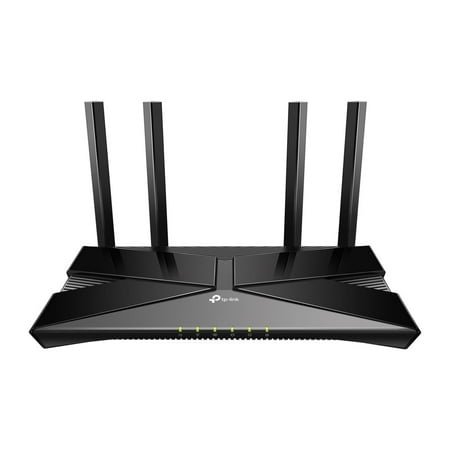
- Use a network monitor or router logs to see which domains your devices contact.
How to reduce it
- Block tracking domains at the router or use privacy-focused DNS.
- Turn off ad personalization in accounts.
- Revoke unnecessary permissions in apps.
| Pros | Cons |
|---|---|
| Funds free apps and services via ad revenue | Enables invasive profiling |
| Helps measure ad and product effectiveness | Third-party sharing increases breach risk |
4. Remote and automatic software updates
Devices download and install updates automatically. Those updates patch security holes and add features. They can also change defaults or add new telemetry.
Why vendors do it
Automatic updates keep platforms secure and consistent. They reduce support costs and let vendors deploy fixes and features broadly.
How this can hurt you
An update can alter privacy settings, remove features you rely on, or introduce new bugs. You may lose control over timing and content of installs.
How to check it
- Open device update settings.
- View firmware or app update history on vendor portals.
- Read release notes when available.
How to reduce it
- Switch to manual updates when possible.
- Set updates to notify you before installing.
- Back up settings prior to major updates.
- Keep a fallback plan if an update breaks functionality.
| Pros | Cons |
|---|---|
| Fixes security bugs quickly | Can change settings or add unwanted telemetry |
| Delivers features without manual action | May introduce regressions or remove features |
5. Persistent device and network scanning
Devices constantly scan for Wi‑Fi networks, Bluetooth peers, and nearby beacons to reconnect quickly and offer presence-based features.
Why vendors do it
Scanning speeds pairing, improves location accuracy, and creates seamless experiences like automatic unlocking.
How this can hurt you
Scans broadcast identifiers that can be linked over time. That makes tracking easier. Scanning also drains battery and broadens the attack surface.
How to check it
- Inspect Wi‑Fi and Bluetooth activity in device settings.
- Run a local network scanner to view probe requests.
- Review location history for unexpected entries.
How to reduce it
- Turn off Wi‑Fi and Bluetooth when not needed.
- Disable background scanning if the option exists.
- Use randomized MAC addresses where supported.
- Limit app access to location.
| Pros | Cons |
|---|---|
| Faster reconnection and seamless pairing | Easier tracking across locations |
| Improves location-based features | Higher battery use and larger attack surface |

Sonos Era 100 Voice-Controlled Wireless Smart Speaker with Bluetooth

6. Predictive personalization using inferred profiles
Services guess what you want and surface suggestions—shows, products, or UI tweaks—based on inferred routines and interests.
Why vendors do it
Personalization increases engagement which drives ad views and purchases.
How this can hurt you
Recommendations can narrow choices and reinforce habits. Sensitive inferences may be shared and affect offers you receive.
How to check it
- Review personalization settings in apps and vendor accounts.
- Request your profile or data report when available.
- Note repeated ads or tailored suggestions and which account they tie to.
How to reduce it
- Turn off personalization or ad personalization.
- Clear watch and recommendation histories regularly.
- Use separate profiles for household members.
| Pros | Cons |
|---|---|
| Saves time by surfacing likely choices | Creates filter bubbles that limit discovery |
| Makes interfaces feel helpful | Sensitive inferences may be misused |

- Eufy Omni S1 Pro Review: Is It Worth It?
- Use Gemini Pro to Build a Personal Brand That Actually Sounds Like You
- Using AI for Small Business To Reclaim 8 Hours of Your Workweek
- Hisense 65E6QF Review: The Brutally Honest Truth About a $378 65″ TV
- Anker SOLIX S2000: Is This Long-Term Power Station Worth the Bet?
7. Data caching and local analytics
Devices store files locally and run on-device analysis before sending summaries to the cloud. Cache files, temporary logs, and local summaries may persist.
Why vendors do it
Local processing reduces latency, saves bandwidth, and keeps features fast or usable offline.
How this can hurt you
Cached data can include sensitive info. A lost or compromised device can leak those files. Logs may persist longer than users expect.
How to check it
- Open storage settings and inspect app caches.
- Clear caches periodically and review backups.
- Use a file manager to find unexpectedly large or old files.
How to reduce it
- Limit cached data and clear caches regularly.
- Encrypt device storage and use strong passcodes.
- Remove old backups and stored logs you no longer need.
| Pros | Cons |
|---|---|
| Speeds up responses and supports offline use | Sensitive data may remain locally and be exposed |
| Reduces cloud bandwidth costs | Hidden logs are hard for users to audit |
8. Exposing open ports or weak services
Some devices run web interfaces, debug ports, or network services with weak defaults so setup and support are easier. Those services can remain exposed.
Why vendors do it
Open services simplify setup and remote troubleshooting and enable features like local file sharing.
How this can hurt you
Open ports and weak credentials provide entry points for attackers to control devices or move through your network.
How to check it
- Scan your local network for open ports with a trusted tool.
- Inspect settings for remote access, UPnP, or developer modes.
- Look up default credentials for your device model and confirm they’ve been changed.
How to reduce it
- Change default passwords immediately.
- Disable remote access and UPnP unless needed.
- Apply firmware updates promptly.
- Put smart devices on a separate guest or IoT network.
| Pros | Cons |
|---|---|
| Easier setup and remote support | Creates entry points for attackers |
| Enables useful local services | Poor defaults can expose devices to the internet |
9. Using your device as part of a mesh or relay
Some devices act as hubs or relays, routing traffic for other gadgets to extend coverage or reach cloud services.
Why vendors do it
Mesh and relay setups improve connectivity, increase range, and make ecosystems more resilient.
How this can hurt you
Your device becomes another potential attack surface. Traffic from less secure devices may pass through hardware with weaker protections.
How to check it
- Review the device role in network settings for relay or mesh features.
- Inspect router logs for device-to-device traffic.
- Check the device model online to confirm mesh support.
How to reduce it
- Disable relay or mesh features if you want tighter control.
- Use trusted devices as hubs.
- Segment relays on a separate network so they can’t access sensitive systems.
| Pros | Cons |
|---|---|
| Extends coverage and improves connectivity | Adds more points that could be attacked |
| Creates resilient local networks for smart devices | Traffic may flow through less secure devices |
10. Maintaining persistent identifiers despite anonymization
Devices use IDs—advertising IDs, device IDs, hashed identifiers—that let vendors link activity over time. Even “anonymous” data often uses these persistent tokens.
Why vendors do it
Persistent IDs let companies track behavior across sessions and devices. That improves targeting, measurement, and analytics.
How this can hurt you
Persistent identifiers weaken anonymity. They let companies stitch long-term profiles that are easier to re-identify.
How to check it
- Open privacy and advertising settings on phones and vendor accounts.
- Look for options to reset advertising IDs or limit tracking.
- Review app privacy labels and permissions.
How to reduce it
- Reset advertising or device IDs regularly.
- Turn off ad personalization in accounts.
- Factory reset devices before selling or gifting them.
- Use separate accounts for different activities.
| Pros | Cons |
|---|---|
| Supports continuity and personalization across sessions | Weakens true anonymity and enables long-term tracking |
| Helps measure ad and feature effectiveness | Persistent IDs survive some privacy measures |
Here are the most practical setups, from easiest to strongest, that work well in a home:
1. Use a dedicated “Guest” / IoT Wi‑Fi network (easiest)
Most consumer routers (including Wi‑Fi 6/7 and mesh systems) support a Guest network. Configure it as your IoT network:
- Main SSID: for laptops, phones, work PCs
- Guest/IoT SSID: for TVs, cameras, speakers, plugs, appliances
Key settings:
- Turn Guest Network = On
- Name it something like
Home-IoT - Use WPA2/WPA3 with a strong password
- Look for an option like:
- “Allow guests to access local network / intranet / LAN” → OFF
- “Guest isolation” / “Access to other clients” → ON
Effect:
IoT devices can reach the internet, but can’t see or talk to your main devices. Your secure stuff (work laptop, personal phone, NAS) stays on the main SSID.
When this is enough:
- You don’t need IoT devices to access your PC/NAS directly.
- You mainly control them through cloud apps (e.g., Google Home, Alexa).
2. Use separate SSIDs with limited LAN access
If your router guest mode is inflexible, you can still do:
- SSID 1 (main): full LAN access
- SSID 2 (IoT): same LAN, but add per‑device rules if your router supports it
Steps (if your firmware allows):
- Put all IoT devices on SSID 2.
- Use access control / firewall / device isolation to:
- Block IoT → main-device IPs
- Allow IoT → internet (WAN) only
Effect:
Stronger separation than a plain second SSID, but depends heavily on your router’s features.
3. Use VLANs (best if you have prosumer/advanced gear)
If you ever upgrade to a router/switch that supports VLANs (UniFi, Omada, some Asus, etc.), use this model:
- VLAN 10 – Trusted LAN
PCs, phones, NAS, work machines - VLAN 20 – IoT
TVs, cameras, doorbells, smart plugs, appliances
Rules:
VLAN 20 → VLAN 10= DENYVLAN 20 → Internet= ALLOWVLAN 10 → VLAN 20= ALLOW (optional) for you to manage/view IoT from trusted devices
Wi‑Fi mapping:
- SSID
Home→ VLAN 10 - SSID
Home-IoT→ VLAN 20
Effect:
Very strong isolation. Even if an IoT device is hacked, it can’t pivot into your main network.
4. Physical separation with a second router (fallback trick)
If your current router is very basic, you can create a poor‑man’s isolation:
- Main ISP router:
- For trusted devices only
- Second router (behind the first, in its own subnet):
- For IoT devices only
You plug router #2’s WAN port into router #1’s LAN port.
Effect:
- IoT devices live on a different subnet and cannot reach back into the main LAN (unless you set up port forwarding).
- It’s more clunky, but workable if guest/VLAN features are missing.
5. Extra hardening for whichever setup you choose
Regardless of which topology you use:
- Give IoT its own SSID and password (never reuse main Wi‑Fi password).
- Disable UPnP on the router if possible.
- Turn off remote admin on both router and IoT devices unless absolutely needed.
- Keep firmware updated (router and IoT).
- For cameras / doorbells, assume:
- They’re internet‑reachable via the vendor cloud.
- Strong, unique passwords and 2FA on the vendor account are critical.