
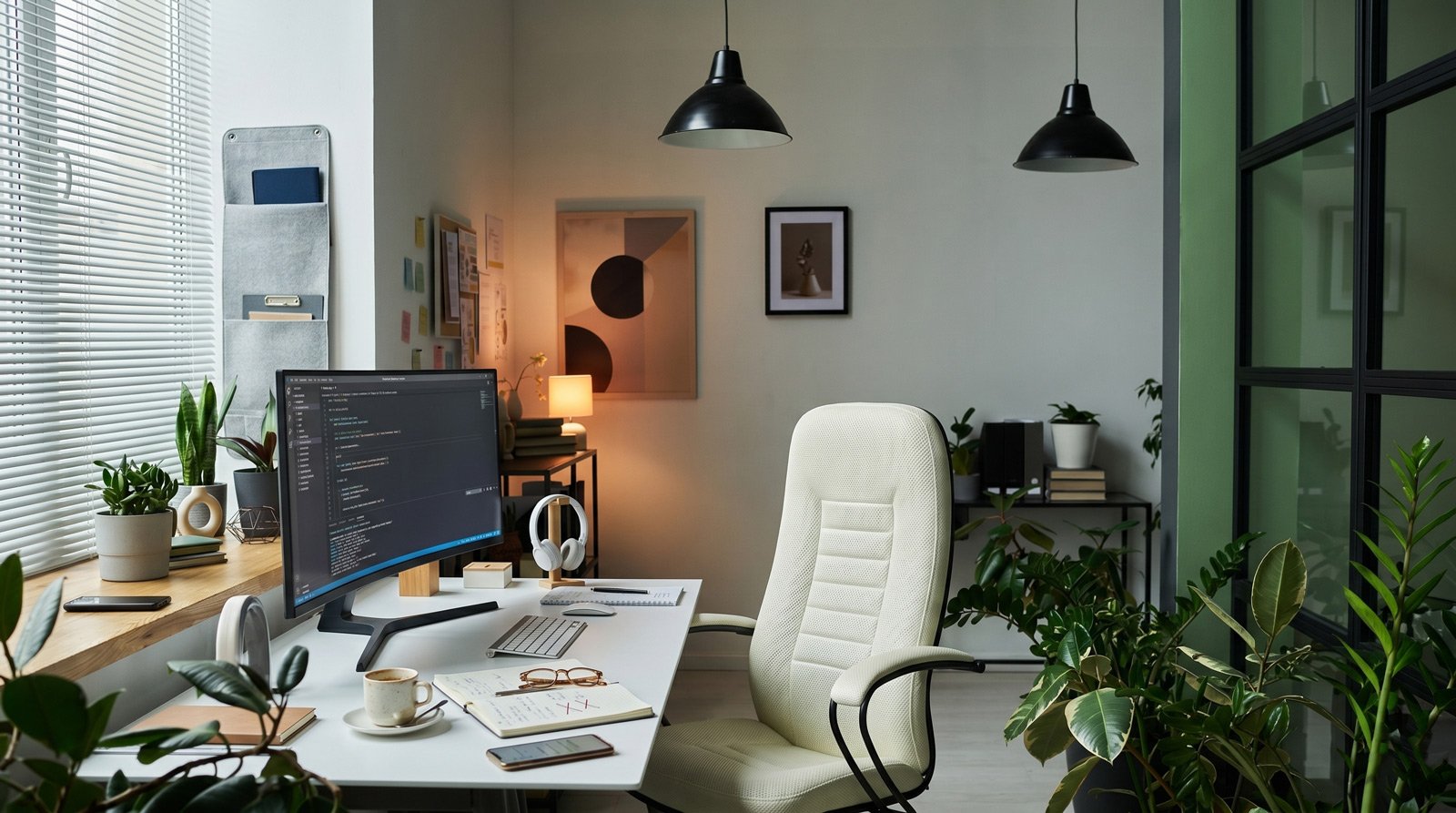
Why a Connected Workspace Needs More Than Smart Gadgets
Most consumer gadgets promise to fix your workday. Often, you just end up fighting a rebellious light bulb while late for a Zoom call. Getting a home office wired up correctly takes more than tossing an Alexa on your desk. You want less friction, not a second job as an IT admin.
If you are building a connected workspace, you need to look past the marketing hype. A proper setup costs real money—expect to spend between $500 and $2,000 for a reliable ecosystem. But don’t let that price tag scare you off. You can offset those tech costs by getting creative with your physical space. Upcycling an old dining table or converting a spare closet into a “cloffice” (closet-office) frees up your budget for the gear that actually matters.
Here is a pragmatic guide to building a connected workspace that genuinely helps you focus, from the router all the way to your desk chair.
The Foundation: Mesh Wi-Fi and Symmetrical Speeds
A smart home setup is entirely dependent on its network infrastructure. Discussing smart plugs without addressing your router is like reviewing a sports car without mentioning the engine.
Before you buy a single smart bulb, you need to secure your internet connection. Look for fiber internet if it’s available in your area. Fiber offers symmetrical speeds, meaning your upload speed is just as fast as your download speed—a massive deal when you’re broadcasting your face on video calls or uploading heavy files.
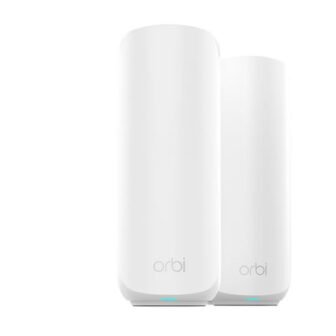
You also need to care about latency (the delay before data transfers) and jitter (unpredictable stuttering). If your router is on the other side of the house, your connection will suffer. Ditch the cheap router your internet provider gave you and invest in a Mesh Wi-Fi system. Mesh systems use multiple router nodes scattered throughout your house to blanket your home in a strong signal, killing dead zones and keeping your smart gadgets responsive.
 Walmart.com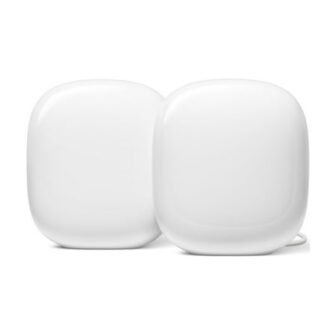
The Tinkering Trap and Notification Burnout
Let’s clear the air right away. Connectivity can easily distract you. A doorbell chime for every passing delivery truck will destroy your concentration. Every time a package drops off, your phone, watch, and speaker might chime at once. That destroys deep work.
The goal is background automation. We want things to happen without asking. For a remote worker, the connected home often becomes a procrasti-tasking hobby. You lose thirty minutes troubleshooting a plug instead of writing a report. To prevent this, stick to routines that require zero daily input once built.
The Physical Layer: Active Ergonomics
You can’t be productive if your back is screaming. A true smart setup starts with active ergonomics.
Ditch the cheap, wobbly manual desks and invest in a heavy-duty electric standing desk. Look for one with a programmable memory controller. Having presets means you can switch from sitting to standing with a single button press rather than awkwardly cranking a handle mid-thought.
Pair that desk with high-performance seating. You want a chair with dynamic lumbar support (which adjusts to your spine as you move), breathable mesh, and “4D armrests”—meaning they adjust up, down, forward, backward, left, right, and pivot to support your arms perfectly while typing. Brands like Steelcase and Herman Miller rule this space. They are expensive, but they are a mandatory physical investment before you blow your budget on shiny smart gadgets.
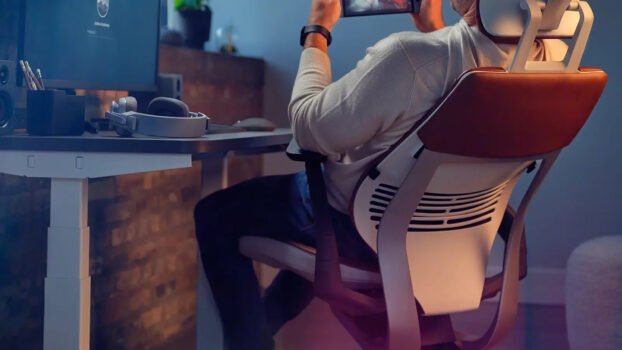
Steelcase Gesture Review After 5 Years: The Brutally Honest Truth for 2026
Digital Dashboards: Ultrawide vs. Dual Monitors
Your screen real estate dictates your digital workflow. You basically have two paths here: an ultrawide monitor or a dual-monitor setup.
An ultrawide gives you a massive, seamless canvas that is incredible for video editing timelines and managing spreadsheets. It also looks incredibly clean because it only requires one power cable and one display cable. Dual monitors, on the other hand, are great if you like segmented workflows—for example, keeping Slack permanently open on one screen and your primary work on the other.
| Setup Type | Best For | The Pros | The Cons |
|---|---|---|---|
| Ultrawide Monitor | Massive spreadsheets, timeline editing, minimalists | Seamless canvas, zero bezel gap, only requires one display and power cable. | High upfront cost, can be tricky to share a specific window on Zoom. |
| Dual Monitors | Segmented workflows, research, constant multitasking | Physical separation of apps, easier to mix-and-match orientations (one vertical, one horizontal). | Double the cables, annoying bezel gap right in the middle of your desk. |
Taming the Wire Clutter
You can’t have a “frictionless” setup if you’re constantly kicking a rat’s nest of cords under your desk. Tangled cables hanging off a workspace are the definition of tech anxiety.

Last updated on 2026-09-14
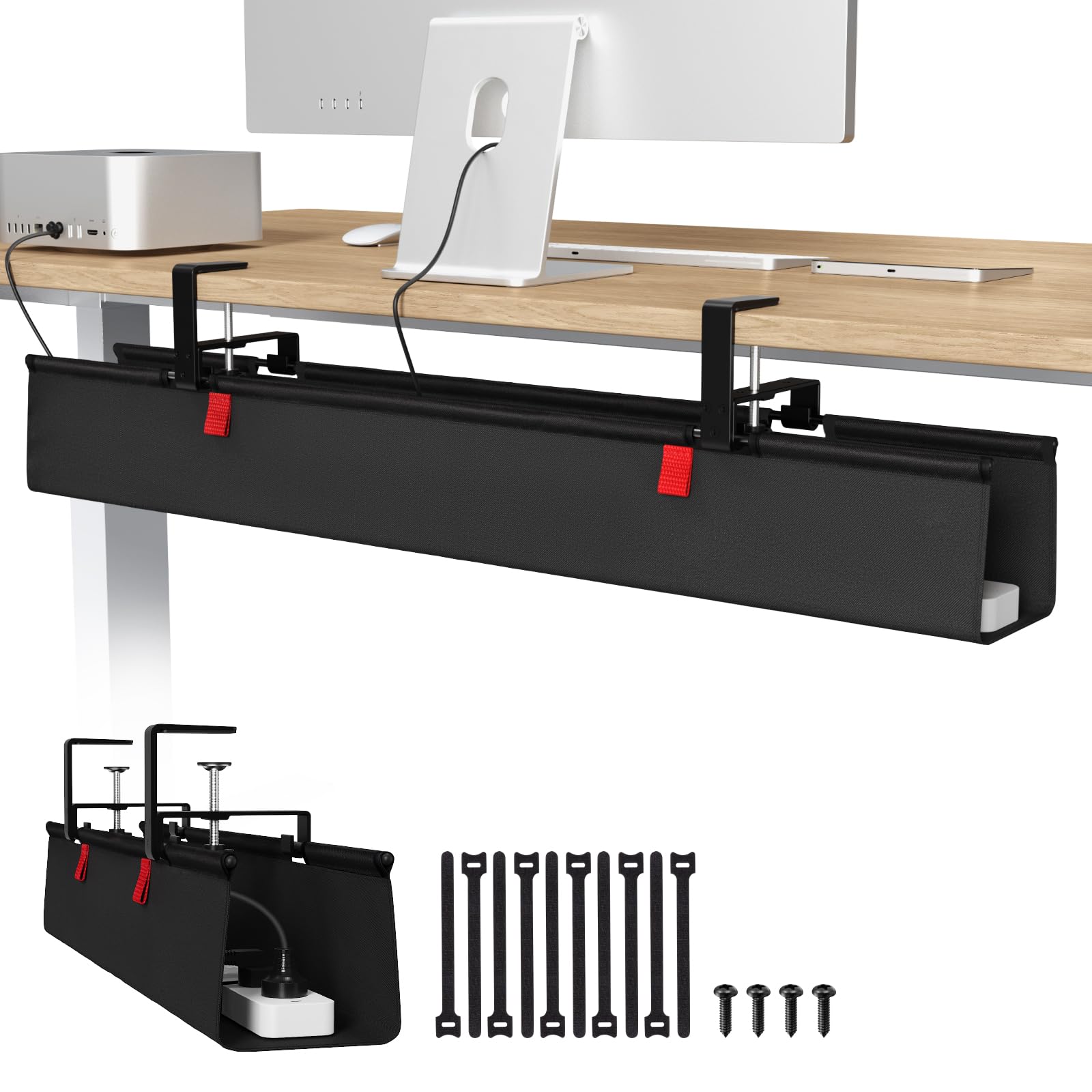
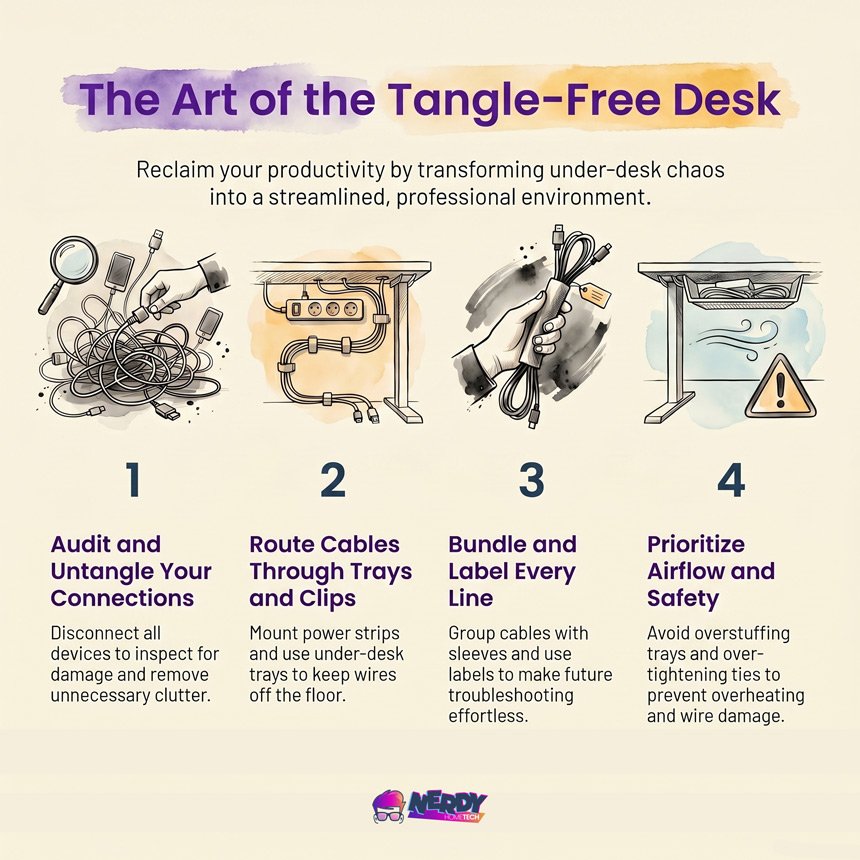
Take an afternoon to build a cable management infrastructure. Mount a wire management tray under your desk. Use velcro sleeves to bundle your monitor and accessory cables together, and mount your power strips directly to the underside of the desktop.
It prevents tripping hazards, protects your cords from vacuum cleaners, and removes the visual clutter that stresses you out.
Lighting That Actually Helps Your Brain (and Mood)
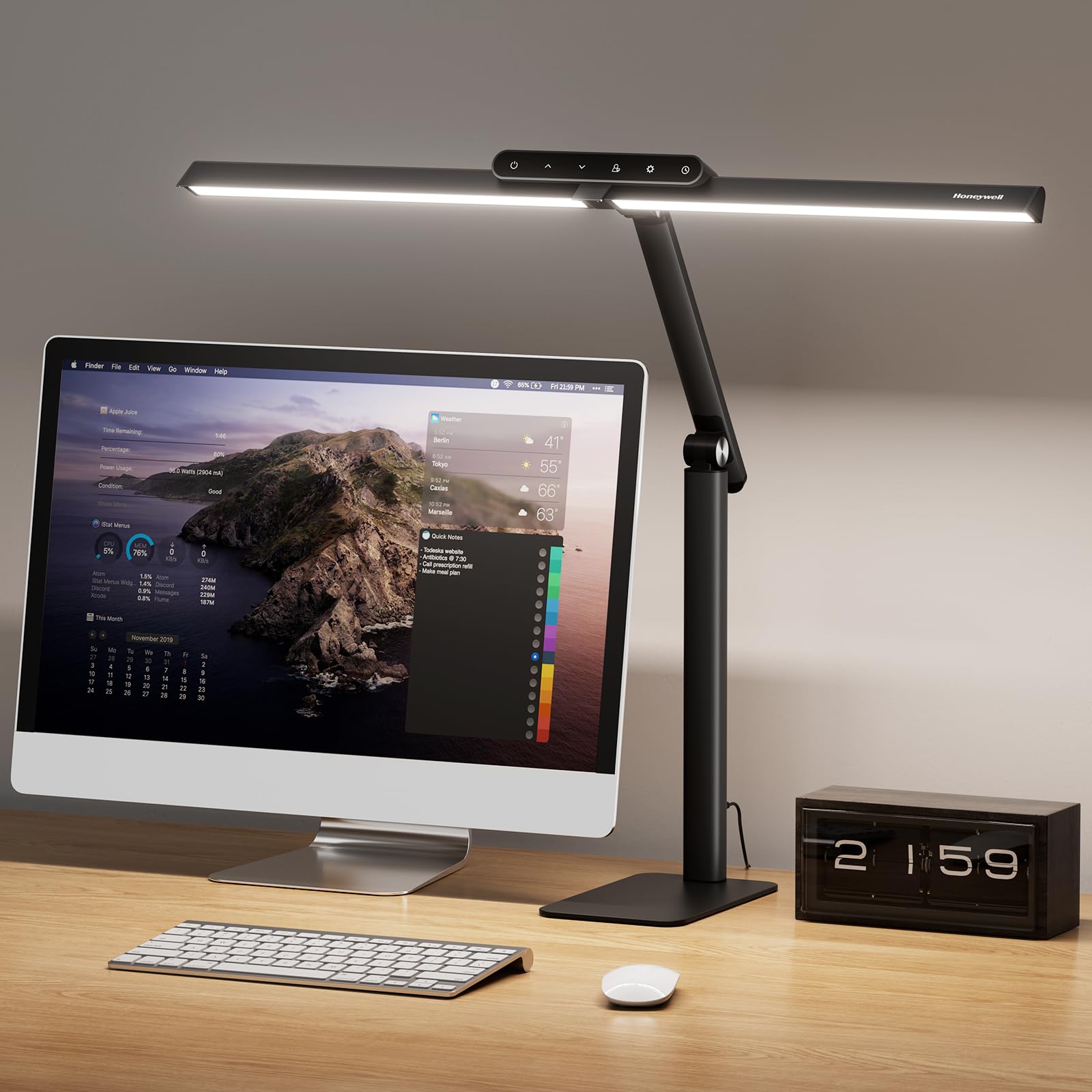
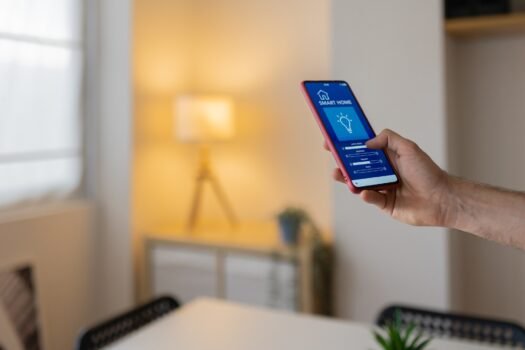
Stop buying standard bulbs. You need tunable white light. Look at the Kelvin scale, which measures color temperature. A 5000K daylight setting keeps you awake for morning meetings. Later in the afternoon, dropping to a 2700K warm, yellowish glow cues your brain to wind down. Brands like Philips Hue handle this well.
But what happens when your internet drops? You still need to see your keyboard. Look into Zigbee or Z-Wave protocols. These are local wireless networks that allow your lights to function even when your router throws a tantrum.
While you’re fixing the lights, try working some biophilic design into the space. This is a fancy term for bringing outdoor elements inside to reduce stress and boost cognitive function. Pair your warm smart lights with natural wood desk textures and a few easy-to-kill indoor plants (like a snake plant). It softens the harshness of a tech-heavy room and creates an environment that actually feels good to be in.
Last updated on 2026-09-14
Pro-Level Upgrades: Audio, Video, and Acoustics
If you spend half your day on video calls, a laptop webcam and overhead bulbs won’t cut it. To look and sound professional, you need a pro-level upgrade.
Instead of basic smart bulbs, look into dedicated key and edge lighting (like an Aputure light) to properly light your face and separate you from the background. For audio, skip the built-in laptop mic. Grab an XLR shotgun microphone paired with an audio interface (a box that translates high-quality analog audio into a USB signal for your computer).
But here’s the secret: a great mic sounds terrible in an empty room. Bare walls cause audio reverb and echo, making you sound distant and hollow. Pair your shiny new microphone with physical acoustic treatments. Soft materials—like rugs, acoustic wall panels, or even deep bookcases filled with books—absorb bouncing sound waves and kill the room echo.
Temperature Control and The Subscription Catch
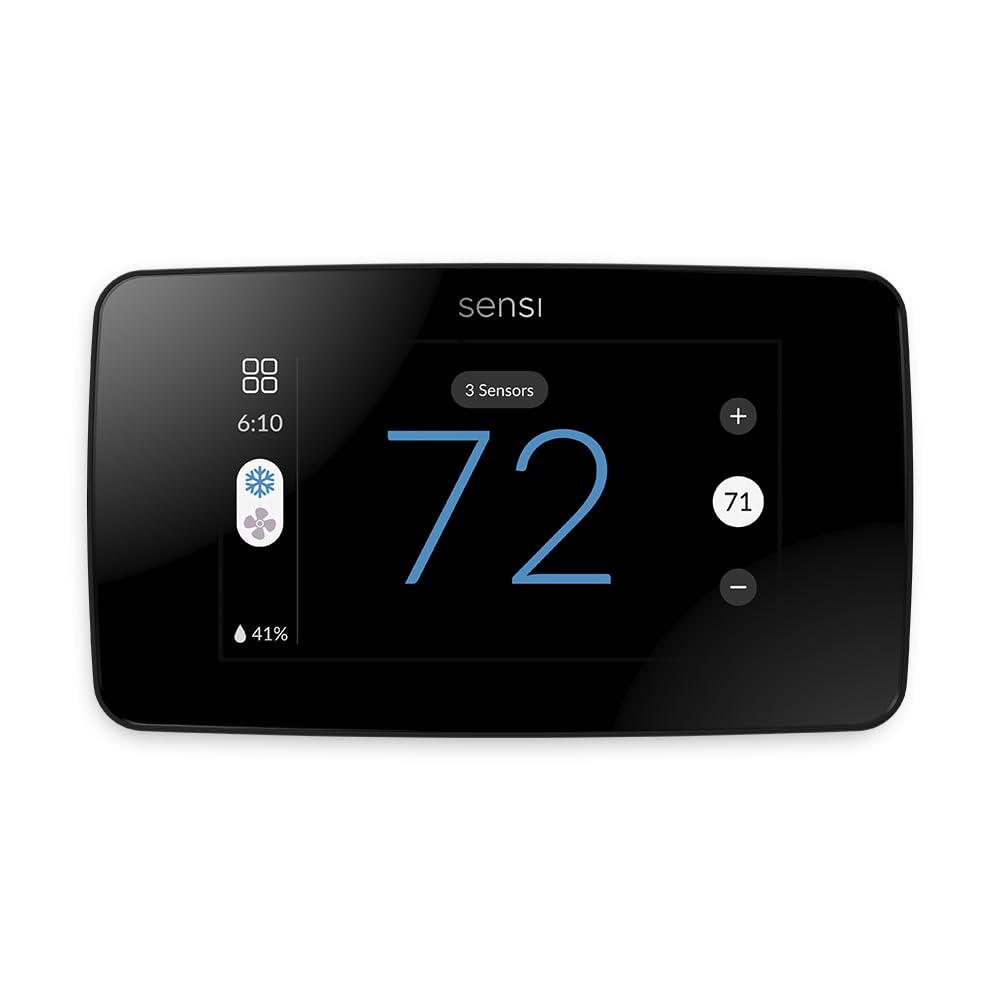
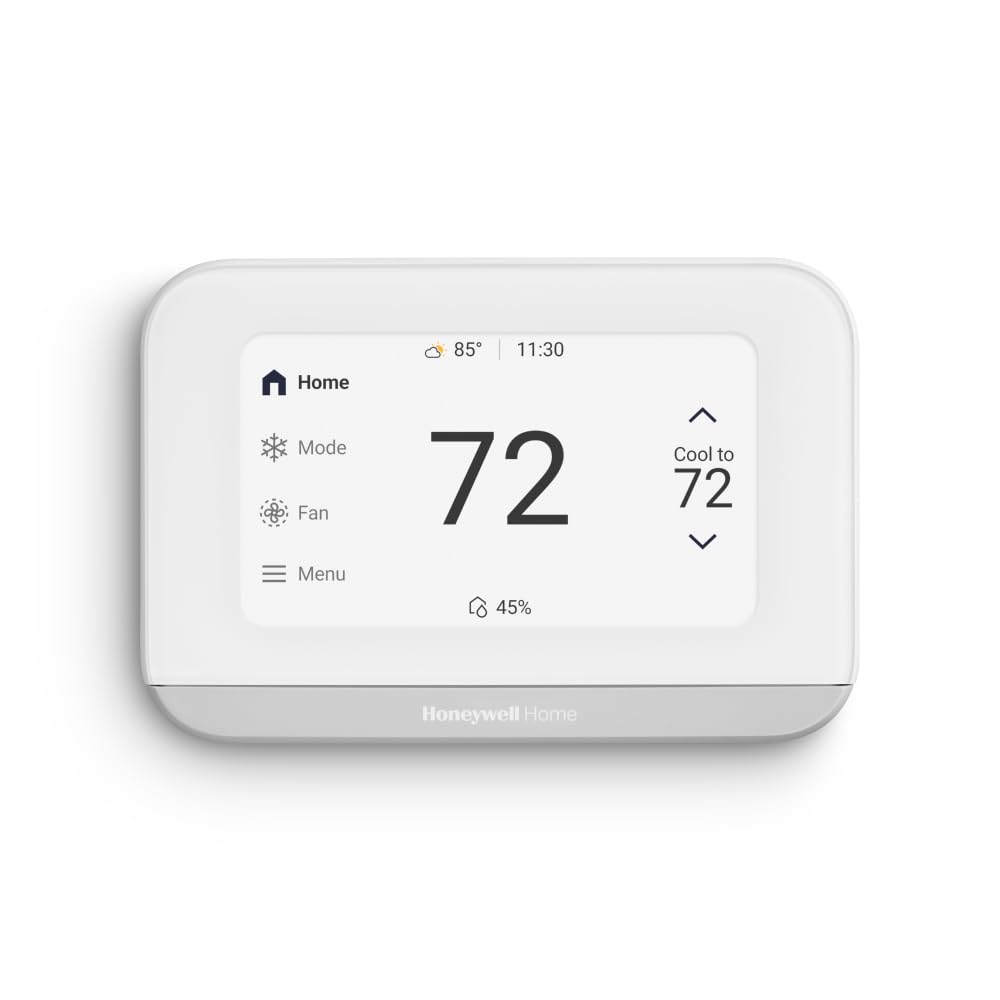
A connected thermostat keeps your office comfortable. You set the temperature once, and it reacts to the room, preventing you from shivering through a December conference call.
But watch out for hidden costs. While entry-level devices look affordable, advanced features often require monthly protection plans. You can easily spend a few hundred dollars upfront and then get slapped with $10 monthly fees to keep the features working. Always read the fine print before buying into heavily commercialized ecosystems.

Last updated on 2026-09-14
Morning Sequences and Software Automation
Building a morning hardware sequence is incredibly helpful. A single voice command like “Start the Workday” can turn on overhead lights and fire up a focus playlist.
But don’t ignore software-level automation. Software routines are arguably more impactful for daily remote work. Use tools like Zapier—a platform that connects different web apps together without needing code—to automatically change your Slack status to “In a Meeting” when your Google Calendar says you’re busy. You should also install an AI noise-canceling app like Krisp. It uses artificial intelligence to scrub barking dogs and lawnmowers out of your microphone feed before the audio ever reaches your Zoom call.
Security, Privacy, and The Always-On Mic
Having an always-listening microphone in a room where you discuss confidential business is risky. IoT (Internet of Things) gadgets are notoriously insecure and are often the weakest link in a home network.
You need strong passwords, two-factor authentication (2FA), and a separate guest Wi-Fi network just for your connected gear. Don’t let a $15 smart plug be the backdoor for a hacker to access your laptop. Keep your company VPN strictly on your work machine, far away from your consumer electronics.
Compatibility: Escaping the App Mess
Buying random electronics usually creates a fragmented mess. You don’t want six different apps just to turn off your office at 5 PM. Look for the “Matter” logo on the box. This newer standard ensures different brands talk to each other. Thread is another networking protocol to watch for—it makes gadgets respond faster and builds a stronger, self-healing network around your house.
| Protocol | What It Is | Why It Matters for WFH |
|---|---|---|
| Matter | A universal smart home standard. | It lets Apple, Google, and Amazon devices actually talk to each other in a single app. No more platform lock-in. |
| Thread | A fast, low-power mesh network. | Gadgets respond instantly. It operates independently, meaning it won’t clog up your main Wi-Fi bandwidth during a video call. |
| Zigbee / Z-Wave | Offline communication standards. | Keeps your smart lights and sensors working locally, even if your internet service provider goes down. |
The Verdict on Connected Offices
Upgrading your workspace makes sense if you focus on utility over novelty. Skip the gimmicks. Buy gear that solves actual problems, get your physical ergonomics in check, tame your cables, and make sure your gear still works when the Wi-Fi cuts out.
Brighten Up Your Home: Top Smart Lighting Tips for Homeowners
Steelcase Amia Chair
Use Case: Professional-Grade Lumbar Support
Hardware Specs: LiveLumbar technology and adaptive seat bolstering.
User Feedback: Renowned for its “tank-like” durability and straightforward assembly.
Ergonomic Impact: Engineered for 8-10 hour shifts without inducing fatigue.
Last updated on 2026-09-14 | The Steelcase Amia doesn’t look like a spaceship, and that’s the point. It’s a precision-engineered tool designed to disappear under you. With the LiveLumbar system, the backrest moves as you shift, providing constant support without requiring you to fiddle with knobs every ten minutes. Pros: Industry-leading lumbar mechanics. Ships fully assembled. Premium material longevity. Cons: Higher entry price. Casters perform best on hard surfaces. Fewer color configurations than consumer-grade chairs. |

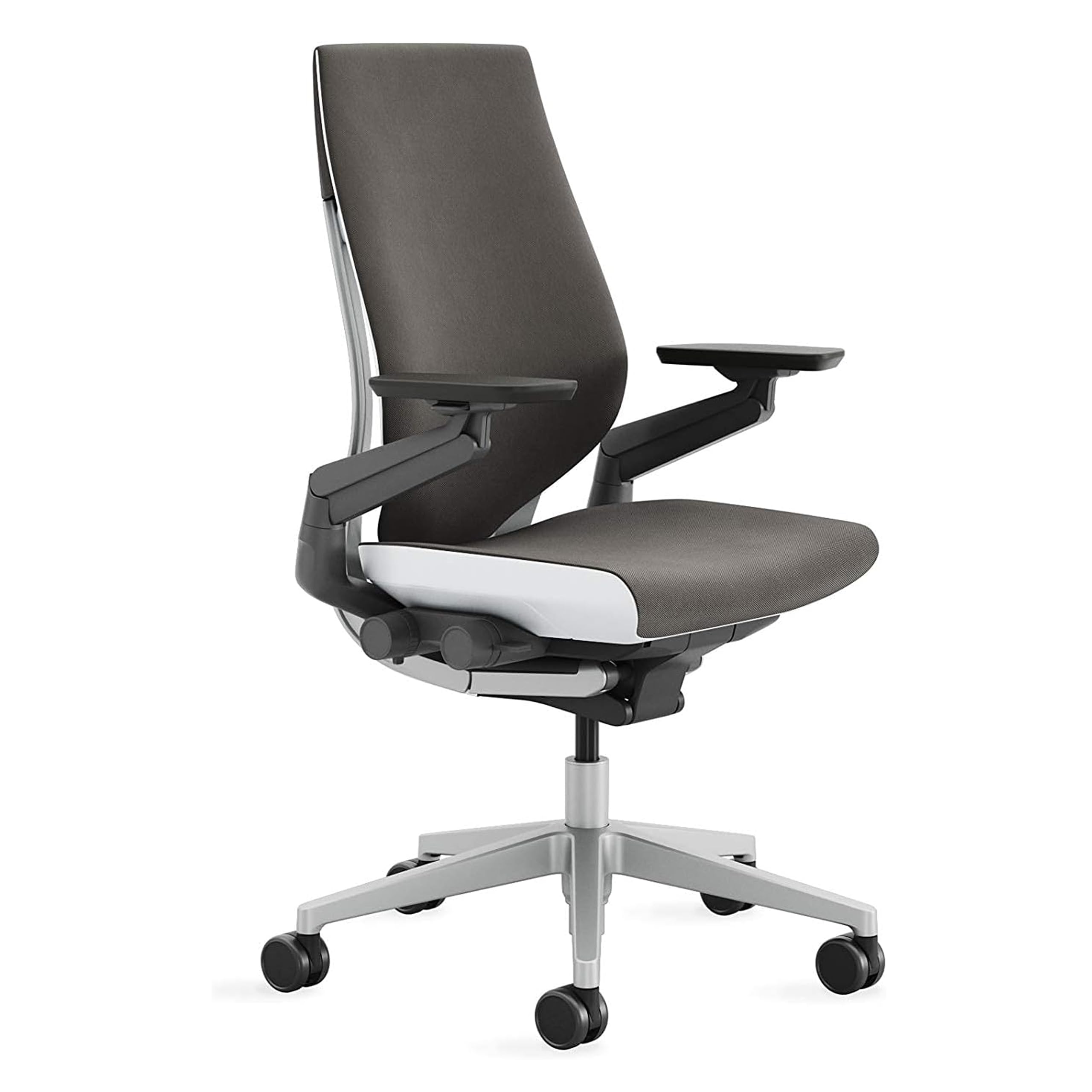
- Ergonomic Chair Design: The Gesture chair by Steelcase is expertly designed to redefine the relationship between you and your chair...
- Comfortable Desk Chair for Extended Use: The Gesture chair is designed for a variety of users and postures, ideal for those who...
Nouhaus Strato Chair
Use Case: High-Adjustability Mesh Seating
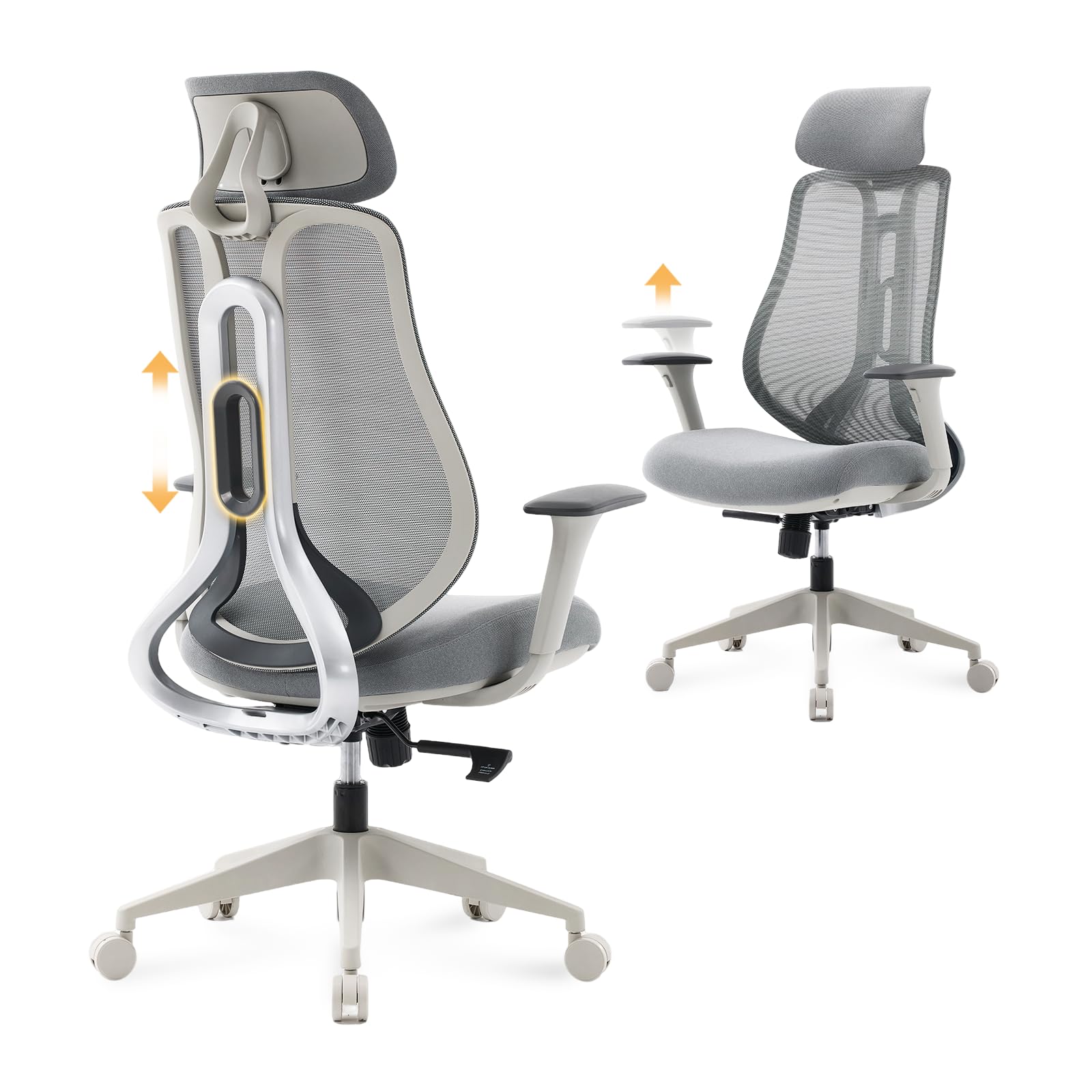
Hardware Specs: Adjustable headrest, backrest, and armrests; breathable mesh with high-density foam seat.
Ergonomic Impact: Uses dynamic backrest flexion to follow your spine’s natural movement.
Design: The industrial grey mesh look fits right into a modern workstation or clean gaming setup.
The Nouhaus Strato is built for users who want granular control over their seating position. The mesh construction handles thermals well, keeping you cool during heavy rendering tasks or long sessions. It’s a solid mid-range contender with impressive build tolerances.
Pros: Wide range of mechanical adjustments. Effective thermal regulation via mesh. Neutral design language.
Cons: Assembly required out of the box. 275 lbs weight ceiling. Heavier chassis makes it less mobile on carpet.
| Preview | Product | Rating | |
|---|---|---|---|
 | Nouhaus Strato Ergonomic Office Chair* | CHECK PRICE |
Last updated on 2026-09-14