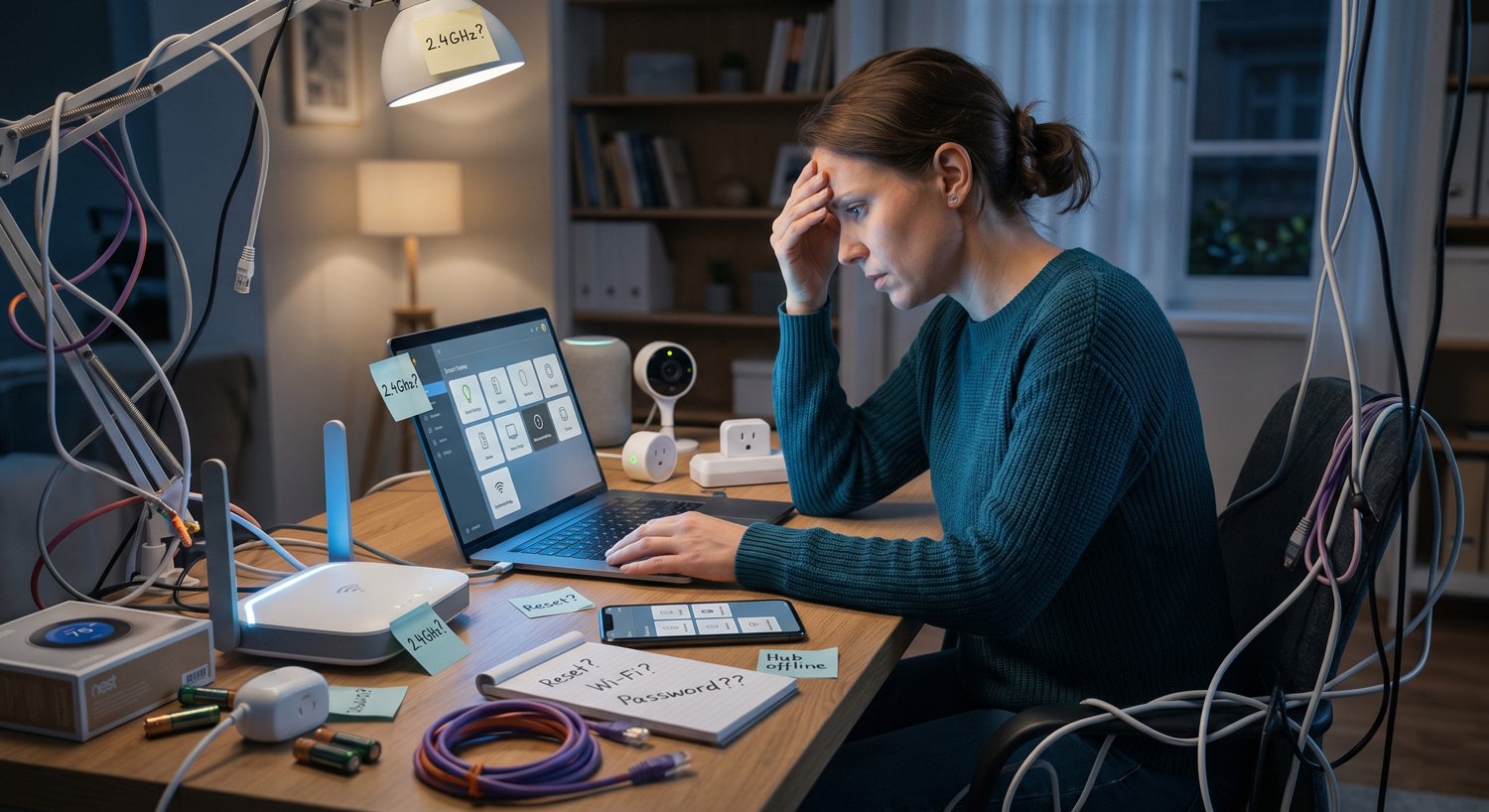
Your smart home isn’t haunted. It’s probably just fighting your Wi-Fi.
Growing up, the “smart home” felt like something from The Jetsons. We were promised homes where the kitchen ran itself and lights knew what we needed. We don’t have flying cars yet, but we do have voice-controlled lights and fridges that can check the milk.
Still, real life can feel less like the future and more like a haunted house.
At Nerdy Home Tech, we help fix smart homes that stop working for simple reasons. Sometimes, a metal cabinet blocks the signal. Other times, data gets lost on the way, like mail sent to the wrong house. Most smart home problems aren’t mysterious. They’re usually plain old Wi‑Fi trouble, dead batteries, or a bad setup. If a device keeps dropping offline, check the signal first, not the hardware.
A glitchy smart home isn’t just a pain. It can cost you time, money, and peace of mind. If your smart doorbell drops offline, you may miss a key delivery. If your sensors stop checking in, your home security can take a hit.
That “ghost” in your hallway light is often just a network bug. The good news? It can be found and fixed. Here’s how to take back control of your smart home.
The Ghost in the Router: Why Most Failures are Network Problems in Disguise
If your gadgets are acting “possessed,” the hardware is rarely the culprit. It’s almost always the invisible network infrastructure.
This “device craze” chokes legacy routers that weren’t built for this level of mesh density. Before you rage-reboot your hub, check for these:
Three Pillars of Signal Optimization:
The Mystery of the Draining Battery
It’s a classic smart home horror story: a Zigbee door sensor that should last a year dies in two weeks. If you’re using Tuya or Smart Life with Zigbee devices, battery drain often comes from a “Zigbee retry storm.” If a sensor has a weak link to the gateway, it stays “awake” trying to hand off data over and over, which incinerates battery life.
- LONG LASTING PERFORMANCE: Panasonic CR2032 3.V batteries are engineered to provide reliable, long-lasting power
- CHILD RESISTANT SAFETY STANDARDS BASED PACKAGING: These authentic Panasonic lithium battery cells and packaging (in our “sunburst…
Last updated on 2026-08-15
To fix this, move your Zigbee gateway 1–2 meters away from your Wi-Fi router. If your Wi-Fi is operating on the 2.4GHz band—which many modern routers default to when splitting between 2.4GHz and 5GHz—this separation reduces interference and stops the retry storm. Furthermore, use high-quality branded cells like Energizer, Panasonic or Duracell. Cheap generic batteries have high internal resistance; when the voltage sags, the app throws a “fake low battery” alert even if the cell isn’t empty.
Finally, if you have pets, reduce motion sensor sensitivity (PIR stands for Passive Infrared—it detects heat signatures) to “Low” and increase the “cooldown” interval (the time before the sensor can trigger again) to 60 seconds. This stops your cat from triggering a power-hungry status update every three seconds. Pro Tip: If you’ve just swapped a battery and the app still shows 0%, physically trigger the device (open the door or walk past the sensor) to force it to “wake up” and report its new status.
Choosing Your Protocol: Zigbee vs. Matter over Thread—Speed vs. Stability
Choosing a protocol is about balancing agility against long-term stability. In testing, Zigbee typically recovers from a node failure in under a second, while Matter over Thread can take 10–30 seconds to reroute—a trade-off between quick response and long-term stability.
Feature | Zigbee | Matter over Thread |
Key Strength | Agility: Lightweight and fast. | Stability: IP-based and scalable. |
Recovery Speed | Fast: Under 1 second to heal. | Slower: 10–30 seconds to re-route. |
Ideal Use Case | Small/Medium residential homes. | Large buildings or complex setups. |
Zigbee is a “sprinter”—it reacts instantly to a node failure by broadcasting for a new path. Matter over Thread is the “marathon runner”—it prioritizes routing stability and IP-native interoperability. Note for Matter Beginners: Matter devices typically only broadcast their setup signal for 15 minutes after being plugged in. If your setup fails, you must unplug and replug the device to restart that 15-minute window.

Automation Logic: Defeating the “Threshold Trap”
Consider this scenario: “Turn on the fan if the temp rises above 21°C between 10 PM and midnight.” It’s 10:15 PM, the room is a sweltering 22°C, and the fan is off. This is the Threshold Trap. Most platforms trigger only when a value crosses a line. If the room was already 22°C before the clock hit 10 PM, the “crossing” never happened.
The professional fix is to move toward Stateful Intentions. You must replicate your triggers as conditions using an app like Controller for HomeKit or Home Assistant.
It’s also vital to understand “Who is in charge?” Beginners often blame Alexa or Siri when a light won’t turn on, but voice assistants are just the “remote control.” If the underlying mesh (the radio signal between your hub and the bulb) is broken, the smartest voice in the world can’t fix it. Check your hub’s connection first, then blame the voice assistant.
Firmware Fiascos: Bringing “Bricked” Devices Back to Life
When logic fails and your hardware seems truly dead, it’s time for the nuclear options. For those using the Home Assistant ZWA-2 adapter, a failed firmware update often results in a “Driver failure is unrecoverable” error.
If your adapter is bricked, use a Chromium-based browser (Chrome or Edge) to visit the official ZWA-2 recovery page. Select the “Connect ZWA-2 Toolbox” option to use a direct USB-to-serial connection that bypasses the broken software. Within Home Assistant itself, configuration files use YAML—a format where spacing and indentation matter. If your system won’t boot after a config change, use Safe Mode to isolate the problematic add-on, then check for missing spaces or misaligned indents.
Security: Don’t Let Your Baby Monitor Become a Headline
Security is the one area where you cannot afford a “haunted” device. To ensure your home remains yours alone, put your IoT devices on a dedicated “Guest” Wi-Fi network. Be aware that guest networks isolate devices from your main network—if you need devices to communicate with each other (like a sensor triggering a light), they must both be on the same network, so you may need to adjust your automations accordingly.
Enable Two-Factor Authentication (2FA) wherever it is offered—it is non-negotiable for a secure home. Finally, use generic naming conventions. Change “My_Brand_Camera_Front_Door” to something like “Front_Cam” so you aren’t broadcasting your hardware manifest.
The Ultimate Maintenance Checklist
A smart home is a living system. To ensure 99.9% uptime, follow a simple monthly routine. First, run a “Network Heal” for Z-Wave or Zigbee to optimize routing after you’ve moved furniture or added new gear. Second, power cycle your central controller or hub to clear its memory and flush out stale processes.
Finally, if you’re selling your home, remember the “Transfer of Title.” Factory reset all devices and “remove” them from your account. Leaving a “ghost” account attached can prevent the new owner from ever being able to pair the devices, turning your former smart home into a permanent headache for the next family.
Stop living in a haunted house.
You can take the first step toward a more reliable home right now: (1) Move your router to a central, open location away from metal cabinets. (2) Separate your Wi-Fi into 5GHz and 2.4GHz bands if you haven’t already. (3) Run a network heal on Zigbee or Z-Wave to optimize routing. Try these three moves first—they resolve the majority of network-related smart home glitches. If you’re still stuck, share what you’ve tried and what’s still failing in the comments.
Frequently Asked Questions
Why do my smart home devices keep going offline?
Smart devices often go offline because of weak Wi-Fi, router issues, low battery power, or app errors. Start by checking the device power, Wi-Fi signal, and app status.
How do I fix a smart device that won’t connect to Wi-Fi?
Make sure the device is close to the router during setup. Many smart devices need a 2.4 GHz Wi-Fi network, so check your router settings before trying again.
Why is my smart speaker not controlling my devices?
Your smart speaker may not be linked to the right app or account. Check the device connection, update the app, and make sure voice control is turned on.
What should I do when my smart lights stop responding?
Check the light switch, bulb power, Wi-Fi signal, and app settings. If that doesn’t work, restart the bulb or remove and add it again in the app.
Why do my smart home automations fail to run?
Automations can fail when devices lose connection, scenes are set wrong, or app rules conflict. Review each trigger, condition, and action in the automation.
How can I improve smart home Wi-Fi coverage?
Move your router to a central spot, reduce signal blocks, and avoid crowding one Wi-Fi band. A mesh Wi-Fi system can help larger homes.
Why does my smart home hub stop working?
A hub may stop working because of power issues, network problems, firmware bugs, or device overload. Restart the hub, check updates, and test the network connection.
How do I reset a smart home device?
Most smart devices have a reset button or button pattern. Check the product manual, then hold the reset control until the light flashes or the device restarts.
Why are my smart cameras not recording?
Smart cameras may stop recording because of storage limits, subscription issues, weak Wi-Fi, or motion settings. Check the app, recording plan, and camera signal.
When should I replace a smart home device instead of fixing it?
Replace a device if it no longer gets updates, fails after resets, or won’t stay connected. Old devices can also create security and privacy risks.