Smart Home Security: How to Protect Your Network and Your Privacy
If you’re setting up your first smart home, gadgets like voice assistants, smart lights, and connected thermostats make daily life easier. They also open a door into your home network that didn’t exist before — and most people don’t know how exposed that door is.
A December 2025 NIST survey of 401 U.S. smart home users found that people trust some device categories far more than others — voice assistants topped the list of devices users found “most problematic” for privacy, while thermostats and security devices got the most confidence, deserved or not. Meanwhile, NETGEAR’s 2025 IoT Threat Landscape Report, built from data across 6.1 million protected homes, clocked an average of 29 attack attempts per home per day — nearly triple the year before.
This guide walks through the real risks, the network-level fixes that actually matter, and the device-specific settings worth checking today — plus a few affordable options if a full security overhaul isn’t in the budget.
Understanding Smart Home Privacy Risks
Modern smart homes are full of connected devices quietly logging your daily routine — energy usage patterns, motion, voice commands. That constant data flow is convenient, but it’s also a growing attack surface if you don’t take a few basic precautions.
What Are the Risks?
The risks break down into a few overlapping categories:
- Data collection: devices routinely gather more about your habits and preferences than the box implies.
- Unauthorized access: still the single most common way smart devices actually get compromised, usually through a weak network or a default password nobody changed.
- Third-party sharing: some manufacturers sell usage data to marketers or hand it to partners — worth checking the privacy policy before you buy, not after.
- Location tracking: even smart home security cameras marketed on their privacy features can reveal your daily routine if the feed is ever intercepted.
This guide focuses on locking down the network and devices themselves. For the deeper dive into exactly what your devices collect and why, that’s covered separately in our breakdown of smart home privacy and data practices. And if you’re weighing which smart locks are worth the investment, the same security fundamentals apply there too.
Secure Network Configuration

Your network is the front door to every device in your house. Lock it down first, and everything downstream gets easier.
- Use strong credentials. Set a real password for your Wi-Fi and change the default login on your router — a password manager makes this painless.
- Enable encryption. WPA3 (or WPA2 if that’s all your router supports) blocks casual eavesdropping on your network traffic.
- Set up a guest network or VLAN. Keeping smart devices off the same network as your laptop and phone limits what a compromised gadget can actually reach.
- Add a firewall. A dedicated firewall gives IoT devices — which tend to have the weakest built-in security — an extra layer of defense they don’t provide for themselves.
None of these steps takes more than a few minutes, and together they close off most of the easy paths an attacker would try first.

 Amazon.com


Firewalls: Your Smart Home’s First Line of Defense
As your smart home grows, a firewall becomes less optional. It acts as a gatekeeper, watching traffic in and out of your network and blocking anything that looks wrong — whether that’s a suspicious login attempt on your smart doorbell or malware trying to phone home from a compromised thermostat.
What Does a Firewall Do?
You don’t need to learn how a firewall works. Once set up, it runs on its own.
Still, knowing the basics helps. A firewall checks data moving in and out of your network. It blocks known threats and stops unwanted access.
It works in three main ways:
- Packet filtering checks small pieces of data against set rules.
- NAT lets your devices share one public internet address. It also hides your home network from outsiders. Think of your router as a receptionist. It sends each reply to the right device.
- Stateful inspection tracks traffic over time. This helps it catch odd activity that basic filters may miss.
How Are Firewalls Set Up?
Firewalls come in two main types.
Software firewalls run on a laptop, desktop, or phone. They protect only that device.
Hardware firewalls work through your router. They protect every device on your home network.
This type works best if you own several smart devices. It protects cameras and smart bulbs, not just computers.
Benefits of a Home Firewall
Smart cameras, bulbs, and thermostats can be weak spots. A firewall gives them an added layer of defense.
It can block malware, ransomware, and scam links before they reach your devices. It can also spot unwanted access as it happens.
Many firewalls come with added tools, such as:
- Ad blocking across your network
- Web filters and controls for children
- Built-in VPN support for safer remote access
A Popular Solution: Firewalla
If you want a hardware firewall without a networking degree, Firewalla is a reasonable place to start. It’s a compact box that plugs into your existing router and handles most of the configuration for you.
- Automatic threat detection — Firewalla flags malware, intrusion attempts, and suspicious activity without much setup.
- Parental controls and ad blocking baked in.
- VPN server and client for encrypted connections in and out of your home.
- No subscription fee — the hardware cost is the only cost, unlike most competing options.
Worth knowing before you buy: the cheaper Firewalla models (Blue, Purple) have less VLAN flexibility than the higher-end Gold line, and you’ll get the most out of it if you’re comfortable poking around a companion app. It’s not the only hardware firewall on the market — Ubiquiti’s UniFi line and a plain pfSense box are the usual alternatives for people who want more granular control — but Firewalla’s setup is genuinely the easiest of the three.
READ: Full Firewalla Product Review
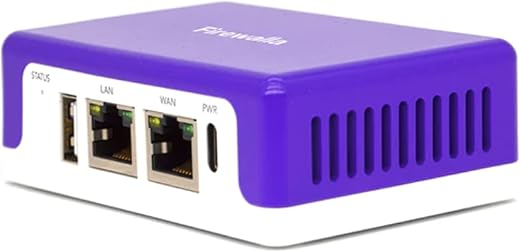
Firewalla: Cyber Security Firewall for Home & Business

Smart Device Management
Choose Reputable Brands
Stick with manufacturers that ship frequent firmware updates and have a track record of patching vulnerabilities quickly. Independent test labs and security certifications are a decent shortcut if you don’t want to read a privacy policy end to end. Not every device updates itself, either — check manually every so often for anything that’s been sitting untouched for a year or more.
Disable Unneeded Features
Turn off anything you’re not actually using — location tracking, always-listening modes, usage analytics. Fewer active features means fewer things that can leak data or get exploited.
Use a Password Manager & VPN
A VPN encrypts your traffic, which matters most when you’re checking in on your smart home from outside your own network — though it’s worth being clear that a VPN only protects the connection itself, not what happens to your data once it reaches a manufacturer’s servers, so treat it as one layer, not a fix-all. NordVPN is our pick, but Proton VPN and Mullvad are solid, privacy-focused alternatives worth comparing.
The same logic applies to a password manager, which is really the only realistic way to keep a unique password on every device in a smart home — nobody’s memorizing fifteen of them. NordPass works well; Bitwarden is a solid free option if cost is the deciding factor.

Smart Home Security Cameras with Privacy Features
Newer cameras increasingly include physical privacy shutters, multi-factor authentication on the account, and end-to-end encryption for recorded footage. When you’re comparing options, those three features matter more than resolution or field of view if privacy is the priority.
Setting Up a VLAN for Enhanced Home Security
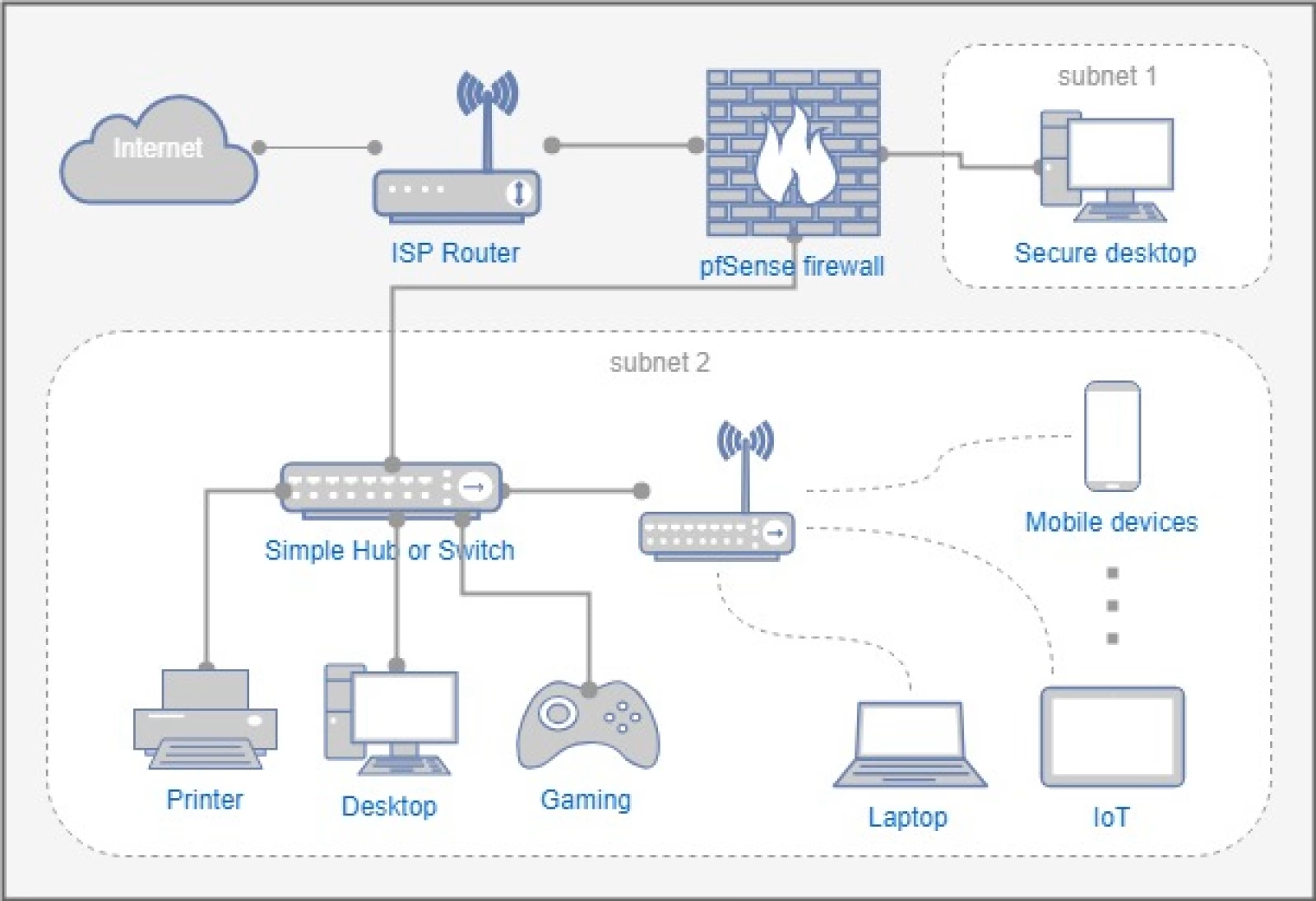
A VLAN (Virtual Local Area Network) splits one physical network into isolated compartments — so your devices can share the same router and cabling without sharing the same trust level.
- Separate IoT devices. Put smart speakers, cameras, and thermostats on their own VLAN.
- Keep personal devices apart. Phones, laptops, and anything with sensitive accounts logged in belongs on a different VLAN entirely.
- Restrict traffic between VLANs. If a smart bulb doesn’t need to talk to your laptop, don’t let it.
It sounds like enterprise IT, but it’s really just digital room-dividing — grouping devices by how much you trust them.
VLAN Requirements
You don’t need to replace your router to add a VLAN — any router or managed switch with VLAN support will do, and most mid-range and higher routers sold in the last few years have it. Check your device’s admin settings or documentation to confirm.
From there, log into the admin console, assign a VLAN ID (just a number that labels each virtual network so the router can tell them apart), and decide which ports or wireless networks belong to each VLAN. It looks intimidating the first time, but most manufacturers’ setup guides walk through it step by step.
Popular Routers Supporting VLANs
Ubiquiti UniFi Dream Router 7 (UDR7)
Ubiquiti’s entry-level Wi-Fi 7 router runs the same UniFi Network app used across their enterprise gear, which means VLAN configuration is genuinely straightforward compared to most consumer routers — you get real segmentation controls without needing a separate switch.
Synology RT6600ax
Synology’s router pairs tri-band Wi-Fi with the same security-audit tooling the company is known for on its NAS boxes, plus built-in VPN support. VLAN segmentation and multiple SSIDs are handled through a genuinely approachable interface, which makes it a solid pick if you don’t want a steep learning curve.
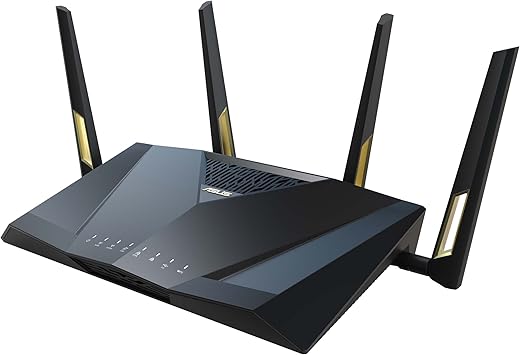
ASUS RT-BE96U
ASUS’s Wi-Fi 7 router carries VLAN isolation forward from its AiMesh line, along with dual 10G ports for anyone running a NAS or a wired backhaul. It’s the more “prosumer” option of the three, with deeper configuration depth if you want it.
One honest caveat on router shopping generally: the Commerce Department proposed banning TP-Link router sales in late 2025 over national-security concerns tied to the company’s China ties, though the White House reportedly shelved that federal plan in early 2026 — Texas’s attorney general is still pursuing a separate lawsuit against the company. Nothing’s settled, and TP-Link disputes the security claims outright, but it’s worth checking current status before buying TP-Link gear specifically for a security-focused setup.
Zero-Trust Network Approach
“Zero-trust” sounds like enterprise IT jargon, and it is — but the idea behind it is simple: don’t assume a device is safe just because it’s already on your network. Even with VLANs in place, treat every device as potentially compromised until it proves otherwise.
In practice, that means keeping firmware current, limiting each device’s permissions to only what it actually needs, and periodically checking for unusual activity. It also means setting strict rules for how devices talk to each other — your voice assistant, for example, shouldn’t be able to reach your security cameras without explicit permission. That keeps cross-device communication authorized rather than assumed, which matters most for the two things people are usually most protective of: video footage and voice recordings.


Device-Specific Privacy Settings
Alexa, Google Home, and Apple HomeKit each offer more privacy controls than most people ever open. A few minutes per platform is enough to meaningfully cut down what’s being stored.
Amazon Alexa
- Manage voice recordings. In the Alexa app, go to Settings → Alexa Privacy → Review Voice History to delete stored recordings, and turn off “Help Improve Amazon Services” to opt out of human review.
- Prevent unauthorized access. Set a voice PIN for purchases or sensitive actions, and disable Personalized Results if the device is somewhere guests can use it.
Google Home
- Adjust activity controls. In your Google Account’s Data & Personalization section, pause Web & App Activity and Voice & Audio Activity to stop the logging at the source.
- Delete voice recordings. Use “My Activity” to review and delete audio clips, or set an auto-delete schedule (three or six months) so it happens without you thinking about it.
- Restrict sharing. In the Home app, check each device’s permissions and remove third-party integrations you’re not using.
Apple HomeKit
- Turn off audio storage. In the Home app, disable “Allow Siri to use your voice input” on devices that don’t need to be always listening.
- Limit data syncing. Confirm two-factor authentication is on for your Apple ID, and disable Home data syncing with iCloud if you’d rather keep everything local-only.
- Check app permissions. Under Privacy settings, review which apps have HomeKit access and revoke anything that doesn’t need full control.
Setting Clear Boundaries
Decide up front what you’re comfortable sharing — energy usage tracking might be fine, while your name and address staying out of a smart plug’s app might not be. Reading each device’s privacy policy, tedious as it is, is the only reliable way to know what’s actually being collected.
Creating User Profiles
Most platforms let you set up separate profiles that control what each person in the household can access or change — useful for keeping kids off certain devices while giving other adults full control. Worth revisiting occasionally as your household’s needs shift.
One more habit worth building across all three platforms: periodically audit which third-party apps and skills still have access to your voice assistant, and remove anything you no longer use — old integrations are an easy thing to forget you ever connected.
Physical Security Aspects
None of this matters if someone can just walk off with your router or an unsecured device. Keep networking equipment somewhere only trusted household members can reach — physical access to a camera or voice assistant can let someone extract data or factory-reset it, bypassing every other defense you’ve set up.
Password-protect and encrypt devices so a stolen one doesn’t hand over footage or stored preferences for free. Physical security and network security work together; neither one covers for the other.
Evaluating Smart Home Products
Privacy Policies Review
Before buying, skim the privacy policy for how data is encrypted, what’s shared with third parties, and whether your data is ever sold outright. It’s not thrilling reading, but it’s the one place manufacturers have to be honest about this.
Manufacturer Reputation
Reputation isn’t a substitute for reading the privacy policy, but a consistent track record on updates and transparency is a reasonable filter. One honest note on the table below: this reflects general industry reputation as of 2026, not a line-by-line security audit of each company — treat it as a starting point for your own research, not a final verdict.
| Company | Security Practice |
|---|---|
| Apple | HomeKit’s ecosystem is built around end-to-end encryption by design, not as an add-on. |
| Google Nest | Regular security updates and multi-factor authentication across Nest devices. |
| Eero | Frequent firmware updates and WPA3 encryption by default. |
| Ubiquiti | Enterprise-grade security tooling extended into its consumer UniFi line. |
| Netgear | Enforces password strength requirements and pushes firmware updates regularly. |
| Synology | Ships with built-in VPN support and has a reputation for engaging third-party security researchers. |
| Arlo | End-to-end encryption on video streams as standard. |
| Logitech | Data encryption and regular firmware security investment. |
| Philips Hue | Regular hub updates and encouraged secure connections via encryption. |
| Ecobee | Encrypted data transmission and configurable privacy controls on its thermostats. |
Data Retention and Local Storage Options
What your devices collect matters, but so does how long they keep it. Some manufacturers automatically purge old logs; others hold onto everything indefinitely unless you go dig up the setting to change it.
Local vs. Cloud Storage
Local storage — saving footage to a memory card or personal server instead of the cloud — cuts down how often your data travels across the internet, which lowers exposure. Cloud storage is more convenient and easier to access remotely, but you’re trusting the provider’s security instead of your own.
Third-Party Integrations
Even a trustworthy core device can pick up risk through the apps it connects to. Voice assistants routinely link to rideshare apps, shopping platforms, and more — each connection is its own data flow with its own terms of service. Worth checking before you link a new service, not after.
Minimizing Long-Term Exposure
Clear out chat logs and unused skills periodically. And if you stop using a device entirely, factory-reset it and delete the associated account — don’t just unplug it and forget it exists.
Common Pitfalls

Most breaches trace back to the same handful of avoidable mistakes:
- Default credentials: never changing default usernames and passwords is still the single easiest way in for an attacker.
- Ignoring firmware updates: outdated software is a known, documented target — not a theoretical one.
- Skipping network segmentation: no guest network or VLAN means one compromised device can expose everything else.
- Over-permissioning apps: granting more access than an app actually needs widens your exposure for no real benefit.
Affordable DIY Smart Home Security Solutions
A full security overhaul isn’t required to meaningfully improve your setup. Inexpensive DIY door and window sensors will alert you to a breach without any subscription at all. Buying refurbished cameras saves money too, as long as you update the firmware immediately before putting one on your network.
And some providers now let you pay only for the specific managed features you actually want — cloud storage, say, or advanced threat detection — instead of buying into a full bundle you’ll use half of.
Final Nerdy Thoughts
Smart home tech is genuinely convenient, and it doesn’t have to come at the cost of your privacy — but that trade-off isn’t automatic. If you only do one thing after reading this, make it the network: a segmented, firewalled network catches the mistakes every other layer misses, including the ones you haven’t made yet.
Start there, then work through device settings and the DIY options as time allows. Whether you’re buying your first smart lock or building out a full security setup, the fundamentals in this guide cover the parts that actually move the needle.