
There’s no such thing as “safe.” There’s only “risk you can manage” and “risk you can’t”
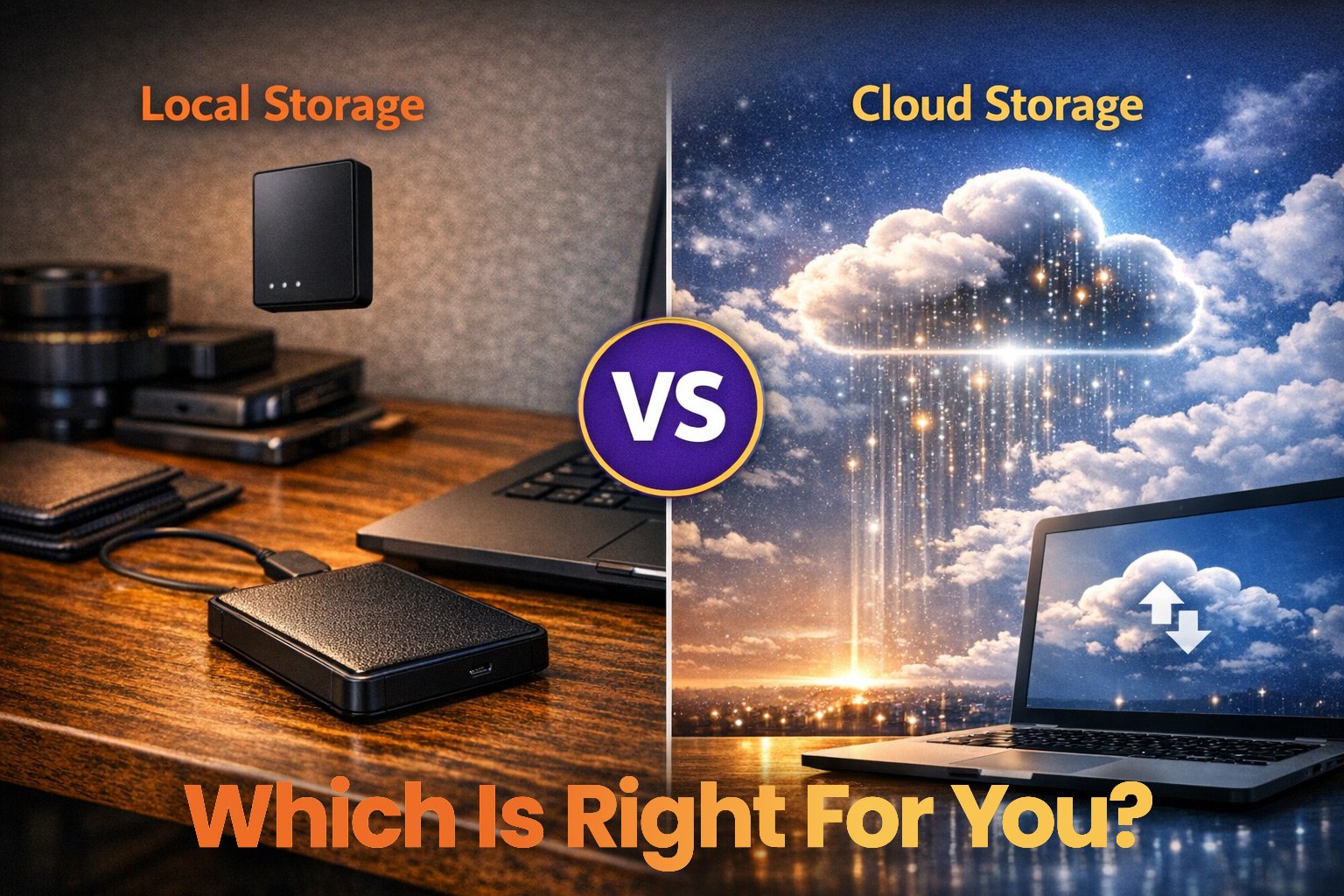
If you’re trying to decide between the cloud or local storage with a stack of hard drives on your desk, you aren’t picking a winner. You’re picking which type of headache you’re willing to deal with when a drive starts clicking or your internet goes down at 2:00 AM.
Choosing where to put your life’s digital work—photos, tax returns, or that novel you’ve been writing—is one of the most important calls you’ll make. This guide cuts through the marketing fluff to look at the actual logistics of owning your data.
| Factor | Cloud (Google, Dropbox) | External SSD/HDD | Local NAS (Private Cloud) |
|---|---|---|---|
| Typical Cost | Monthly subscription | One-time buy | High upfront, low ongoing |
| Control | They hold the keys | You hold the keys | You hold the keys |
| Safety | High (it’s their job) | Zero (if you lose it) | High (if set up right) |
| Speed | Depends on your Wi-Fi | Blazing fast | Fast (at home) |
| Primary Risk | Account lockouts | Hardware failure | Physical theft/fire |
Which Type of User Are You?
Identifying your needs early saves you money and stress later. Most people fit into one of three buckets:
The Remote Collaborator
If you need to edit files on your laptop, check them on your phone, and share folders with a team across the country, go with the cloud. Physical drives are too clunky for this—the constant plugging, unplugging, and manual syncing will drive you mad.
The Digital Sovereign
If you handle sensitive files, high-res video, or data you don’t want a third party “scanning” for any reason, hardware is your home. You’re okay with the risk of a drive failing because you value having that physical box under your direct control.
The Budget Minimalist
If you just want a one-time purchase with no monthly bills, a physical drive is the cheapest way to go over five years. The catch? If you forget to plug it in and run a backup, your data is as good as gone.


The Cloud Mirage: Why “Other People’s Computers” Aren’t Vaults
Cloud providers have largely fixed the privacy issues of a decade ago, but they aren’t perfect. When you upload to the cloud, you’re delegating your security to someone else.
The Sovereignty Gap
Providers use automated tools to scan for malware or illegal content. This involves a process called “hashing”—creating a unique digital fingerprint of your files to check against a database of known illegal content.
If their system flags a false positive in your account, they can lock you out of everything—your email, your photos, your work—overnight. Because these systems are automated, getting a human to review your case can be nearly impossible.
Ransomware and Versioning
Ransomware is malicious software that locks your files and demands money to get them back. Modern versions target your “sync” folders. If your cloud provider doesn’t have a solid “version history” (the ability to roll back the clock on your files), your cloud backup just becomes a remote copy of useless, encrypted junk.
The Internet Problem
Most providers promise 99.9% uptime. That sounds great until you realize it allows for nine hours of downtime a year. More importantly, if your home internet is out, your data is basically non-existent.
The Hardware Reality: Drives Are Built to Fail
Hard drives are mechanical, and like anything with moving parts, they eventually break. According to long-term reliability data from companies like Backblaze, mechanical drives face an annualized failure rate that climbs as they age, with some models seeing a significant spike in issues after just three to five years of use.
HDDs vs. SSDs
Traditional Hard Disk Drives (HDDs) have spinning platters inside. They’re cheap but fragile—drop one from a desk and it’s likely toast. Solid State Drives (SSDs) are much faster and can survive a drop, but they have a higher environmental cost.
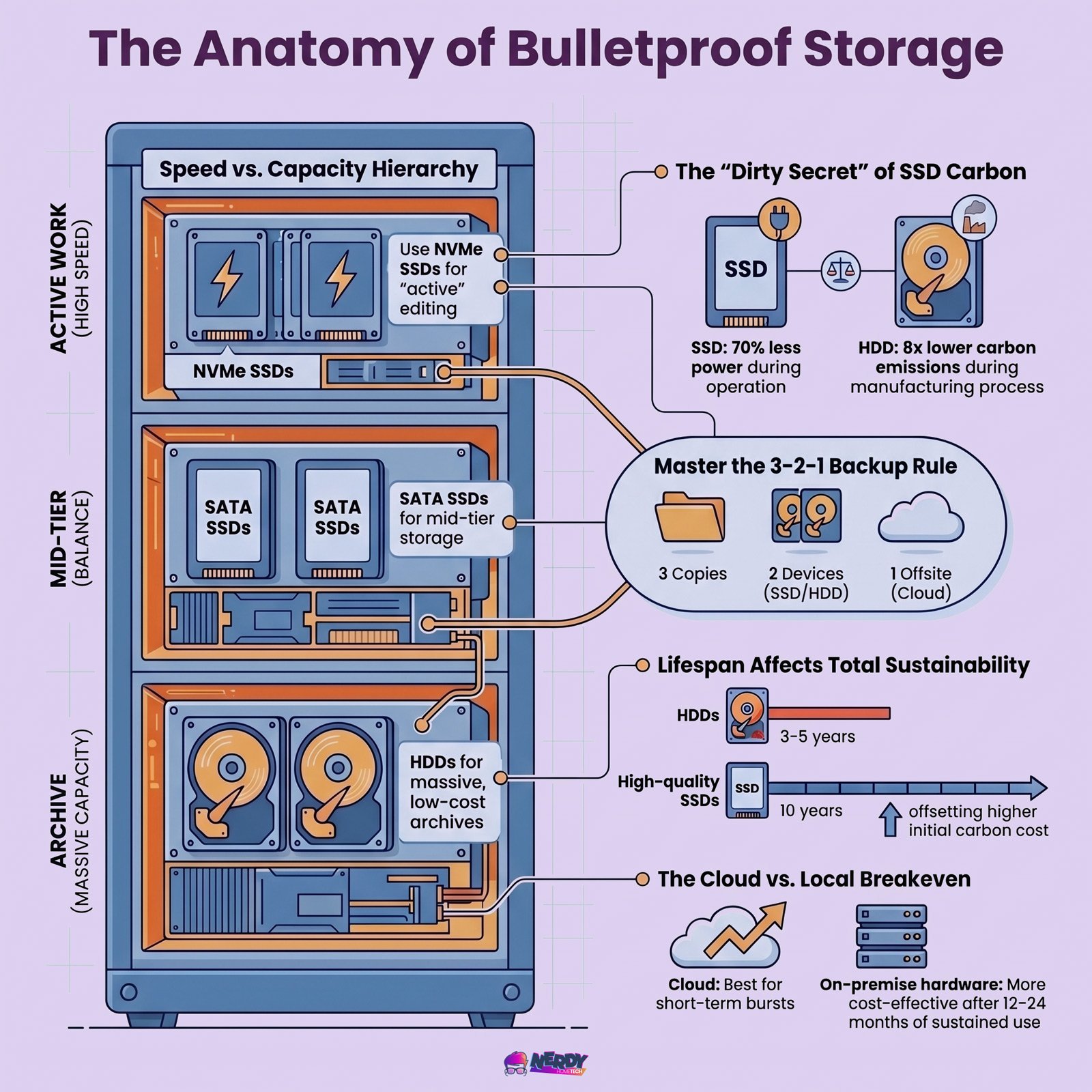
Research from the University of Wisconsin-Madison suggests that manufacturing an SSD can emit up to eight times more carbon (0.16 Kg-CO2e/GB) than a mechanical HDD (0.02 Kg-CO2e/GB) due to the energy-intensive process of creating semiconductors.
The Reality of “Bit Rot”
Data on a drive can slowly decay over long periods. On HDDs, the magnetism fades; on SSDs, the electrical charge in the cells can eventually dissipate if left unpowered. While modern SSDs are rated to retain data for several years in storage, environmental factors like high heat can accelerate this.
To stay safe, you should plug in your archival drives every 12 to 18 months to “refresh” the cells and verify the integrity of your files.
AES-256: The Professional Lock
Many pro-grade drives use AES-256 encryption. This is a technical standard used by governments and banks that’s virtually impossible to crack with current computing power.
While quantum computing is often discussed as a future threat to this cipher, for the next decade, the real risk isn’t a supercomputer cracking your code—it’s you losing the password. If you lose your physical PIN or password, there is no “Forgot Password” link and no backdoor. Your data becomes permanently inaccessible.
| Product Name | Image | Storage Capacity | Product Highlights |
|---|---|---|---|
| Asustor Drivestor 2 Gen 2 AS1202T | 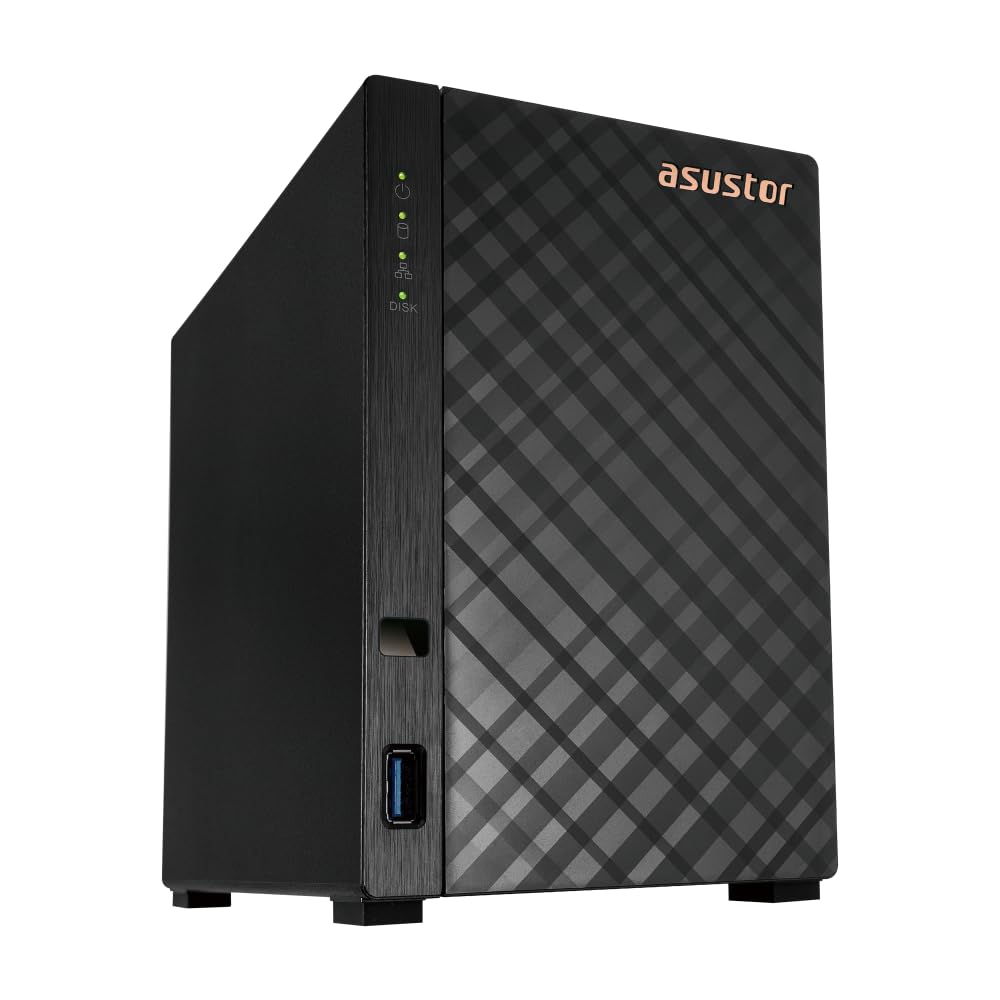 | Up to 32TB (2 Bay) |
Processing: Quad-Core 1.7GHz CPU, 1GB DDR4 Connectivity: 2.5GbE, 3x USB 3.0 Features: Metal construction, personal cloud backup, easy setup |
| Ubiquiti UNAS 2 | 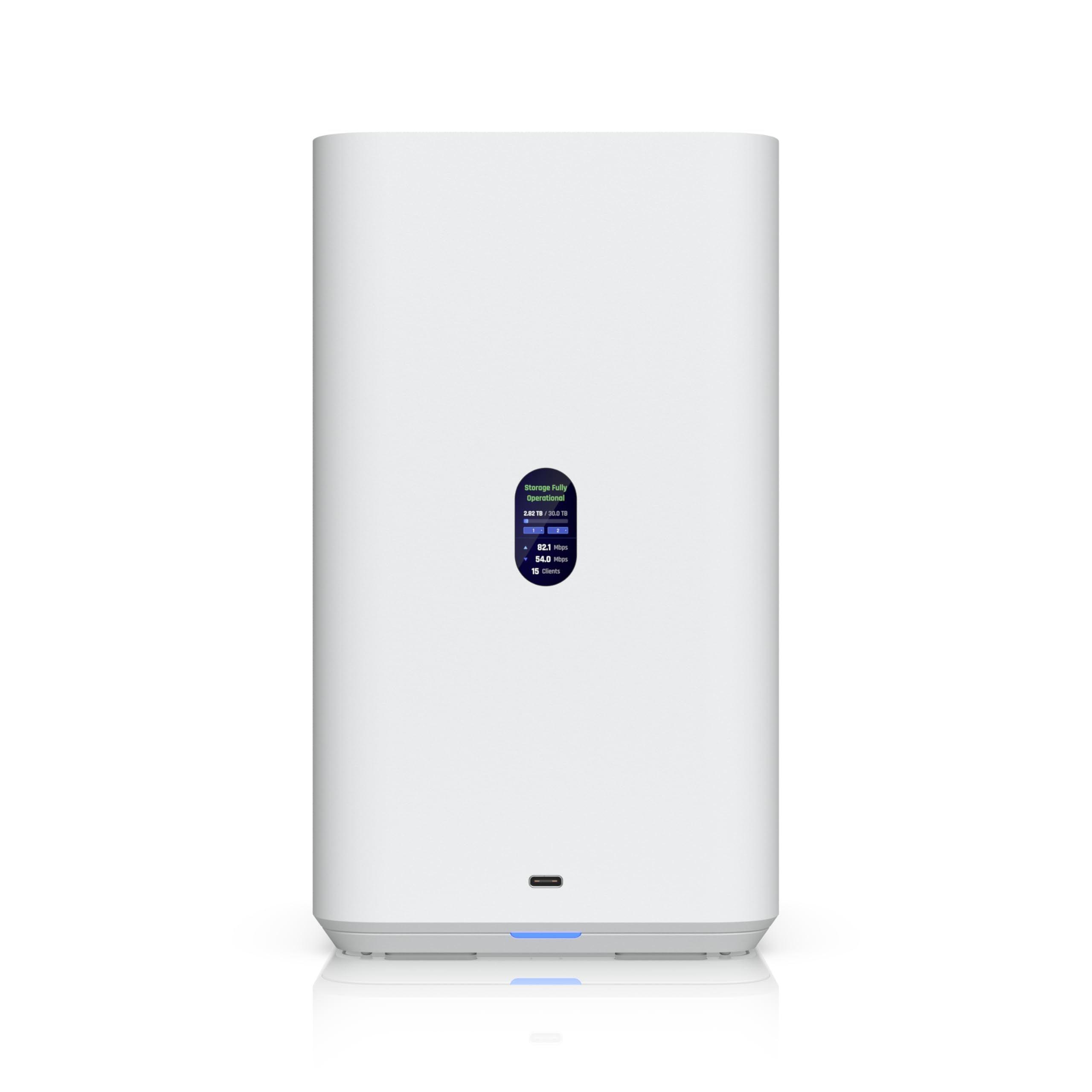 | Up to 20TB (2 Bay) |
Processing: Optimized for UniFi OS Connectivity: 2.5GbE, USB-C expansion Features: PoE++ powered, silent operation, centralized file storage |
| UGREEN NAS DXP8800 Plus |  | Up to 272TB (8 Bay) |
Processing: Intel i5 10-Core, 8GB DDR5 Connectivity: 2x 10GbE, 2x M.2 NVMe, 8K HDMI Features: Business/multimedia robust, Thunderbolt 4, scalable architecture |
| Synology 4-Bay DS925+ | 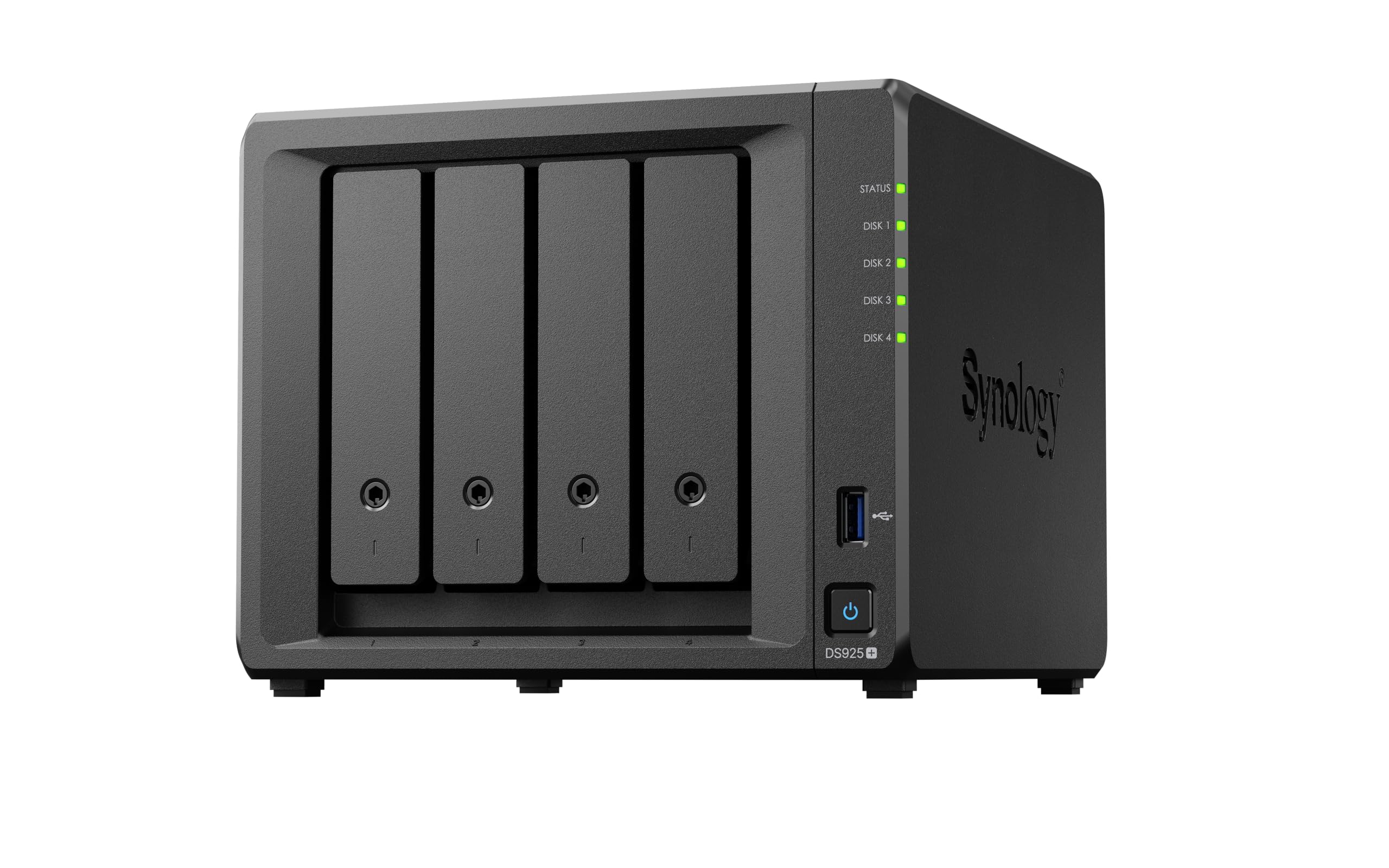 | Up to 36TB (4 Bay, expandable) |
Processing: Synology DSM Architecture Connectivity: 2.5GbE, dual ethernet ports Features: M.2 NVMe caching, flexible data backup, surveillance functionality |
| TERRAMASTER F4-424 Pro |  | 4 Bay (expandable 32GB RAM) |
Processing: Core i3-N305 8-Core 8-Thread Connectivity: 2x 2.5GbE Features: High performance for business, robust metal case, user-friendly OS |
| QNAP TS-264-8G-US | 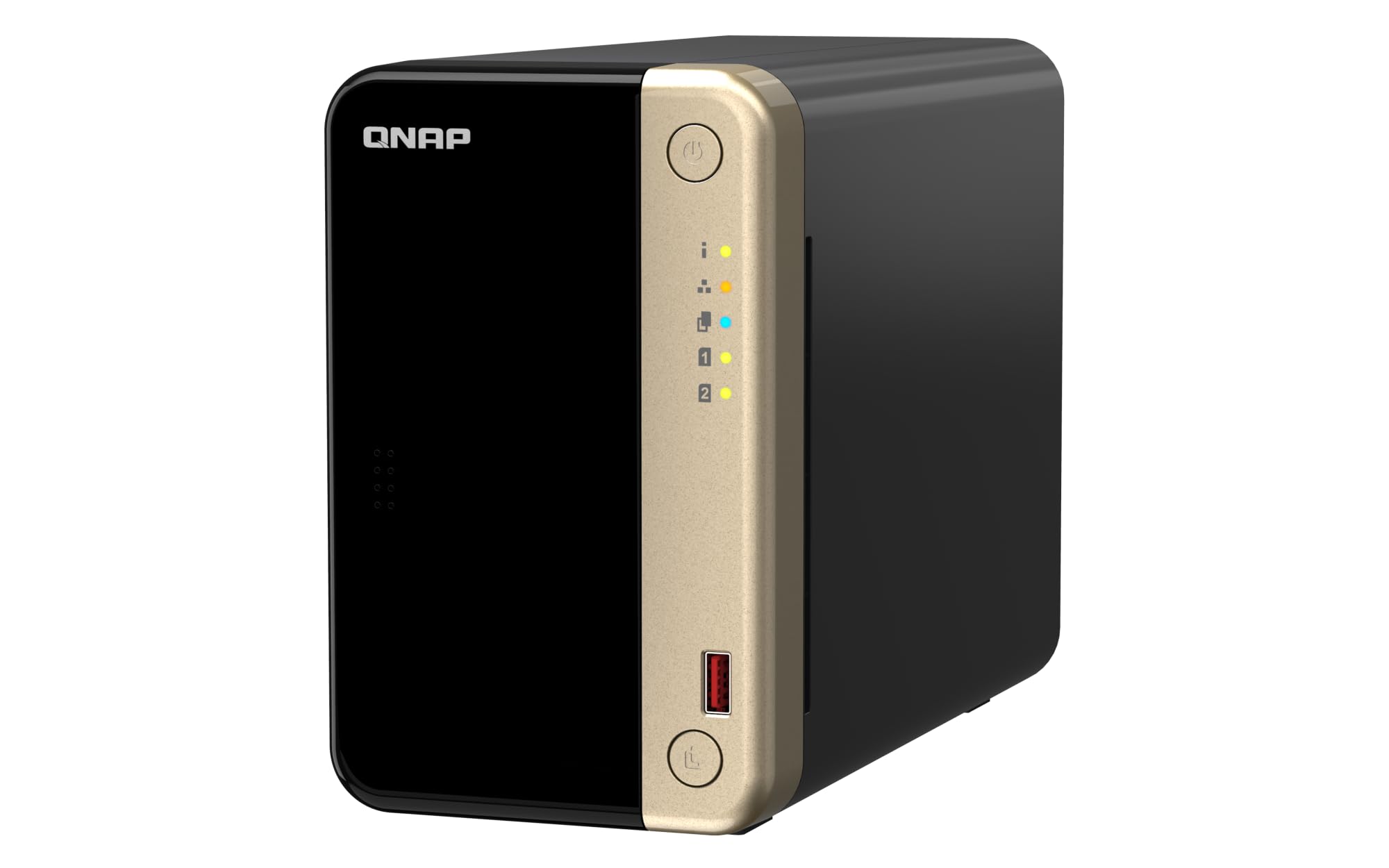 | Up to 32TB (2 Bay) |
Processing: Intel Celeron Quad-Core, 8GB RAM Connectivity: Dual 2.5GbE ports Features: Intel AES-NI encryption, personal/SMB design, LED indicators |
| BUFFALO LinkStation 720 |  | 4TB (2x 2TB Included) |
Processing: Basic Storage Architecture Connectivity: Gigabit Ethernet Features: Hard drives included, Mac easy setup, private cloud functionality |
The Small Business Choice: The NAS
A NAS (Network Attached Storage) is basically a private cloud server that lives in your office. It’s a hard drive that stays home but talks to the internet so you can reach it from anywhere.
The Breakeven Point
If you have a lot of data—like 4K video or a massive client archive—the cloud gets expensive fast. A mid-range 4-bay NAS like a Synology DS925+ costs roughly $450–$500 (plus the cost of drives).
For a small team of three to five people on a professional plan—which usually costs around $50/month—the hardware pays for itself in less than a year. Most small businesses find the total cost of ownership breaks even within 12 to 22 months compared to recurring cloud subscriptions.
Hardware Recs for 2026
If you’re ready to build a local vault, the Synology DS925+ is the gold standard for beginners. Its management software (called DSM) provides an intuitive interface—similar to the control panels on Mac or Windows PCs—for managing storage and users.
If you’re more tech-savvy and want faster speeds for the money, the UGREEN DXP4800 Plus offers better hardware (like 10GbE ports) for a similar price. However, be aware that UGREEN’s software is still catching up; it lacks the deep app library and “set it and forget it” refinement that Synology has perfected over the last decade.
The 3-2-1 Strategy: Your Survival Insurance
You can’t stop a drive from failing, but you can stop it from ruining your life. Follow the 3-2-1 rule:
- Three Copies of Data: The original and two backups.
- Two Different Media: Don’t buy two of the same drive. If one has a manufacturing flaw, the other might too. Use one local drive and one Cloud account.
- One Off-site Copy: This is non-negotiable. If your laptop and your backup drive are in the same building during a fire, you have zero backups. One copy must be in the cloud or at a different physical address.
Next Steps
Take 10 minutes today to audit your “hot” data—the files you’d cry over if they disappeared. If those files aren’t in at least two different places right now, you’re gambling.
If your cloud bill is creeping over the cost of a nice dinner every month, start looking at a NAS. It’s a bigger check to write today, but your future self (and your wallet) will thank you in two years.