

Key Takeaways
- The Epson ET-2850 EcoTank printer aims for predictable, low-cost printing with its refillable tanks.
- This printer is for homes that print a lot, not just every so often.
- Find out what kind of quality to expect for text, color pages, and photos.
- Setting it up and printing from your phone can be simple. Still, Wi-Fi and app settings are important for your privacy.
- Features like Wi‑Fi Direct and cloud can be handy, but they can also be risky if not managed well.
- The review highlights the overall cost, ease of use, and how to keep a connected printer safe.
Quick Verdict: Who the Epson ET-2850 Is Best For
If you print every week and dislike running out of ink, the Epson EcoTank ET-2850 is ideal. It does printing, scanning, and copying without taking up much space. Ink savings are a big plus because refill bottles are cheaper than buying new cartridges often.
This printer suits homes needing reliable work or school prints. It is great for remote work and family use. It connects wirelessly to different devices easily.
If you rarely print, consider the cost versus the ink savings. And if you need special features like a fax or high-quality photo prints, look elsewhere.
Remember, any wireless printer needs safe network settings. Change passwords, update software, and use a guest network if you can. This keeps your printing safe without much trouble.
- Choose the ET-2850 for no-cartridge printing, savings on ink, and easy setup for several devices.
- Look at other options if you print a lot fast, need to scan lots of pages at once, or want top-notch photos.
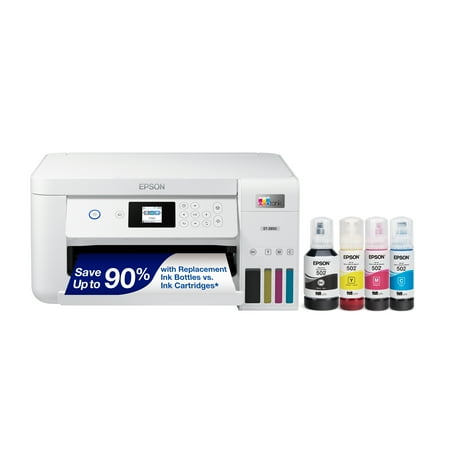
| Buyer profile | Best fit with ET-2850 | Why it matters in daily use | What to watch for |
|---|---|---|---|
| Remote workers printing forms, labels, and drafts | Strong | Supports home office productivity with reliable everyday output and scanning | Not built for high-speed, office-volume batches |
| Families with students and shared devices | Strong | A wireless printer keeps printing accessible across phones and laptops | Manage access settings to avoid unwanted prints |
| Small home businesses with steady weekly printing | Strong | Ink savings add up when you print often, and the all-in-one printer functions cover basics | No automatic document feeder for multi-page scanning |
| Occasional printers (few pages per month) | Mixed | Cartridge-free printing reduces store runs, but cost benefits take longer | Upfront price may outweigh short-term value |
| Photo-focused users seeking lab-like results | Limited | Good color for everyday needs, not tuned for pro photo expectations | Paper choice and color demands may push you to a photo-centric model |
Epson ET-2850 Ecotank printer: Key Features and Everyday Benefits
Printing at home can be easier with the right features. The Epson ET-2850 makes saving money and steady printing its goal. However, it needs some attention too. Expect fewer interruptions, less wasted paper, and more secure network sharing.
Refillable ink tank system for cartridge-free printing
With refillable tanks, you replace cartridges with high-capacity bottles. This change makes printing more predictable. You won’t worry about cartridges running out unexpectedly.
Ink can still run out. So, keep bottles upright and away from heat. When refilling, pour carefully and clean up any spills immediately.
Auto-duplex printing for low cost printing
Auto-duplex printing saves paper by printing on both sides. It’s great for smaller offices and making neat packets. It’s better than having lots of loose pages.
However, printing on both sides can be slower. For big jobs, plan ahead. For quick tasks, single-sided might be faster.
Wireless all-in-one printer essentials: print, scan, copy
The ET-2850 does what most homes need. It prints, scans, and copies. This includes everything from shipping labels to signed forms.
Be careful with private information. If scanning sensitive documents, limit printer access. Make sure only trusted people can connect to it.
Heat-free technology for reliable home office productivity
Epson’s technology skips steps that use lots of heat. This means less stress on the printer during regular use. It’s ready when you are without wasting energy.
This also means less energy used day to day. For homes looking at costs and dependability, this is important.
| Feature | What you do day to day | Everyday benefit | What to watch for |
|---|---|---|---|
| refillable ink tank system | Pour ink bottles into tanks instead of swapping cartridges | Fewer emergency ink runs and steadier page volume planning | Fill carefully, store bottles sealed, clean small spills quickly |
| cartridge-free printing | Track ink levels visually and refill when it’s convenient | Less packaging waste and fewer “out of ink” surprises mid-task | Ink is still a consumable, so schedule refills before big jobs |
| auto-duplex printing | Print two-sided contracts, packets, and longer PDFs | Lower paper use and less clutter in folders and trays | Duplex output can be slower than single-sided printing |
| wireless all-in-one printer | Print, scan, and copy from phones and computers on your network | Simple home workflows for school forms, shipping, and records | Protect access to scans and apps, especially on shared Wi-Fi |
| heat-free technology | Run regular print sessions without heat-heavy cycles | Potentially steadier operation and practical energy efficiency | Still maintain it: keep vents clear and use quality paper |
Unboxing and Setup Experience for a Wireless Printer
The first hour with a wireless printer sets your opinion for months. Make sure you have a clean table, good lighting, and some quiet time. Careful setup reduces ink leaks, mistakes, and Wi‑Fi issues.
What’s in the box: high-capacity ink bottles and essentials
Inside the box, you’ll find the printer, a power cable, and guides for quick start and safety. The high-capacity ink bottles are key for the initial setup. This first step is crucial as it prepares the ink system. Set aside enough time and protect your workspace with paper or a mat.
Tank filling tips to prevent spills and speed up first-time setup
Ink spills can stain desks, skin, and papers, making setup frustrating. Take your time, control the ink bottles well, and close them immediately after use.
- Fill on a firm table, avoid soft surfaces like couches or carpets.
- Have paper towels and a trash bag handy for clean-up and disposal.
- Open ink bottles one at a time and close each before moving to the next.
- Clean the nozzle tip if you spot any drips before capping.

Wi-Fi Direct and router Wi-Fi setup options
Router Wi-Fi suits most homes best since it allows everyone to print from different devices on one network. Wi-Fi Direct creates a private link between your device and the printer, useful if you prefer not putting the printer on your main network. Treat Wi-Fi Direct like a personal hotspot. Use a strong password and avoid basic ones.
A mobile printing app helps with fast pairing, handling driver setups, and adjusting basic settings via your smartphone. For safety, change any preset settings, secure your router with WPA2 or WPA3, and update the printer’s software regularly.
| Setup choice | Best for | Privacy caution | What to do right away |
|---|---|---|---|
| Router Wi‑Fi | Households with many devices, daily printing, and easy sharing | Poor router passwords may put your devices at risk | Use WPA2/WPA3, pick a strong router password, keep the printer’s software up to date |
| Wi-fi direct | Visitor printing, fast setup for one device, limited sharing | A weak password or leaving it open can risk security | Choose a strong password, turn it off when not in use, review settings |
| Mobile printing app | Easy setup from phones, scanning to phone, quick status updates | App permissions and saved networks could invade your privacy | Check permissions, log out on shared devices, update the app and printer software |


Epson 502 EcoTank Ink Ultra-high Capacity Bottle Color Combo Pack Works with ET-2750, ET-2850, ET-2980, ET-2988, ET-3750, ET-3760, ET-3850, ET-4850, and…
| Placement need | What to allow for | Why it matters in daily use |
|---|---|---|
| Rear paper loading | Extra space behind the unit and a clear path for legal or letter sheets | Reduces curled pages and avoids scraping paper against the wall |
| Front output tray | Open area in front so pages can land flat without hitting a monitor stand | Prevents wrinkled corners and keeps stacks from spilling onto the floor |
| Ink tank access | A spot where you can open covers and see ink windows in normal light | Makes quick checks easier and lowers the risk of messy refills |
| Scan lid clearance | Side and top room to lift the lid fully for books and thick packets | Helps you scan cleanly without shifting the page or pinching fingers |
| Visitor visibility | Place it away from entryways and common seating areas | Keeps printed tax pages, medical forms, and school records from sitting exposed |
Since it’s wireless, it doesn’t have to be close to your laptop. Choose a place where others can’t see or grab your prints easily. Especially if you share the space and are often away or busy.
Print Quality Review: High Quality Prints for Text, Color, and Photos
The Epson ET-2850’s print quality might impress or disappoint you, based on your needs. It aims to produce high-quality prints for most homes—clean and consistent, yet not overly flashy.
The type of paper plays a big role, too. The same image may look sharp on high-quality paper but blurry on cheap one. This happens even if the printer settings don’t change.
Sharp documents and reports for work-from-home needs
Sharp text means letters with clean edges and solid fill. This is important for resumes and documents where clear text is crucial. You wouldn’t want your important documents to have uneven ink.
With cheap paper, ink can spread, blurring letters. So, for important prints like contracts, a better paper makes a difference. It keeps your documents looking crisp and professional.
Color graphics for schoolwork and small business use
The ET-2850 shines with color documents. This includes things like charts and simple flyers. Colors and gradients look their best when you use the right settings.
This printer saves money when mixing text and color prints. However, matching exact colors for business may need some experiments with settings and paper types.
Photo printing expectations from an inkjet printer
Photo printing varies greatly here. The ET-2850 can make nice pictures for your fridge. Yet, the quality heavily depends on the paper and settings you choose.
Ask yourself what you want from your photos. For high quality, you might need a different printer or a printing service.
| What you’re printing | What “good” looks like day to day | Paper and setting that usually helps |
|---|---|---|
| Sharp text documents | Clean letter edges, readable 8–10 pt font, even black coverage | 20–24 lb bright paper; “Standard” or “High” quality for business pages |
| Color graphics | Clear charts, smooth color fills, readable labels in presentations | Matte presentation paper; “High” quality when colors look banded |
| Photo printing | Natural skin tones, controlled grain, fewer muddy shadows | Dedicated photo paper; correct media type; borderless only when needed |
One thing people often forget is privacy. Printing from a phone could leave private info visible in print histories. This is especially true for personal documents.
If you share your printer, always clear your print jobs afterwards. Use a lock or biometrics on your device. This simple step can keep your private documents safe.
Speed and Performance: Real-World Output for Busy Weeks
Having a fast printer at home means more than just numbers on paper. During a hectic week, every second counts. You’re busy with calls and trying to keep your home office running smoothly. With an ecotank printer, things generally move well. But sometimes, Wi-Fi can cause a slight delay.
Sometimes there’s a short wait before printing starts. This happens when your devices are making a secure Wi-Fi connection. If lots of devices are using Wi-Fi, it might slow things down a bit. For those who care about privacy, this small wait is okay. It’s good to know why delays happen before blaming the printer.
Warm-up and first-page-out behavior in daily use
The printer warming up is not usually the problem. The delay you see is when it’s starting to print the first page. If the printer was sleeping, it wakes up, checks everything, then starts printing. A weak Wi-Fi signal or a busy network can make this process slower, even if the printer is fine.
If printing is slow, check a few things first. Look at your Wi-Fi signal, which driver you’re using, and the print quality setting. Using a high-quality setting means the printer uses more ink and time. This can slow you down if you’re just trying to print a quick draft.
Auto-duplex printing performance and best-use scenarios
Auto-duplex printing saves paper by printing on both sides. But it does make printing take a bit longer. The printer prints one side, then stops and pulls the paper back in to print the other side. This pause is normal. It’s how you save paper without putting in extra work.
Choosing the right mode for your needs can help. Use duplex printing for things you’re not in a hurry for, like documents you’re printing while doing other things. For quick needs like meeting handouts, it’s faster to print on just one side. This keeps things moving smoothly.
| Task | Best print mode | Why it fits | What to watch |
|---|---|---|---|
| Meeting handouts needed now | Single-sided, standard quality | Faster page flow and fewer pauses | Confirm the correct printer in the queue to avoid delays |
| Training guides or long PDFs | Auto-duplex printing | Saves paper and keeps stacks smaller | Expect a slower pace as sheets flip inside the printer |
| Color charts for planning | Standard color, single-sided | Good balance of clarity and speed | High-resolution mode can slow output and use more ink |
| Weekly school packets | Duplex, draft for text-heavy pages | Supports low cost printing with less paper use | Check margins and scaling to prevent cut-off text |
Handling longer runs without constant refills
For big printing jobs, ecotank printers are pretty handy. You don’t run out of ink as quickly as with cartridges. This means less stopping and more savings on ink. It makes big projects less stressful.
If printing slows down, it might not be the tank’s fault. Check your network and print settings if things seem slow. A quick look can often get your printer moving fast again.
| Preview | Product | Rating | |
|---|---|---|---|
 | Epson EcoTank ET-4800 Wireless All-in-One Cartridge-Free Supertank Printer with Scanner, Copier… | CHECK PRICE |
Last updated on 2026-02-20
Scan and Copy Capabilities: High-Resolution Scanner for Home Use
Speed and proof are key for scanning in many homes. We scan essential documents like receipts, signed forms, and warranties. The right all-in-one printer makes scanning and copying easy, even during busy times.
A high-resolution scanner captures every little detail. This is great for tiny text on bills or light signatures. But, higher resolution means bigger files, which can be slow to upload or might not send via email.
Copying documents is something we do often. From worksheets to insurance info, and even contractor records. An Epson printer like the ET-2850 simplifies scanning and copying. It’s great for making clean copies at home.
Scanning involves privacy risks too. Scanned documents can end up being shared. They might have personal info like account numbers or addresses. So, it’s important to handle scans of sensitive data carefully.
- Keep your scans in a safe spot, like encrypted cloud storage or a secured local drive.
- Don’t mix scans with family photos or leave them on devices guests might use.
- Be cautious with scan and copy apps on your phone. Check the permissions you give them.
| Household task | Why a high-resolution scanner helps | Practical setting for file size | Privacy step worth taking |
|---|---|---|---|
| Receipts and returns | Captures small text and store barcodes clearly | Medium resolution to keep PDFs easy to email | Store in a locked folder, not the general “Downloads” area |
| Signed forms | Preserves signature edges and faint pen strokes | High resolution only if the portal rejects blurry uploads | Rename files without personal details and limit sharing |
| School documents | Keeps charts, math work, and handwritten notes readable | Medium resolution for quick uploads and prints | Don’t leave scans on shared devices used by kids and guests |
| Warranty and serial labels | Reads tiny serial numbers and model codes accurately | Medium resolution; crop to the label to reduce size | Keep serial numbers in a secure folder to reduce fraud risk |
The ET-2850’s scanner is great for real home use. It’s about finding a balance. You want clear images but not huge files. And remember to treat every scan as private, starting the moment it’s made.
Connectivity and Mobile Printing App Options
Printing isn’t just from one computer in most homes now. Phones, tablets, and laptops often need to print at the same time. The ET-2850 offers flexible wireless options for this reality. However, a smooth experience requires smart setup and good security habits.
Epson Smart Panel app overview and usability
The Epson Smart Panel app makes things easy. It guides you through setup, checks status, and controls basic features without needing to go to the printer. It’s great for joining Wi‑Fi, running maintenance, or scanning to your phone quickly.
This app might ask for permissions like local network access or Bluetooth. This is normal for printing. But, only give permissions you need. If you’re just printing documents, you might not need to access photos all the time.
Apple AirPrint and Android printing workflow
For iPhone and iPad users, Apple AirPrint makes printing simple. You just select “Print,” choose your printer, and start printing. It’s easy for guests or family who don’t want extra apps.
Android printing varies by phone and print service. Some devices connect to printers easily, while others need a mobile printing app. In homes with both Apple and Android devices, simple printing is more important than extra features.
Wi-Fi stability, Wi-Fi Direct, and multi-device household printing
Good network quality is crucial for stable printing. When too many devices use the network, printers might print slowly or go offline. Place your printer near your router but away from thick walls or large appliances that could cause interference.
For homes with Wi‑Fi dead zones, consider a mesh system. Use a safe, router-based connection and keep your printer’s firmware updated. This helps protect against security risks.
| Connection choice | When it helps at home | What to watch for |
|---|---|---|
| Router Wi‑Fi | Best for shared access across laptops, phones, and tablets on the same network | Use a strong password and modern encryption; keep printer firmware current |
| wi-fi direct | Useful when the router is down, or for quick one-off printing from a phone nearby | Disable it if you don’t need it; it can create an extra path to the printer |
| Apple AirPrint | Fast printing from iPhone or iPad without extra drivers in many cases | Works best when the device and printer are on the same network segment |
| Android printing | Convenient across many Android phones, especially once discovery is stable | May depend on the phone’s print service; test once before you need it urgently |
Ink Costs, Ink Savings, and True Low-Cost Printing Over Time
Ink costs can quickly empty your wallet with home printers. The EcoTank system changes this by charging more at the start. You then use large ink bottles instead of small cartridges. This can save you money on ink but only if it fits your weekly printing needs.
How EcoTank compares to cartridge refills and subscription plans
At first, cartridge printers seem cheaper, but the ink costs more later. Refills and new cartridges are expensive and needed often. EcoTank printers use big ink bottles for more pages, reducing emergency buys.
Subscription plans make ink costs predictable with a fixed monthly fee. But you’re locked in. Print less, and you still pay. Print more, and you might run into limits unexpectedly.
| Approach | How you pay | Where the pressure shows up | Best fit at home |
|---|---|---|---|
| EcoTank with bottles | Higher printer price, then periodic high-capacity ink bottles | Upfront spend; planning refills before a big project | Families, home offices, and steady monthly printing |
| Cartridge refills | Lower printer price, frequent cartridge purchases | Higher cost per milliliter; more store trips and surprise “empty” alerts | Light printing and occasional documents |
| Subscription plans | Monthly fee tied to page limits | Ongoing commitment; page caps and account management | Predictable volume with consistent routines |
Why the Epson ET‑2850 EcoTank Beats HP Instant Ink’s “Printer Ransom”
If you’re coming from an HP Instant Ink printer, the ET‑2850 EcoTank feels like escaping a ransom. Instead of paying a monthly fee just to keep using a printer you already bought, you simply refill the tanks with bottled ink and keep going.
1. You actually own the ink
With the Epson ET‑2850 EcoTank:
- You buy high‑capacity bottles, pour them into the tanks, and print whenever you want.
- The printer doesn’t need to “phone home” to a subscription service to decide if it will let you print today.
- If your internet goes down, you can still print your tax forms, school packets, and shipping labels.
With many HP Instant Ink setups:
- The cartridges are tied to your subscription and account status, not just to the plastic sitting in the printer.
- If you cancel, miss a payment, or your printer can’t check in regularly, HP can throttle or stop printing—even when there’s physically plenty of ink in the cartridge.
Benefit: Once the ink is in an EcoTank, it’s yours. There is no remote switch that can turn off your printer because of a billing or login issue.
2. Predictable low cost per page, without page caps or penalties
The EcoTank model flips the math:
- You pay more up front for the ET‑2850, but the included ink and replacement bottles give you a very low cost per page over time.
- You’re paying for ink, not for a fixed number of “pages” on a meter.
- Print a light month or a heavy month—your cost per page stays low and isn’t tied to hidden page caps.
With HP Instant Ink:
- You pay every month for a page allowance, whether you use it or not.
- Go over your limit and you hit overage charges.
- Print less than your plan allows and you still paid the same fee for pages you never used.
Benefit: EcoTank acts like a big gas tank you refill when it’s convenient, not a taxi meter that keeps running whether you’re moving or not.
3. Less spying, less micromanagement, fewer surprises
The ET‑2850 EcoTank behaves like a normal printer:
- It tracks ink and pages well enough for maintenance, but it doesn’t rely on constant remote monitoring to stay alive.
- You can keep it on a locked‑down home network or even USB only without losing basic print and scan features.
HP’s Instant Ink world is different:
- HP needs to know how many pages you print and when to enforce your subscription and page limits.
- That means more cloud checks, telemetry, and opportunities for things to break simply because the account or connection isn’t “just right.”
Benefit: With EcoTank, you get the savings of a tank system without having to share every page count with a subscription gatekeeper.
4. No bricked cartridges or forced “upgrades”
EcoTank ink bottles don’t carry DRM:
- Firmware updates may improve stability, but they aren’t designed to shut off bottles you’ve already bought.
- If Epson ever changes its lineup, your existing bottles and printer still behave like a normal device.
HP, on the other hand, has a history of:
- Blocking third‑party cartridges through firmware updates.
- Rendering Instant Ink cartridges useless once they’re no longer tied to an active plan.
Benefit: An ET‑2850 EcoTank doesn’t suddenly become a paperweight because a subscription rule changed. You decide when the printer’s life is over, not a remote server.
5. Better match for real home printing
For most homes and small offices, the pattern looks like this:
- Some weeks are heavy (school projects, tax season, big client proposals).
- Other weeks are light.
- You don’t want to do math every month just to dodge page caps and avoid overage fees.
The ET‑2850 EcoTank handles these swings well: you refill when the tanks get low and keep going. HP Instant Ink tries to force your real‑world printing into a neat little subscription box—and punishes you when life doesn’t match the plan.
Estimating cost per page with high-capacity ink bottles
To figure out true ink costs, start with how much you print each month. Include school papers, work documents, and labels. Divide your print jobs into mainly black ink or color. Remember, color printing costs more, especially with images and full-page colors.
Don’t forget about maintenance costs. Inkjets clean themselves, using ink. For a real cost idea, track expenses over a year or three. Compare this to how much you print. This view helps you see if big ink bottles really save money in the long run.
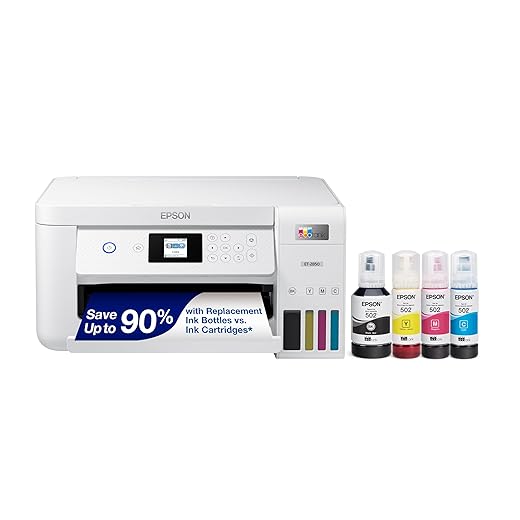
Epson EcoTank ET-2850 Wireless Color All-in-One Cartridge-Free Supertank Printer with Scan, Copy and Auto 2-Sided Printing
Features
| Brand | Epson |
| Connectivity Technology | USB, Wi-Fi |
| Printing Technology | Inkjet |
| Special Feature | Auto 2-sided Printing, Refillable Ink Tank |
| Color | White |
| Model Name | ET-2850 White |
| Printer Output | Color |
| Maximum Print Speed Color | 5 ppm |
| Max Printspeed Monochrome | 10.5 |
| Item Weight | 16.21 Pounds |
The EcoTank ET-2850 All-in-One Supertank Printer in white offers impressive printing capabilities. It can print up to 10.5 pages per minute in black and 5 pages per minute in color. The printer boasts a 4800 x 1200 resolution, ensuring crisp and clear text and images. Additionally, its auto 2-sided printing feature helps save time and money. For added convenience, the printer supports mobile printing options, including the Epson Smart Panel App, Epson Remote Print, Apple AirPrint, Android Printing, and Mopria Print Service.